To create a block, go to “New block”, as shown in the screenshot below.
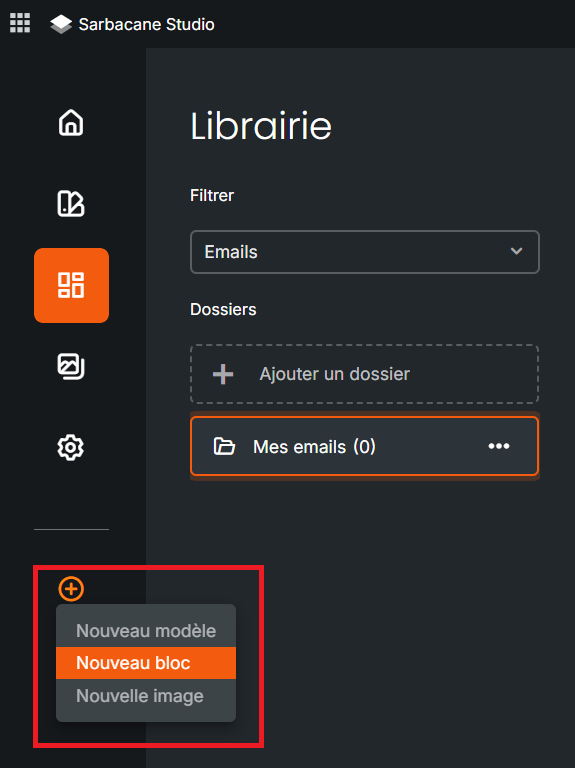
To edit an existing block, hover over the desired block with your mouse. An “Edit” button appears; simply click on it.
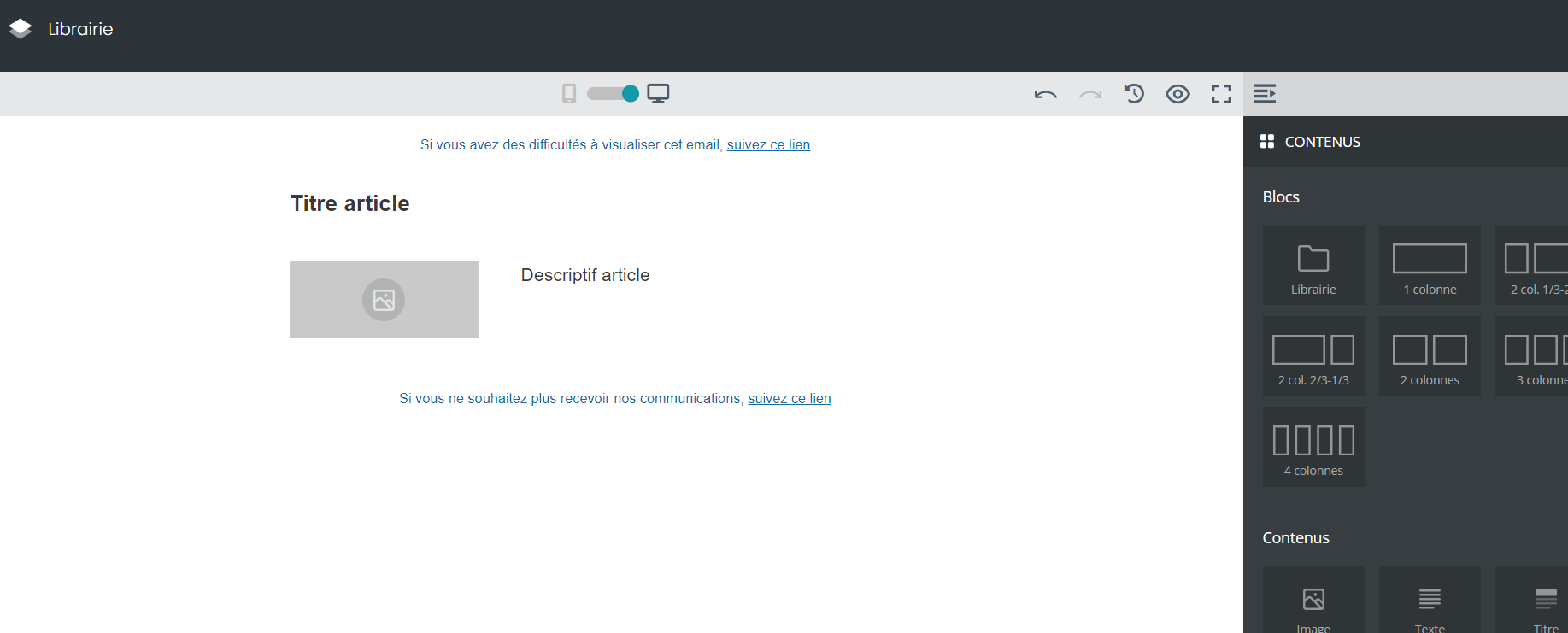
Use the drag & drop editor to create or modify your block
The drag & drop editor opens, and the structure of your block is created in two steps using drag and drop:
Selecting the content block (which defines the number of columns and their spacing)
Selecting the content, which will allow you to add text and/or images, among other elements.
Identify the block
Once you have completed your creation or modification, you will be asked after saving to do the following:
Name your block
Add tags.
Taking the time to define these two parameters will help you manage your library in the future by making your subsequent searches easier.
