Sarbacane Campaigns is one of the applications that make up Sarbacane Suite.
A complete Suite license gives you access to all Suite modules. If you purchase only a license for Sarbacane Campaigns, the Sarbacane Contacts application (management of your contacts) will be provided to you.
Sarbacane Campaigns is the application that will allow you to create, send, and analyze your email campaigns, your marketing SMS, and your automated email and SMS scenarios.
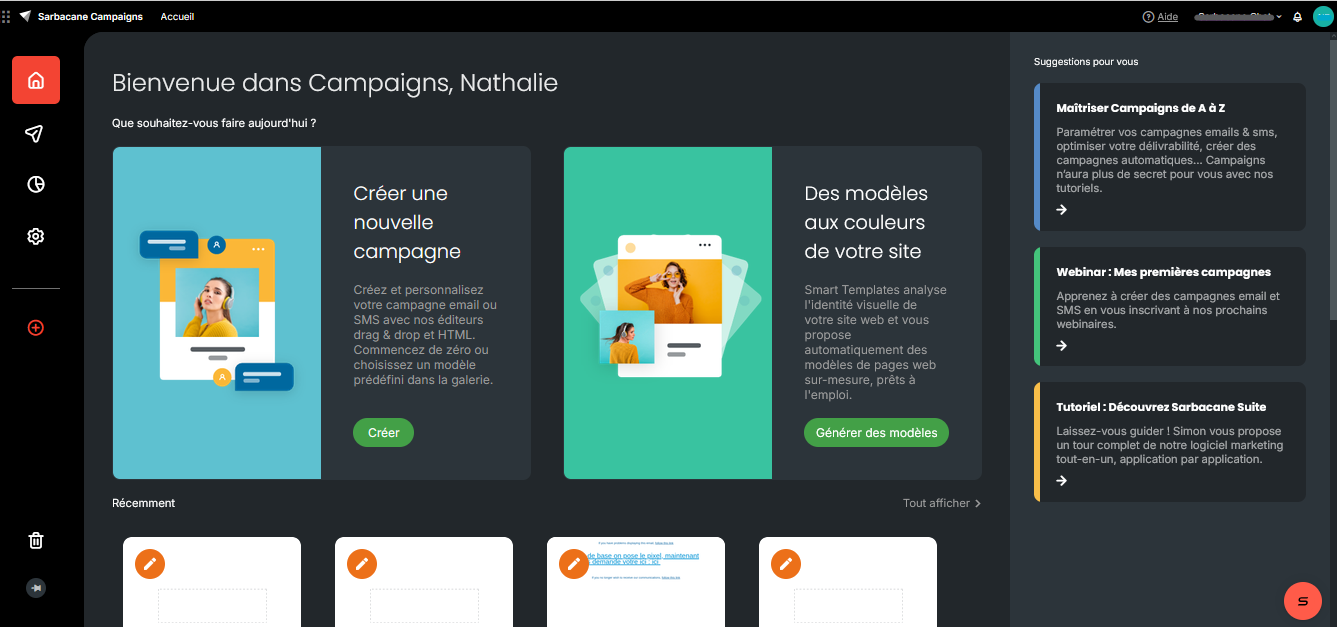
The main menu located on the left side of the Sarbacane Campaigns home page is divided into 6 sections:
Home
Campaigns
Statistics
Settings
Campaign creation button
Trash
The home page, represented by the house icon in the main menu, allows you to return to the Sarbacane Campaigns home screen.
This section brings together all campaigns created on Sarbacane Campaigns. You will find email and SMS campaigns as well as automated scenarios that you have created.
Your campaigns may display different statuses:
For your email campaigns:
Being edited
Campaign sent
Campaign being sent
Campaign scheduled
Campaign rejected
Campaign awaiting decision
Campaign under moderation
For your automated campaigns:
At the editing stage
Incomplete message
Complete message
At the publishing stage
Campaign activated
Campaign deactivated
For each campaign, you are informed:
For email campaigns:
the campaign name
the subject line
the number of recipients
the campaign tags
the number of emails delivered
open and click statistics
For SMS campaigns:
the campaign name
the sender name
the number of recipients
the campaign tags
the number of SMS delivered
delivery statistics
For automated campaigns:
the campaign name
the subject or trigger type if it is an automated campaign
the number of recipients
the campaign tags
information about creation, modification, and send dates
When you select a campaign (email, SMS, or automated), it displays in full in the right panel to give you a preview of the campaign.
At the top right of this preview, you can:
track statistics
add new recipients to it
duplicate it
rename the campaign
delete it
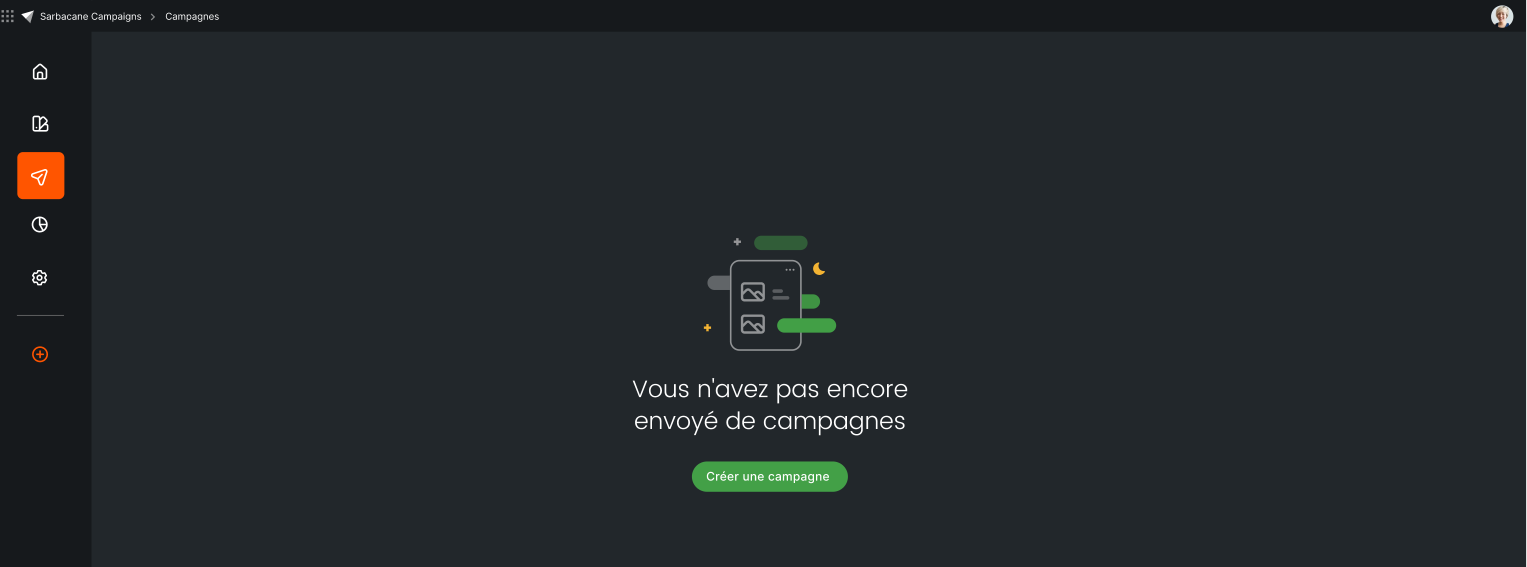
Please note that when you start with Sarbacane Campaigns, the "Campaigns" section is empty and you are then offered to create your first campaign by clicking the "Create a campaign" button.
This section brings together all statistics for each campaign sent with Sarbacane Campaigns (email, SMS, and automated campaign). You can view the performance of your campaigns either through a global grouped view that takes multiple campaigns into account, or through a per-campaign view to focus on the performance of a specific campaign.
Please note that you can also export statistics, relaunch with a new campaign, or create a contact list from the global view and from the per-campaign view by clicking on the action menu in the top right corner of the statistics screen.
When you click on the statistics icon in the left sidebar menu of Sarbacane Campaigns, you are redirected by default to the global view of your campaign statistics. This global view gives you an overview of the performance of the 10 most recent campaigns sent over the selected period. You are free to modify the period to see grouped statistics for more or fewer campaigns.
To view the statistics of a single specific campaign, simply open the selection panel and click on its thumbnail.
Below the thumbnail, you will then see the following information for each campaign initially:
Campaign name
Subject
Number of recipients
Tags associated with the campaign
Information on creation, modification, and sending dates
Number of emails sent (this may differ from the number of recipients, as it excludes invalid addresses and unsubscribed contacts)
Cumulative open and click rates
To access detailed statistics for a campaign, simply click on the desired campaign. The statistics details will then be displayed in the right panel under several tabs:
Results
Behavioral tracking
Geolocation
Links
Technologies
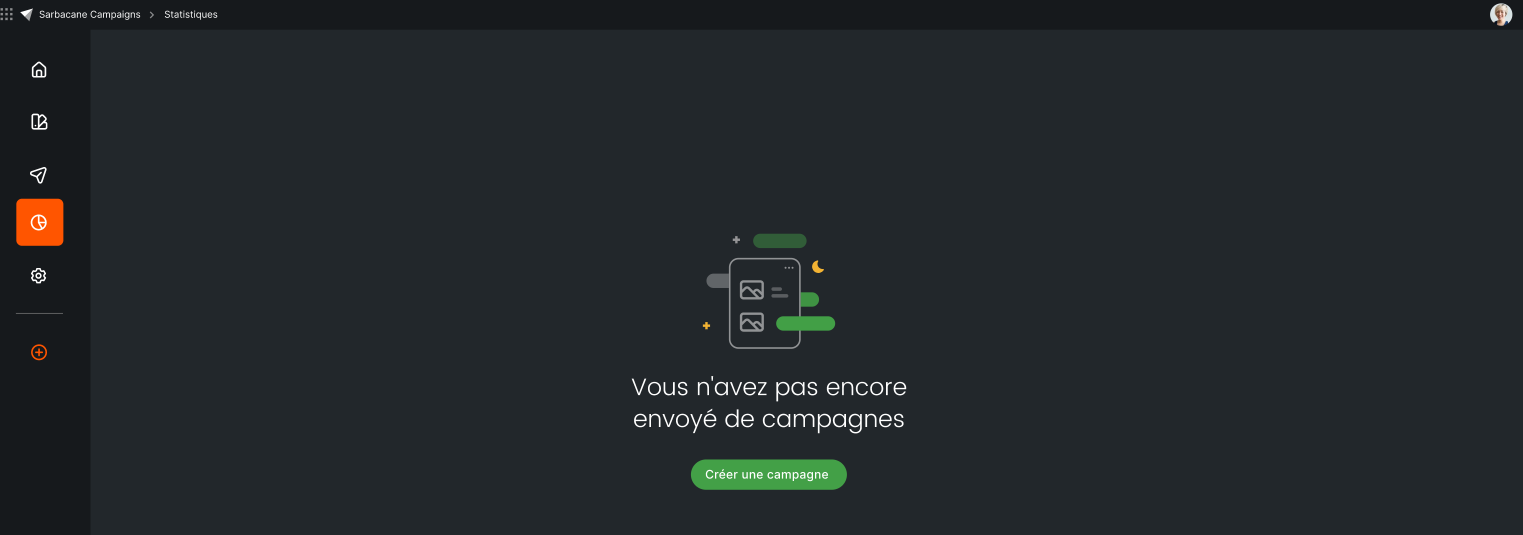
Please note that when you start with Sarbacane Campaigns, the "Statistics" section is empty and you are then offered to create your first campaign by clicking the "Create a campaign" button.
This section redirects you to your Sarbacane account settings. You then leave the campaigns application to access Sarbacane's global settings (profile, billing, send history, notifications, etc.).
In this section, you have the ability to define:
Your Email sending preferences:
Enable / disable sender field pre-population and reply address
Control marketing pressure
Enable / disable Sarbacane signature
Enable / disable recipient deduplication
Enable / disable authentication
Your Email unsubscribe preferences
Here you can choose your unsubscribe method :
Standard page: contacts wishing to unsubscribe will be redirected to a confirmation page. Sarbacane
Redirection: Sarbacane Campaigns will record unsubscriptions and then redirect recipients to the confirmation page of your choice.
Enable / disable one-click unsubscribe (option available only if you have selected the "standard page" as your unsubscribe method)
Your SMS sending preferences:
Enable/Disable SMS campaign management: disabling SMS campaigns allows you to simplify the Sarbacane Campaigns interface by hiding all features related to SMS campaign creation
Control marketing pressure
In this section, you have the ability to:
Enable behavioral tracking: this option allows you to retrieve certain information about the actions performed by your recipients, such as opens, reading time, clicks, unsubscriptions, reading device, etc.
Enable geolocation: this option allows you to have an overview of your recipients' location when they view your campaign. Please note that geolocation is based on the recipient's IP address at the time of campaign opening.
Enable campaign tracking in Google Analytics: by enabling this option, you will have the ability to add the UTM tags you wish to appear in your Google Analytics reports. Please note that the "UTM_Medium" tag, defined by Google as the marketing channel of the campaign, will be automatically populated with Email or SMS.
In this section, Sarbacane Campaigns offers you the ability to customize the domain name of the sending server, as well as all links included in your campaigns with your domain name. This customization will provide you with better deliverability.
You have two options available to customize the sending domain for your campaigns:
You do not have a domain name and wish to create one with Sarbacane.
You have your own domain name and wish to use it for sending your campaigns.
From this menu, you have the ability to configure the connectors available on Sarbacane Campaigns. We recommend that you configure the connectors you need.
In this section, you will be able to:
Enable/disable API keys and webhooks linked to Sarbacane Campaigns
Access the API documentation and Webhook documentation for Sarbacane Campaigns
Add an API key and/or a webhook
The last section of the left sidebar menu allows you to create:
Create a new campaign (email, SMS, or automated)
Create a new template
Generate new Smart Email Templates
We wish you a pleasant experience using Sarbacane Campaigns!
