Sarbacane Campaigns is one of the applications that make up Sarbacane Suite.
When you create a Sarbacane account, you have access to Sarbacane Campaigns and to the other modules of the Suite for 30 days.
If you then purchase a full Suite license, you will have access to all the modules of the Suite. If you purchase only a license for Sarbacane Campaigns, the Sarbacane Contacts application (management of your contacts) will be offered to you.
Sarbacane Campaigns is the application that will enable you to create, send, and analyze your email campaigns, your marketing SMS messages, and your automated email and SMS scenarios.
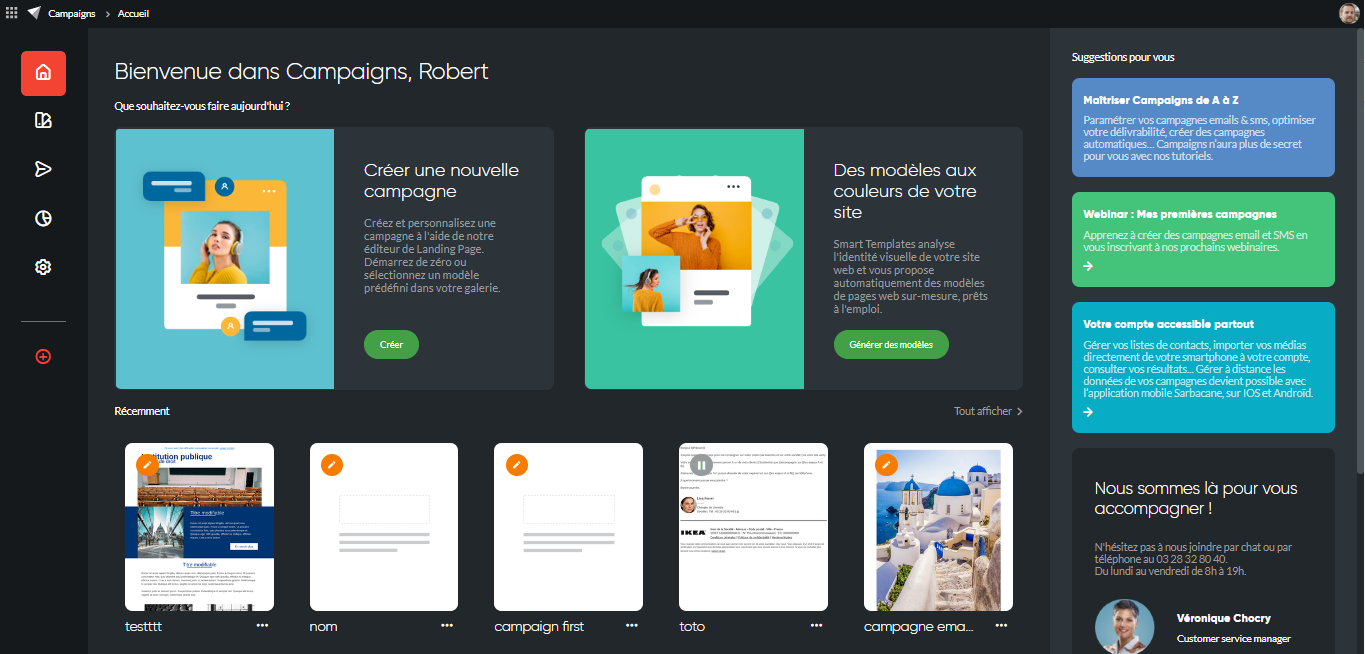
The main menu located on the left of the Sarbacane Campaigns home page is divided into 6 sections:
Home
Templates
Campaigns
Statistics
Settings
Campaign creation button
The Home section, symbolized by the house icon in the main menu, allows you to return to the Sarbacane Campaigns home screen.
The “Templates” section allows you to access the email templates available in your account.
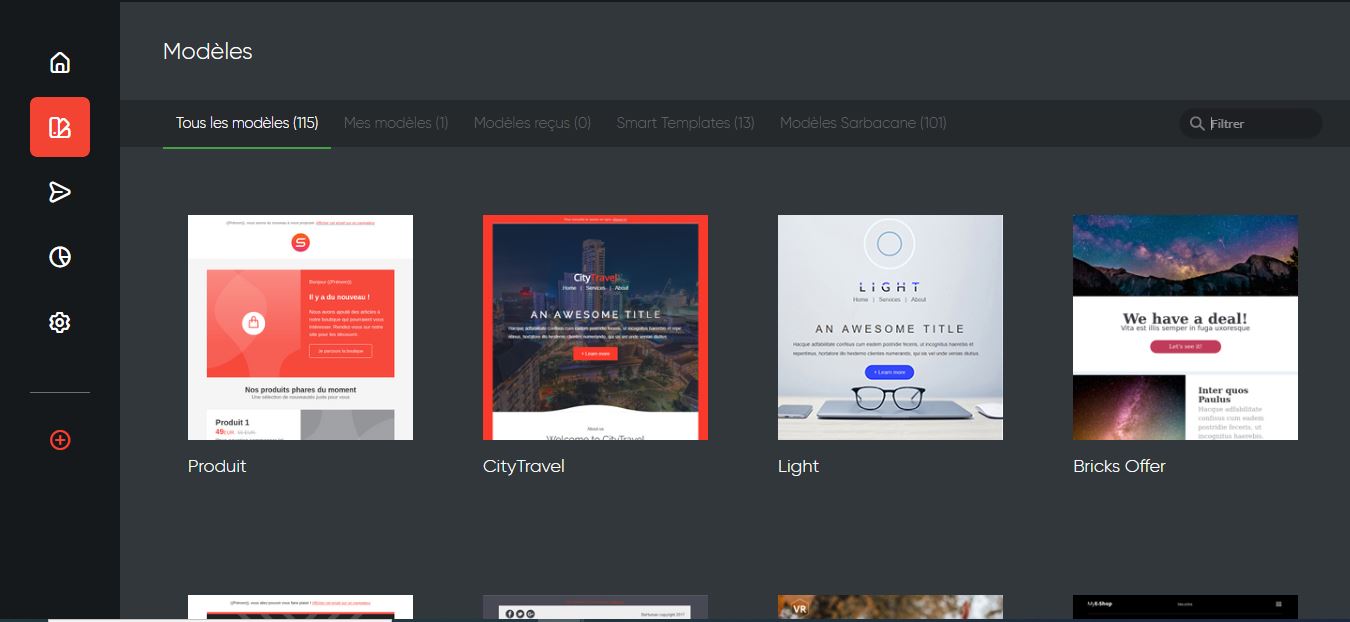
The templates are classified into several tabs:
All templates: this tab gives you access to all templates available in your account
My templates: this tab gives you access to the templates that you have created yourself with Sarbacane’s EmailBuilder, either by modifying an existing template or by creating your own template from scratch
Received templates: this tab gives you access to the templates that another user has shared with you.
Smart Templates: this tab gives you access to our email template generator. Simply enter the URL of your website and our tool will analyse your site’s graphic charter to generate more than a dozen email templates in the colours of your website.
Sarbacane templates: find here all the templates created by our web design experts. More than a hundred responsive templates covering various recurring themes in email marketing (sales, birthday, Mother’s Day, welcome email, etc.) are available. It is up to you to customise them with Sarbacane’s EmailBuilder!
You also have a search field to find a template by searching for it by name.
In the “Templates” section of Sarbacane Campaigns, you can create email templates to be reused and modified for sending your future email campaigns. You can:
Create a new email template
Preview an existing template
Edit an existing template and save it
Create a campaign from an existing template
Rename a template (except Smart Templates)
Duplicate a template (except Smart Templates)
Manage access rights for each template
Transfer a template to another Sarbacane account
Delete a template (except Smart Templates)
This section groups together all campaigns created on Sarbacane Campaigns. You will find email and SMS campaigns, as well as the automatic scenarios you have created.
Your campaigns may display different statuses:
For your email campaigns:
Being edited
Campaign sent
Campaign being sent
Scheduled campaign
Rejected campaign
Campaign pending decision
Campaign under moderation
For your automatic campaigns:
At the editing stage
Incomplete message
Complete message
At the publication stage
Activated campaign
Deactivated campaign
For each campaign, you are informed:
For email campaigns:
of the name of the campaign
of the subject
of the number of recipients
of the campaign tags
of the number of delivered emails
of the open and click statistics
For SMS campaigns:
of the name of the campaign
of the sender name
of the number of recipients
of the campaign tags
of the number of delivered SMS
of the reception statistics
For automatic campaigns:
the name of the campaign
the subject or the type of trigger if it is an automatic campaign
the number of recipients
the tags of the campaign
information on the creation, modification, and sending dates
When you select a campaign (email, SMS, or automatic), it is fully displayed in the right-hand panel to give you a preview of the campaign.
At the top right of this preview, you can:
track the statistics
add new recipients to it
duplicate it
rename the campaign
delete it
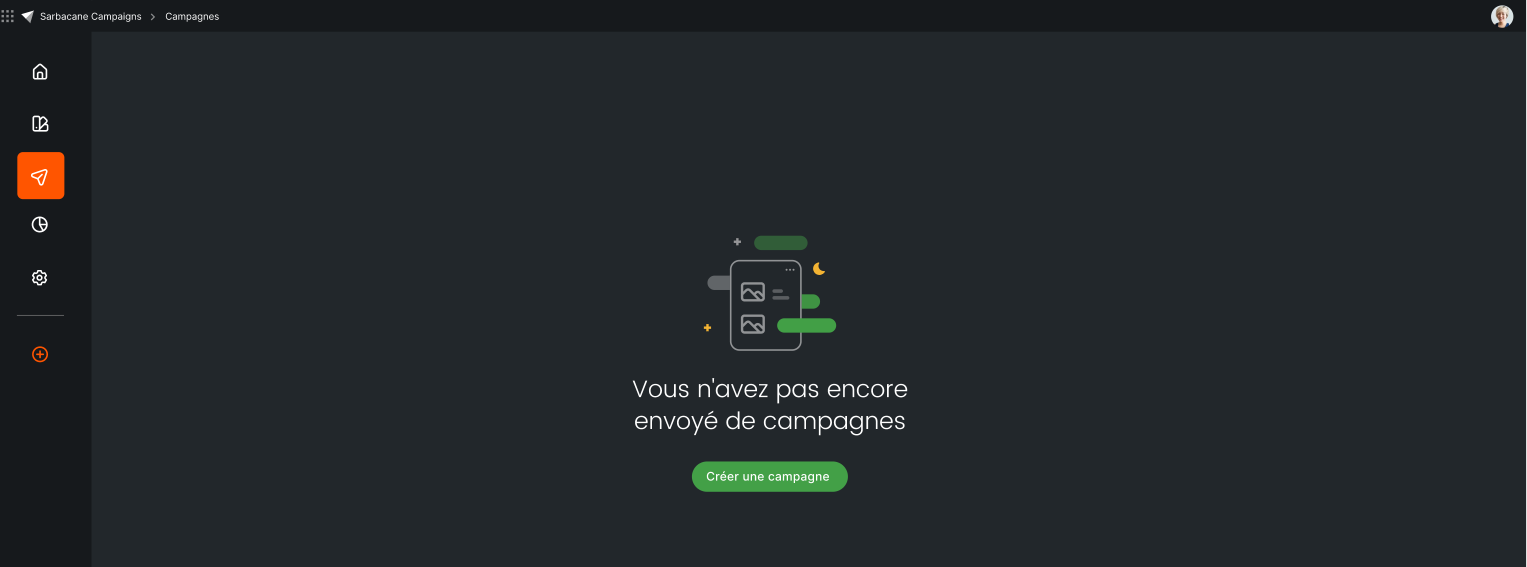
Note that when you start with Sarbacane Campaigns, the “Campaigns” section is empty and you are prompted to create your first campaign by clicking the “Create a campaign” button.
This section consolidates all statistics for each campaign sent with Sarbacane Campaigns (email, SMS, and automatic campaign). You can view the performance of your campaigns either through a global grouped view that takes several campaigns into account, or with a per-campaign view to focus on the performance of a specific campaign.
Note that you can also export the statistics, relaunch with a new campaign, or create a contact list from the global view and from the campaign view by clicking on the action menu at the top right of the statistics screen.
When you click on the statistics icon in the left side menu of Sarbacane Campaigns, you are redirected by default to the global view of your campaign statistics. This global view gives you an overview of the performance of the last 10 campaigns sent during the selected period. You are free to modify the period in order to view grouped statistics for a greater or smaller number of campaigns.
To display the statistics for a single specific campaign, simply open the selection panel and click on its thumbnail.
Below the thumbnail, you will then see for each campaign the following information at first:
Campaign name
Subject
Number of recipients
Tags attached to the campaign
Information on creation, modification, and sending dates
Number of emails sent (this may differ from the number of recipients, as NPAI and unsubscribed contacts are removed)
Cumulative open and click rates
To access the detailed statistics of a campaign, simply click on the desired campaign. The detailed statistics are then displayed in the right-hand panel under several tabs:
Results
Behavioral tracking
Geolocation
Links
Technologies
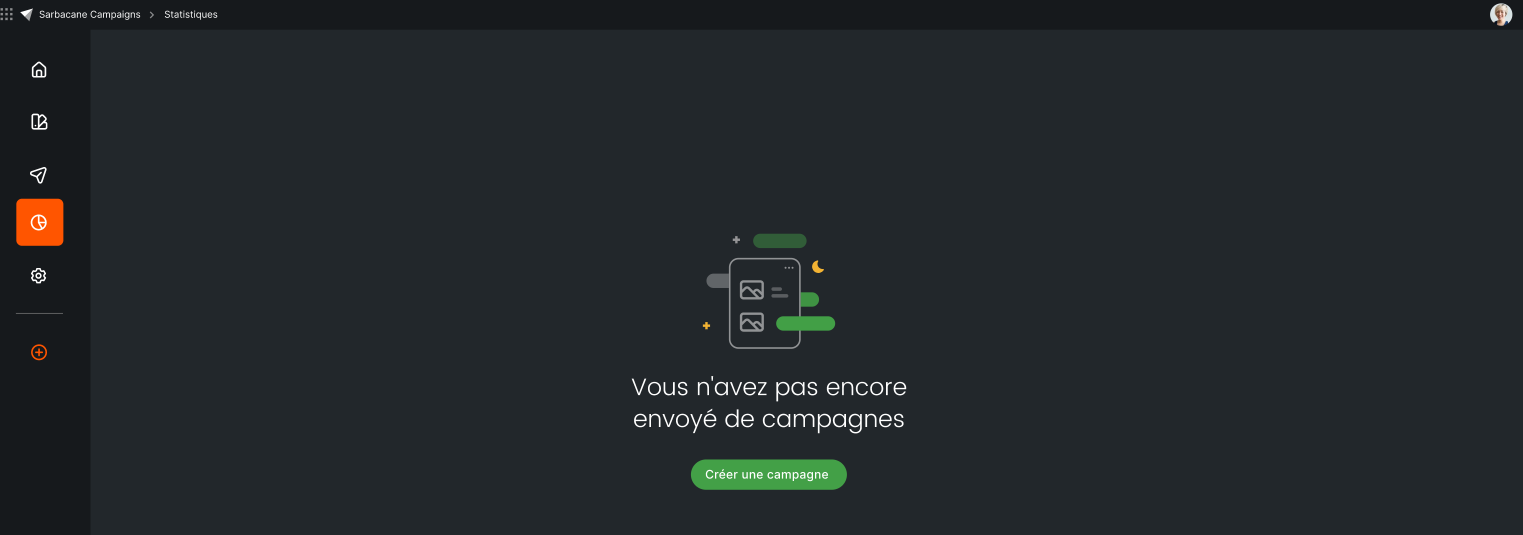
Note that when you start with Sarbacane Campaigns, the “Statistics” section is empty and you are then invited to create your first campaign by clicking on the “Create a campaign” button.
This section redirects you to the settings of your Sarbacane account. You then leave the Campaigns application to access the global Sarbacane settings (profile, billing, sending history, notifications, etc.).
In this section, you have the option to define:
Your Email sending preferences:
Enable / Disable the pre-filling of the sender field and the reply-to address
Control marketing pressure
Enable / Disable the Sarbacane signature
Enable / Disable deduplication of recipients
Enable / Disable authentication
Your Email unsubscribe preferences
Here you can choose your unsubscribe method :
Standard page: contacts wishing to unsubscribe will be redirected to a Sarbacane confirmation page
Redirection: Sarbacane Campaigns will record the unsubscribes and then redirect recipients to the confirmation page of your choice.
Enable / disable 2-click unsubscribe (option available only if you have chosen the “standard page” as the unsubscribe method)
Your SMS sending preferences:
Enable / Disable SMS campaign management: disabling SMS campaigns simplifies the Sarbacane Campaigns interface by hiding all features related to the creation of SMS campaigns
Control marketing pressure
In this section you have the possibility to:
Enable behavioral tracking: this option allows you to collect a certain amount of information on the actions performed by your recipients, such as opens, reading time, clicks, unsubscribes, reading device, etc.
Enable geolocation: this option allows you to get an overview of the location of your recipients at the time they view your campaign. Note that geolocation is based on the recipient’s IP address when the campaign is opened.
Enable campaign tracking in Google Analytics: by enabling this option, you will be able to add the UTM tags you wish to have displayed in your Google Analytics reports. Note that the “UTM_Medium” tag, defined by Google as the marketing channel of the campaign, will be automatically filled in as Email or SMS.
In this section, Sarbacane Campaigns gives you the option to customize the domain name of the sending server, as well as all the links included in your campaigns with your own domain name. This customization will provide you with better deliverability.
Two options are available to you to customize the sending domain of your campaigns:
You do not have a domain name and you would like to create one with Sarbacane
You have your own domain name and wish to use it for sending your campaigns
From this menu, you have the option to configure the connectors available on Sarbacane Campaigns. We recommend configuring the connectors you need.
In this section, you will be able to:
Enable / disable the API keys and webhooks linked to Sarbacane Campaigns
Access the API documentation and the Webhook documentation of Sarbacane Campaigns
Add an API key and/or a webhook
The last section of the left sidebar menu enables you to create:
Create a new campaign (email, SMS or automatic)
Create a new template
Generate new Smart Email Templates
We wish you a pleasant experience using Sarbacane Campaigns!
