From Sarbacane, it is possible to prefill a form created in the software so that, when it is opened, certain information about your recipients is already provided. The purpose is to save your contacts time, which can also encourage a higher number of responses, as completing the form is faster.
You will find below how to proceed. The sine qua non condition for pre-filling your form is that you have the required information in your contact list in Sarbacane.
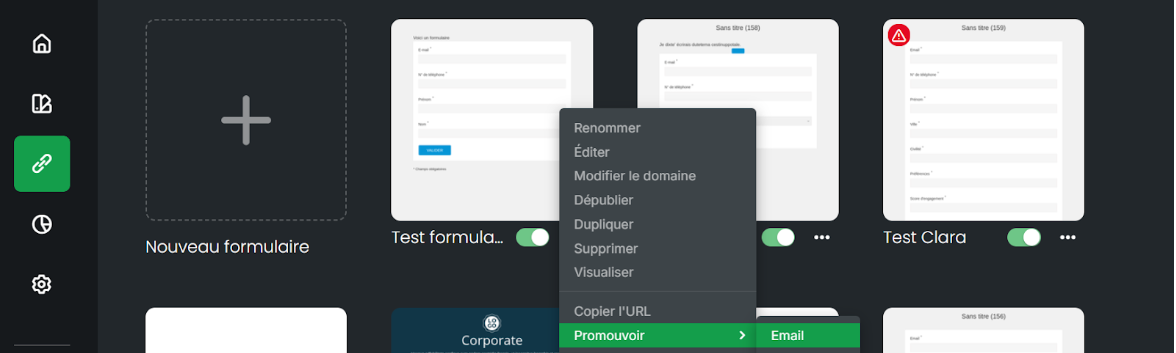
Next, go to the “Forms” section of your account, then select the “Promote” option:
A campaign will then be generated automatically and a button with your personalized form link will be displayed:
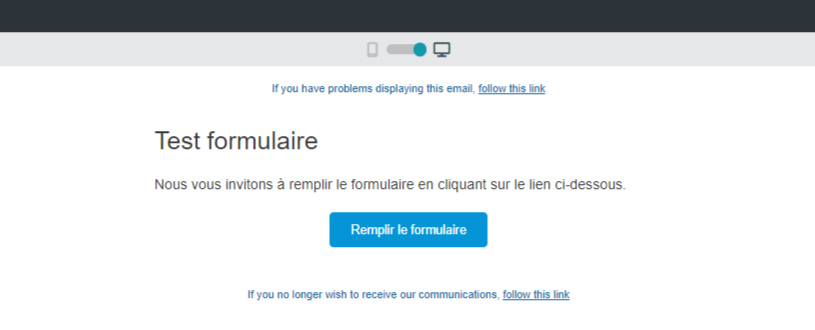
When you click on the “Fill in the form” button and look at your URL, here is what you will see:
https://exemple.exemple.exemple.exemple/form.html?email=((Email))&phone=((N° de mobile))&SxQTWre8T0iYlKI35DjUXQ=((Civilité))&2bf44c7f-fcf1-48cd-a9dd-a7b65a33e460=((Prénom))&e71ca5aa-58b2-4a7c-9c52-df6f49a84bc2=((Nom))
The form fields reproduced here are system fields, that is to say the default fields: email, mobile number, title, first name and last name.
If your form contains questions other than the fields mentioned and you wish to prefill them (such as postal code, for example), once your column mapping has been completed in your form, you must retrieve the column identifier in order to add it to the form URL.
For example, for a Postal code question, once your question has been created on the form, you can, in a text area (above your form for instance), retrieve the personalization field of your question by selecting the braces in the formatting block, then clicking on the correct field, here Postal code. You will see an identifier appear like this:
((cd9a09bb-323e-4fd4-864a-5e67d9835084))
This will therefore allow you to add this identifier at the end of your generated URL after having clicked on Promote.
If we take the example above, you have your base and the bold addition:
https://exemple.exemple.exemple.exemple/form.html?email=((Email))&phone=((N° de mobile))&SxQTWre8T0iYlKI35DjUXQ=((Civilité))&2bf44c7f-fcf1-48cd-a9dd-a7b65a33e460=((Prénom))&e71ca5aa-58b2-4a7c-9c52-df6f49a84bc2=((Nom)&cd9a09bb-323e-4fd4-864a-5e67d9835084=((Postal code))
As you will have noticed, you will need to add & before entering your identifier without the parentheses, followed by = and the name of the column in parentheses.
The name of the column must be completely identical to that of your list.
