Within the Email Builder, Smart Content offers two methods:
Automatic suggestion
Adding instructions.
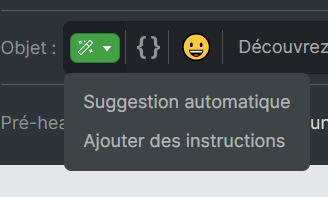
The ultimate goal of these two methods is the same, but the preferred approach differs depending on the progress of your campaign.
In both cases, suggestions can be generated once or multiple times: nothing prevents you from requesting a new suggestion or using an automatic suggestion as a source of inspiration and then adjusting the proposed text.
1. The automatic suggestion analyzes the content of your email in order to independently generate the subject line and preheader, and therefore logically requires that your email has already been drafted.
However, Smart Content is able to generate the subject line and preheader from a work-in-progress version or from a simple template. Nevertheless, the relevance of the suggestions will depend on how advanced your own drafting is.
2. By selecting “Add instructions”, the subject line and preheader are generated simultaneously, without requiring your email to have already been drafted.
By selecting this method, a dialog box opens and gives you access to various parameters:
A text field “What is your campaign about?”, intended to collect your instructions (see example below).
A single-choice field “Message tone“, designed to be close to the usual tone of your communications (casual for “Creative”, professional for “Balanced” or formal for “Precise”).
A selector “Message content”, designed to comply with your usual practices regarding the insertion of emojis and personalization variables.
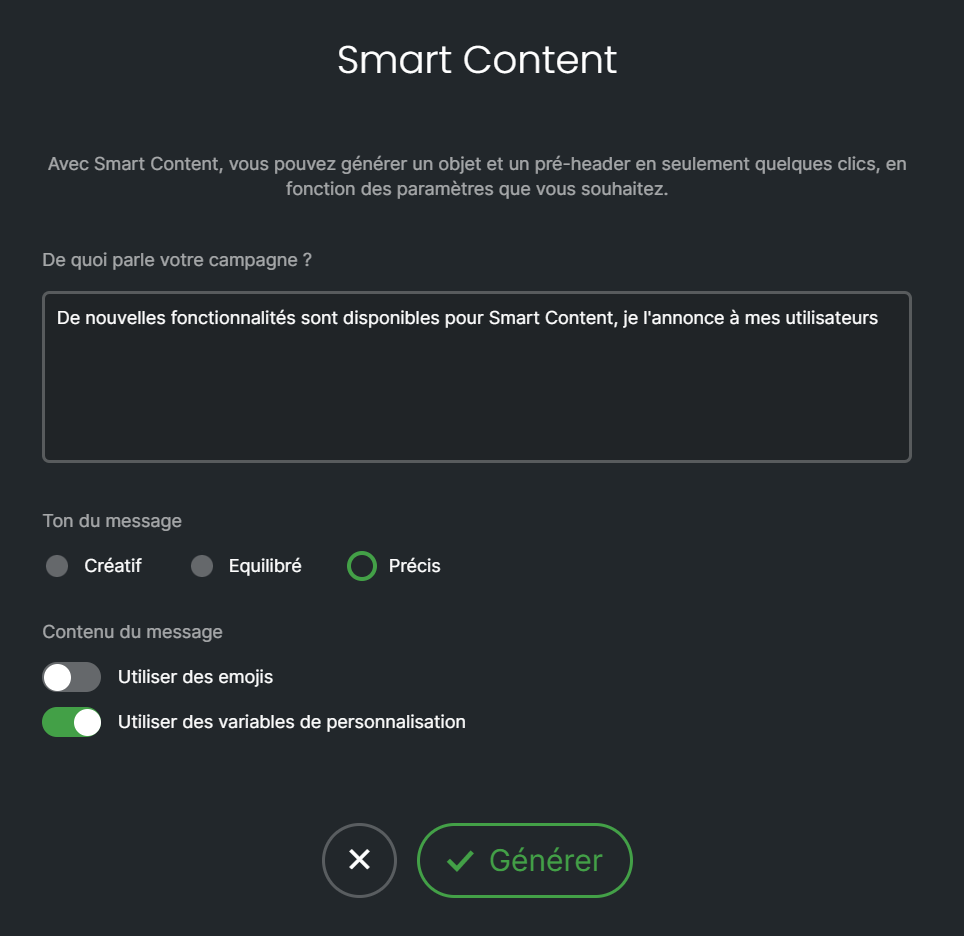
Based on these parameters, five pairs of subject line and preheader suggestions are generated.
Good to know:
Choosing a suggestion does not prevent you from modifying it later, either automatically or manually.
If the preheader gauge is displayed in red, the deliverability of your campaign will not be affected; you will simply need to ensure that the main information appears at the beginning of the sentence (see screenshot below).
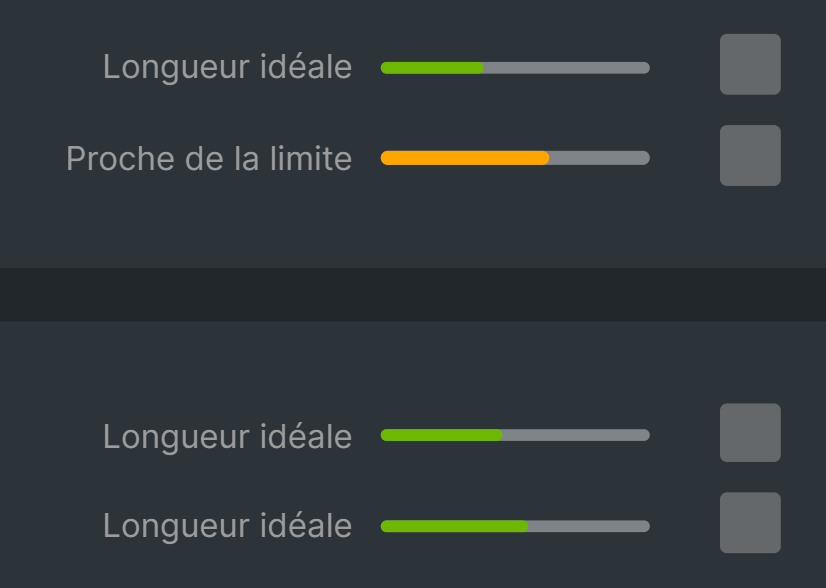
It is then possible, using the checkboxes:
To retain a subject only, as is or for modification
To retain a preheader only, as is or for modification
To retain a subject and a preheader, as they are or for modification.
A “Generate new suggestions” button is available to you if none of the suggestions are suitable at first glance. Once you have made your choices, click on “Confirm selection”.
