Access to the functionality
To activate the functionality for generating images via artificial intelligence:
Ensure that the permission Generate an image with AI is activated for your account.
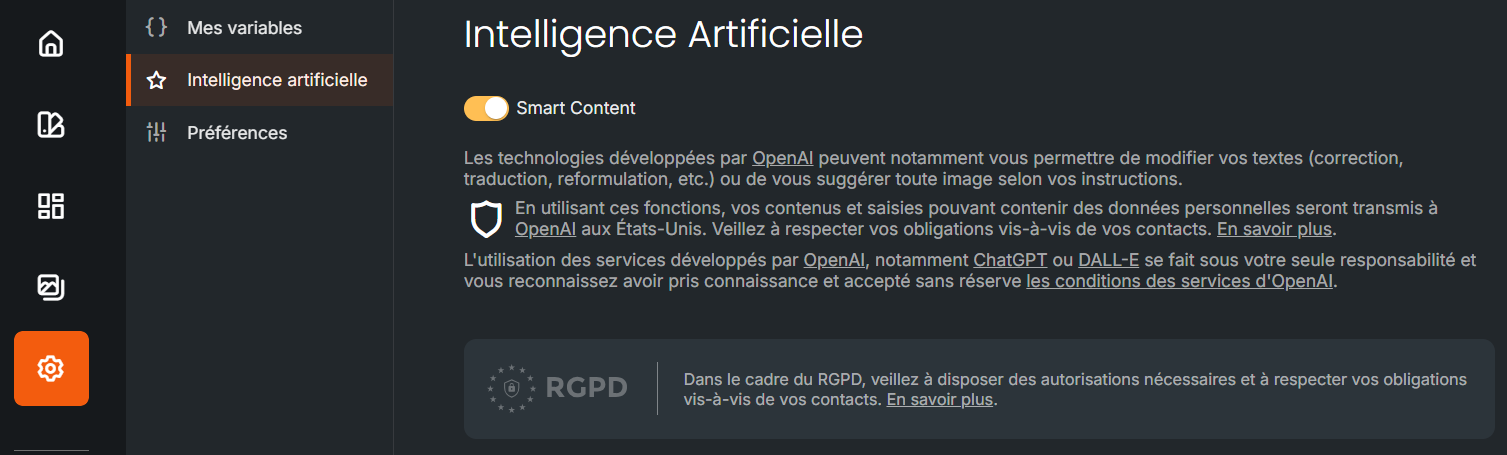
2. Access the functional module Sarbacane Studio
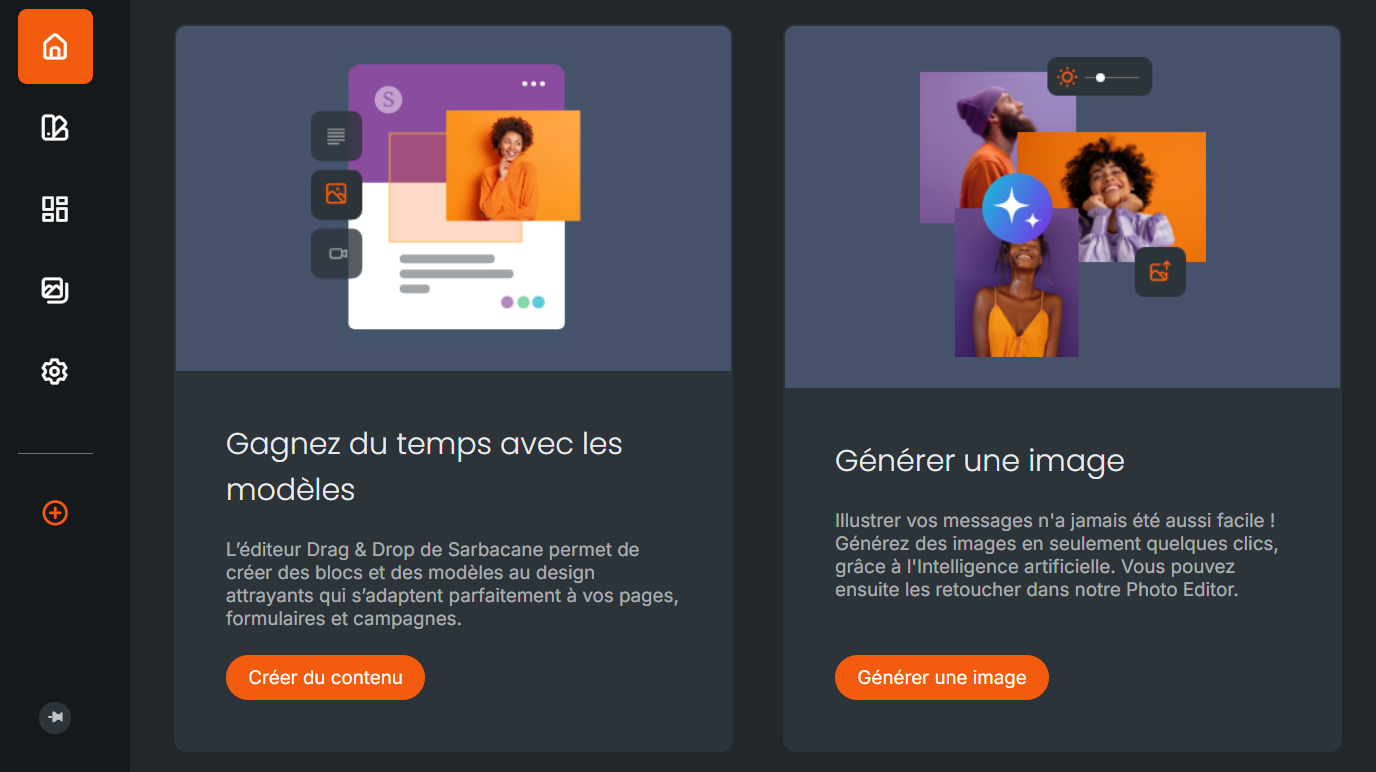
3. On the application home screen, select Generate an image.
You can also access it via the menu on the left of your screen: select the My images tab, then Generate an image.
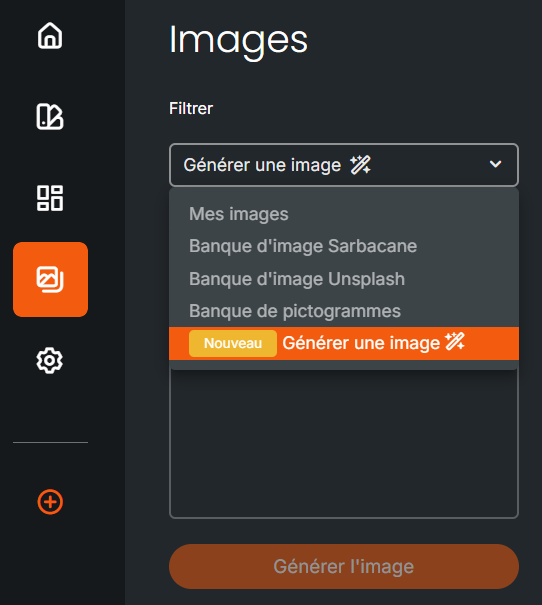
Finally, from any other tab of My images, access this generation option via the second icon on the right of your screen (the one representing a magic wand).

Generate an image
To generate an image:
As explained above, go to the Generate an image tab in the Studio application,
Fill in the box about corresponding to the description of the desired image. For example: a seaside villa accessible via a wooden pier with a sunset
Click the Generate image button,
Once generated, two images will be displayed and you will be able to: edit them, download them, save them, or delete them.
Frequently Asked Questions (FAQ)
Q: Why do I not see the image generation option?
Ensure that the feature is enabled for your account and that you have the required permissions.
Q: How can I edit or delete an image?
Go to the gallery, click on the desired image, then select Edit or Delete.
Q: Can I automatically save my generated images?
Yes. To do so, simply go to the settings and enable the option: Automatically move generated images
