The HTML File option, among the creation modes available in Sarbacane Campaigns, offers you the flexibility to customize your emails by importing an external HTML file. This can be useful if you have already created an email template or if you wish to integrate content from an existing source.
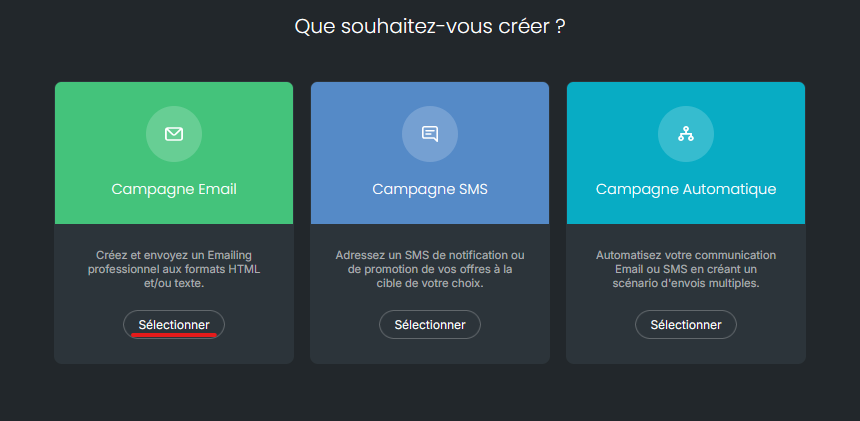
First, from the "campaigns" tab, select the creation of a new campaign and then "Email Campaign".
Next, from the breadcrumb trail located at the top of the screen, proceed to the "message" step in order to select "other creation methods" to find the "HTML File" option.
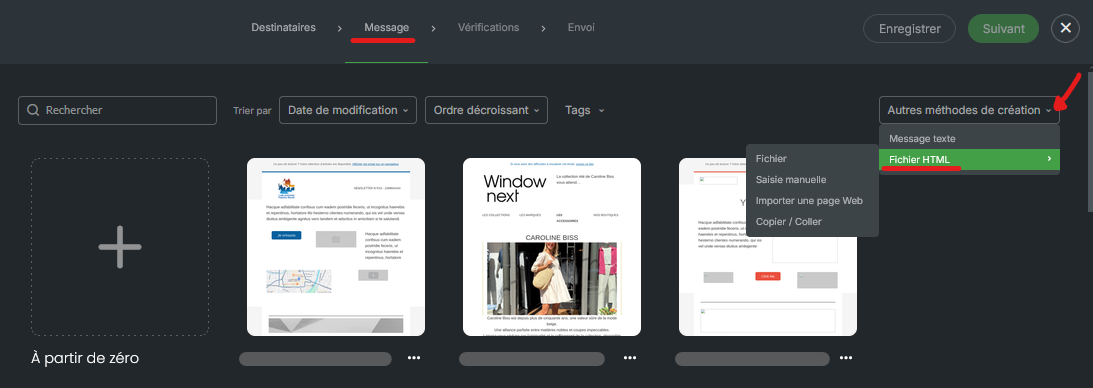
When you choose HTML file import as your creation mode, several options are available to you for creating your email campaign:
File: Select the Import a file option and choose your HTML file containing your creation from your computer. Once imported, your email is displayed in the Sarbacane Campaigns interface, ready to be edited.
Manual HTML entry: If you prefer to edit the HTML code directly, choose this option. You can write or adjust the source code of your message using the integrated HTML editor.
Import a web page: If your email campaign is already hosted online, you can simply enter the URL of the web page where it is located. Sarbacane will import the content of this page for your campaign.
Copy/paste an HTML source: for a faster approach, copy the HTML code of your email from another source, such as an external editor, then paste it into the Sarbacane Campaigns editor.
Once your HTML content is imported, you will be able to use the Sarbacane Campaigns WYSIWYG editor.
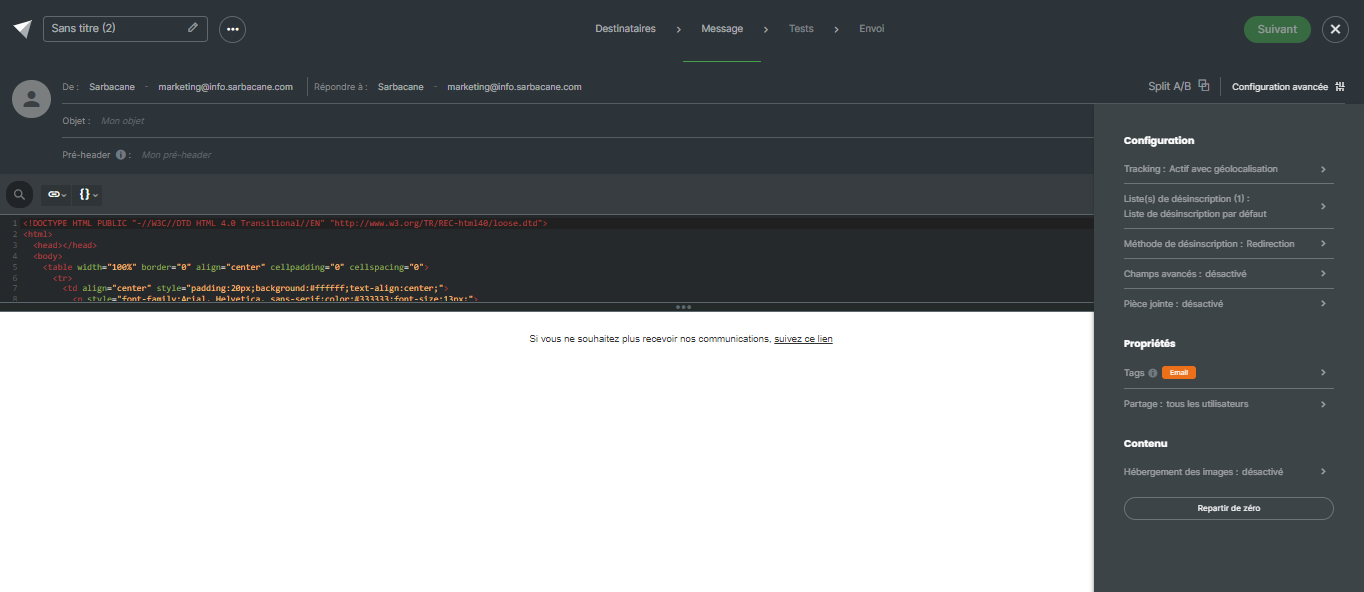
For each email campaign created with the WYSIWYG editor, you have access to the following advanced configuration options by clicking on the "Advanced configuration" section in the top right of the editor:
Configuration:
Tracking: Enable/Disable tracking options
Unsubscribe list: define one or more unsubscribe lists for your email campaign, giving your recipients the option to unsubscribe if necessary.
Unsubscribe method: define here what should happen when a contact clicks on the unsubscribe link in your campaign:
Be redirected to a standard Sarbacane page confirming the unsubscription
Be redirected to a custom unsubscribe form
Be redirected to a page on your website if you manage unsubscriptions through a page external to Sarbacane.
Advanced fields: Enable/Disable the display of advanced fields such as carbon copy in the fields available in your campaign header.
Add an attachment to your campaign
Properties:
Add tags to your campaign: this option allows you to organize your campaigns by channel or topic and filter statistics by tag.
Sharing: this option allows you to define which users and user groups can access your campaign.
Content:
Image hosting: choose where to store the images in your email: on Sarbacane servers, on an external server, or directly in the email body.
Start from scratch: If you wish to restart your creation from the beginning, use this option to reset your current work.
You can modify your code directly from the source code visible in the WYSIWYG editor or in the "HTML editor" section. However, please note that in this case, after making your changes, you will need to:
Click the "Source Code" button to redisplay the HTML code.
Verify that the code is properly displayed.
Then save your campaign.
This step updates the HTML code with the modifications made in the visual editor and ensures they are properly saved.
Our software allows the import and modification of custom HTML campaigns.
However, our support team does not provide assistance with HTML, CSS, or JavaScript code development or debugging. We can assist you with the use of software features, but we cannot intervene in the design or correction of your custom code.
Note: Unlike campaigns created with the Email builder, campaigns created with HTML file import and the WYSIWYG editor cannot be saved as templates.
