The HTML File option, among the creation modes available in Sarbacane Campaigns, offers you the flexibility to customize your emails by importing an external HTML file. This can be useful if you have already created an email template or if you wish to integrate content from an existing source.
When you choose HTML file import as the creation mode, several options are available to you to create your email campaign:
File: Select the Import a file option and choose your HTML file containing your design from your computer. Once imported, your email is displayed in the Sarbacane Campaigns interface, ready to be edited.
Manual HTML input: If you prefer to edit the HTML code directly, choose this option. You can write or adjust the source code of your message using the integrated HTML editor.
Import a web page: If your email campaign is already hosted online, you can simply enter the URL of the web page where it is located. Sarbacane will import the content of this page for your campaign.
Copy / Paste an HTML source: For a faster approach, copy the HTML code of your email from another source, such as an external editor, then paste it into the Sarbacane Campaigns editor.
Once your HTML content has been imported, you will be able to use the Sarbacane Campaigns WYSIWYG editor.
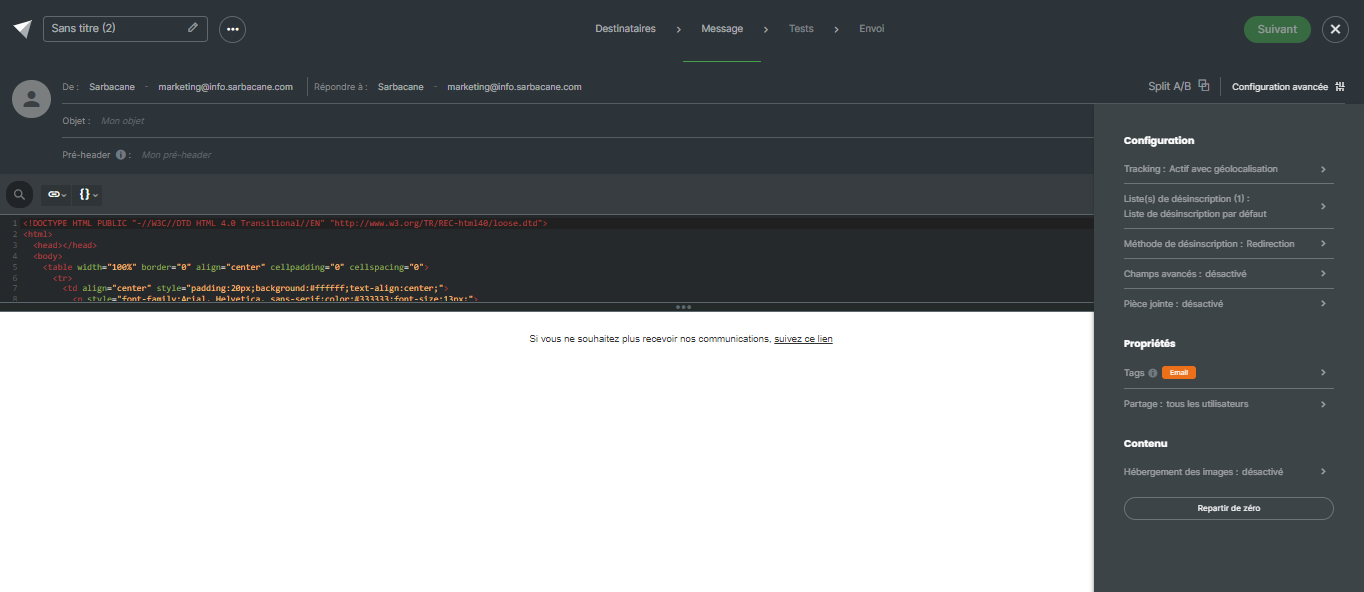
For each email campaign created with the WYSIWYG editor, you have access to the following advanced configuration options by clicking on the “Advanced configuration” section at the top right of the editor:
Configuration:
Tracking: Enable / Disable tracking options
Unsubscription list: Define one or more unsubscription list(s) for your email campaign, offering your recipients the option to unsubscribe if necessary.
Unsubscription method: Define here what should happen when a contact clicks on the unsubscribe link in your campaign:
Be redirected to a standard Sarbacane page confirming the unsubscription
Be redirected to a customized unsubscription form
Be redirected to a page on your website if you manage unsubscribes via an external page outside Sarbacane
Advanced fields: Enable / Disable the display of advanced fields such as carbon copy in the fields available in the header of your campaign
Add an attachment to your campaign
Properties:
Add tags to your campaign: this option allows you to categorize your campaigns by channel or theme and to filter statistics by tag.
Sharing: this option allows you to define which users and user groups can have access to your campaign
Content:
Image hosting: Choose where to store the images contained in your email: on Sarbacane servers, on an external server, or directly in the body of the email.
Start from scratch: If you wish to restart your creation from scratch, use this option to reset your work in progress.
Note that unlike campaigns created with the Emailbuilder, campaigns created with the HTML file import and with the WYSIWYG editor cannot be saved as templates.
