Sarbacane Pages allows you to quickly create and publish a landing page without any line of code and independent from your website.
The objective is to convince your recipients to perform an action, which may be:
Subscribing to a newsletter
Registering for a webinar
Creating an online account
Viewing the details of a point mentioned in your campaign
Downloading a white paper
Requesting a quote or a demo.
Go to the “Sarbacane Pages” application in your account.
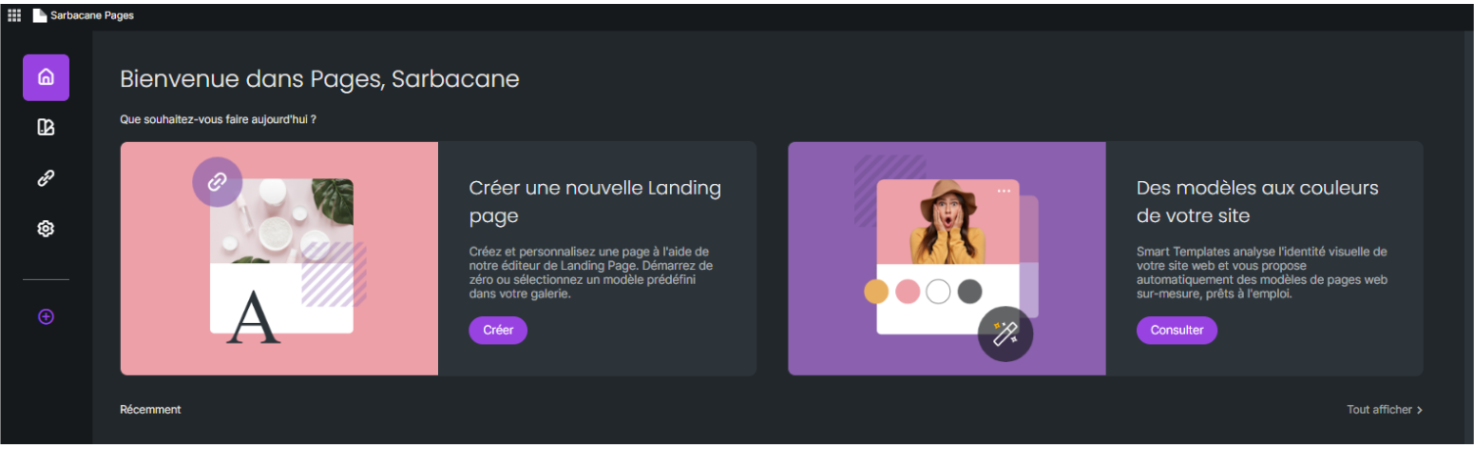
You can:
Create a new landing page from a template, or from scratch
Create a landing page in the colors of your site thanks to the “Smart Templates” feature.
By choosing the first option, “Create a new Landing Page” on the left side of your screen, you will be redirected to a blank page with predesigned and customizable templates. The Email Builder, on the right side of your screen, allows you to add blocks and content.
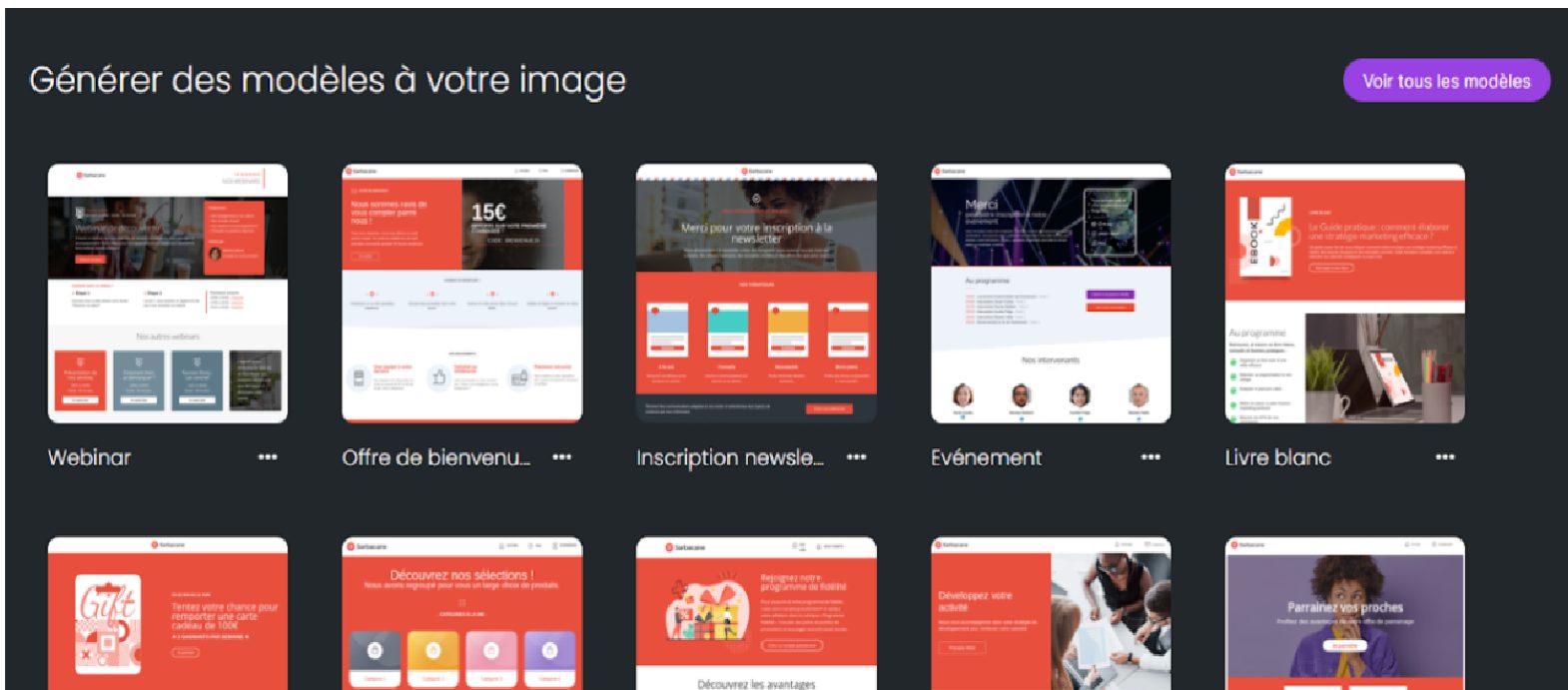
The second option, “Templates in the colors of your site”, allows you to create a page based on the graphic charter of your website.
Enter the URL of your website and the Smart Templates feature will automatically offer you a selection of pages:
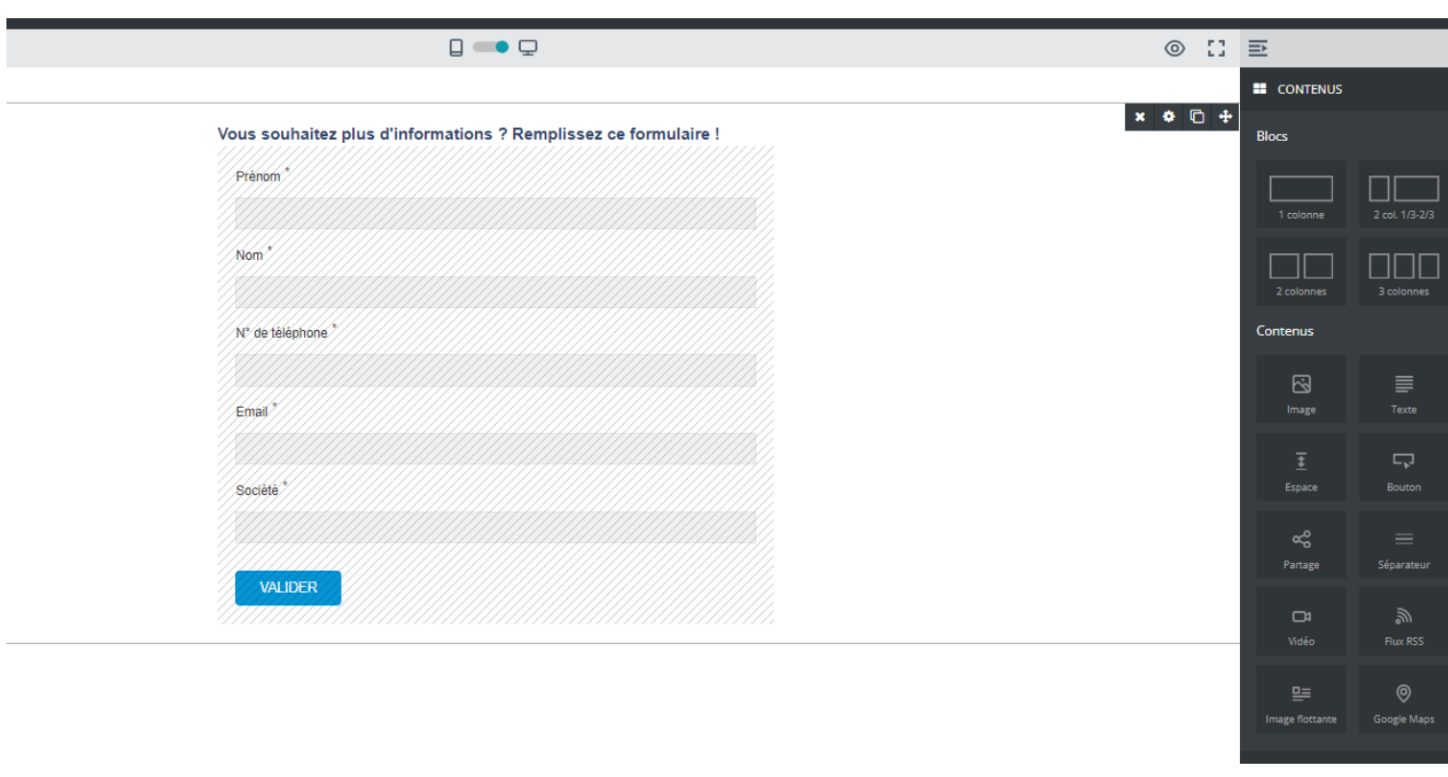
Whichever option is selected, the “Form” content is available there; it allows you to embed a form directly in the body of your page:
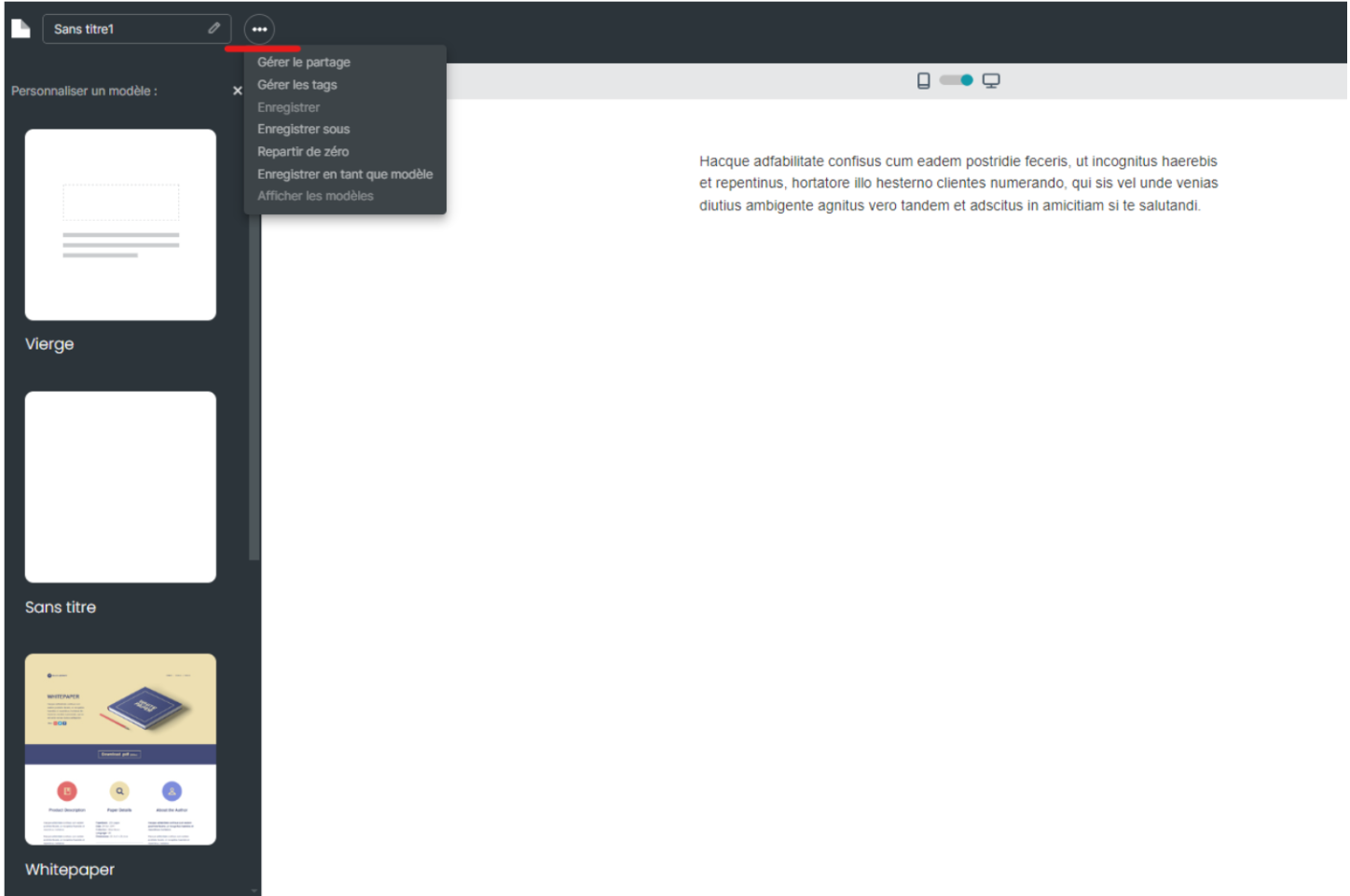
At the top left of your creation, you have access to a list of options to manage the sharing of your page, manage the associated tags, save it as a template, etc.
At the top right of your screen, you will find the save and publish buttons.
The publication step on the next screen does not publish your page on the Internet, but makes it accessible when you share it with your audience.
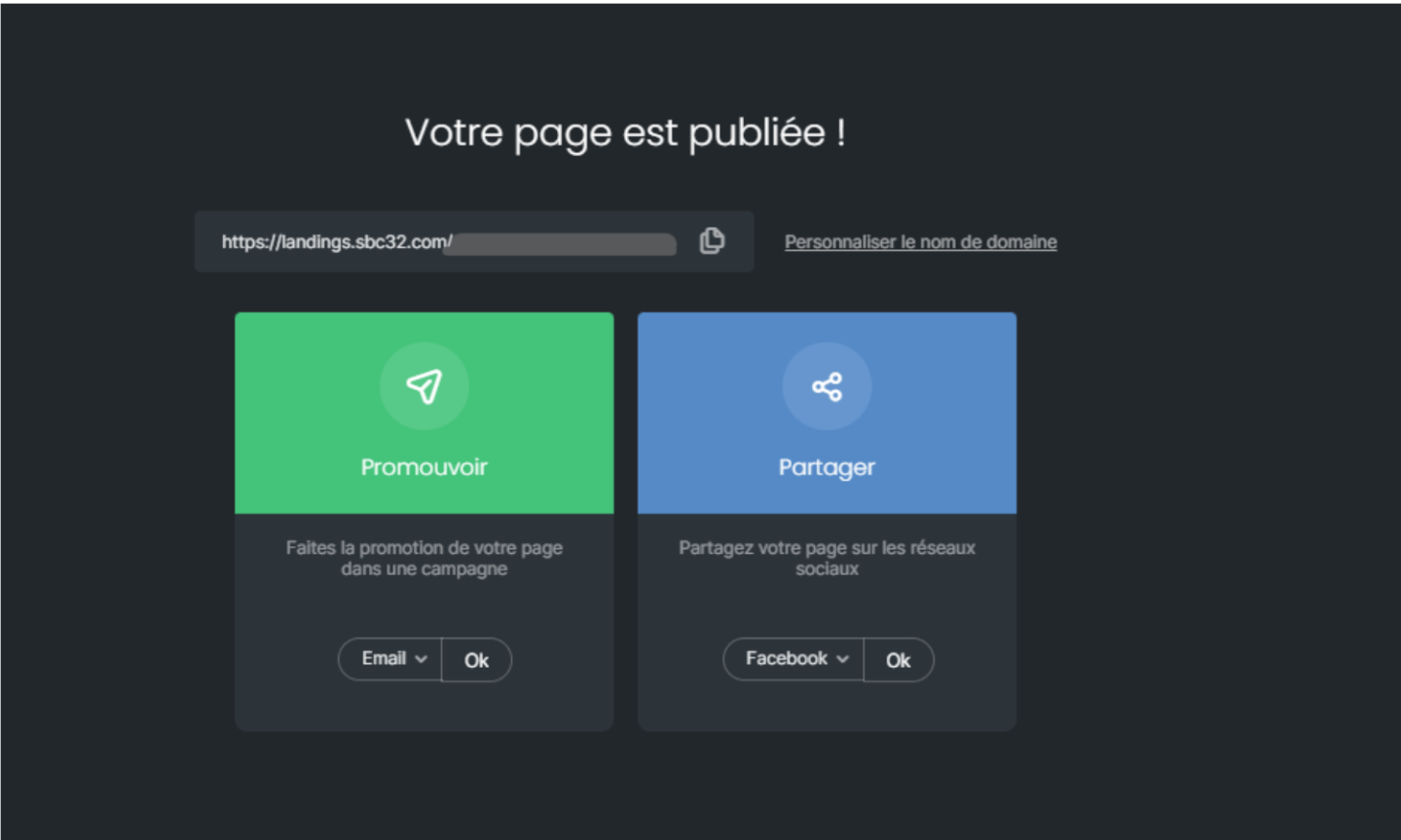
If a domain name is configured on your account, you can also associate it with the URL by clicking on “customize the domain name”. Once your page has been published, you will be able to use the URL and distribute it as you see fit.
Please note that a published page can be modified. To do so, simply make the changes of your choice, and be sure to publish the changes so that it is updated automatically.
Note: If, during verification, you notice that your modifications are not visible, it is possible that your browser is retaining an older version. Consider clearing your caches, checking your page on a new browser, or viewing it in a private browsing window.
A default page is not tracked. If you use Google Analytics, for example, you can absolutely add the UTM parameters manually in each of your links.
