When creating an email campaign in Sarbacane Campaigns, it is essential to properly manage the header parameters to ensure the effectiveness of your communication. This section will guide you through the important steps to customize your campaign header.
Please note that regardless of the creation mode you have chosen, the header options are the same. The upper part of your screen is used to enter the information described below.


The sender display name is the name that will appear in the sender field in place of your email address. It may be different for sending and reply. This field is mandatory. You can enter the name of your company, a product, or a colleague.
The sender address is the address you will use to send your message. This address will appear in the recipient's inbox. By default, these fields are pre-filled with your company name and the email address of the Sarbacane Suite account administrator. Ensure that the address entered is valid to avoid any issues.
By default, these fields are pre-filled with your company name as well as the email address of the Sarbacane account administrator.

The display name and reply address are by default the same as those for the sender. However, you have the option to specify a different email address from the sending address. Avoid using [email protected] addresses, which may affect deliverability. Prefer addresses such as [email protected] or [email protected] for better engagement.
The email subject is crucial, as it will appear in the recipients' inbox. A compelling subject line is essential to encourage your email to be opened.

An indicator will help you determine the ideal length of your subject line, preventing it from being too long. The green color indicates that your subject line has an ideal length, while red indicates it is too long.

The preheader is the text that appears in the inbox preview next to or below the email subject line. It typically complements the email subject and plays an essential role in optimizing the open rate.

As with the subject line, an indicator will help you determine the ideal length of the preheader. In general, the recommended ideal length to display correctly in most inboxes is 30 to 35 characters.
You have the ability to add an attachment to your message. To do this, go to the "Advanced Configuration" section in the top right of your editor. Then click on "Attachment"
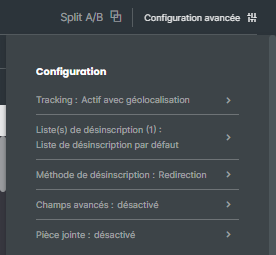
A window will then open allowing you to add your attachment.
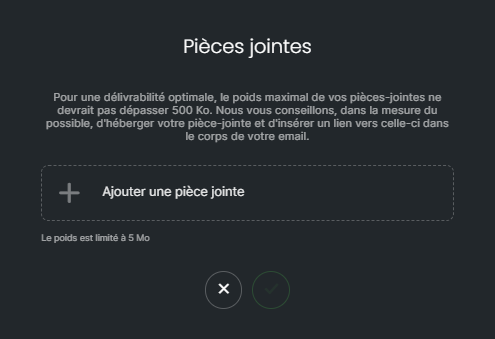
However, keep in mind that this can increase the size of your email, thereby increasing sending costs and potentially triggering spam filters. Use this functionality only when necessary and verify the file size of attachments.
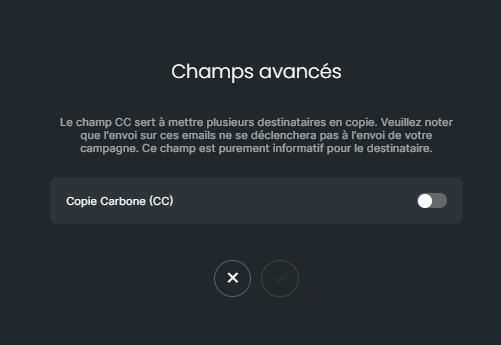
Carbon copy (CC) allows you to add a recipient in copy of your email campaign to receive any replies from your recipients. Note, however, that the person in CC will not receive your email campaign but only the replies to this campaign.
To add a "CC" field in the header of your message, click on the Advanced Configuration section in the top right of the editor, then on "Advanced Fields".
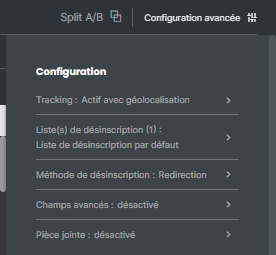
A window will open allowing you to enable the "carbon copy" field in your campaign header.
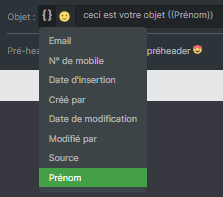
You can customize the subject and sender and/or reply fields by using data from your database, such as title, name, first name, or last purchase. Simply click on the personalization symbol {} and select the database field containing the information you wish to display.
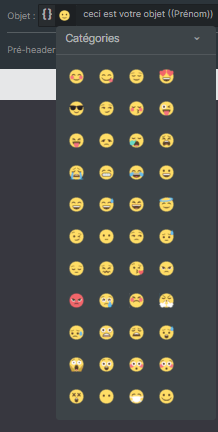
Add some creativity to your header by inserting symbols in the subject or sender display name. An emoji gallery is available to make your emails more attractive.
By following these guidelines, you will be able to effectively customize the header of your email campaign in Sarbacane Campaigns, which will help improve the impact of your messages and the satisfaction of your recipients.
