In Sarbacane Campaigns, a conditional block contains several versions of the same content, up to 20. When the campaign is sent, each contact receives the version whose condition matches their data (for example Mrs or Mr in the Title column), or the default version if no condition matches. You avoid duplicating your campaign for each segment.
A Sarbacane Campaigns Premium subscription or higher.
An email campaign created with the EmailBuilder.
A contact list selected at the Recipients step, with the column to use as a condition (Title, City…).
At the Message step, in the right-hand panel, drag the conditional block into your email.
In the properties panel that opens, click the button to add a new version.
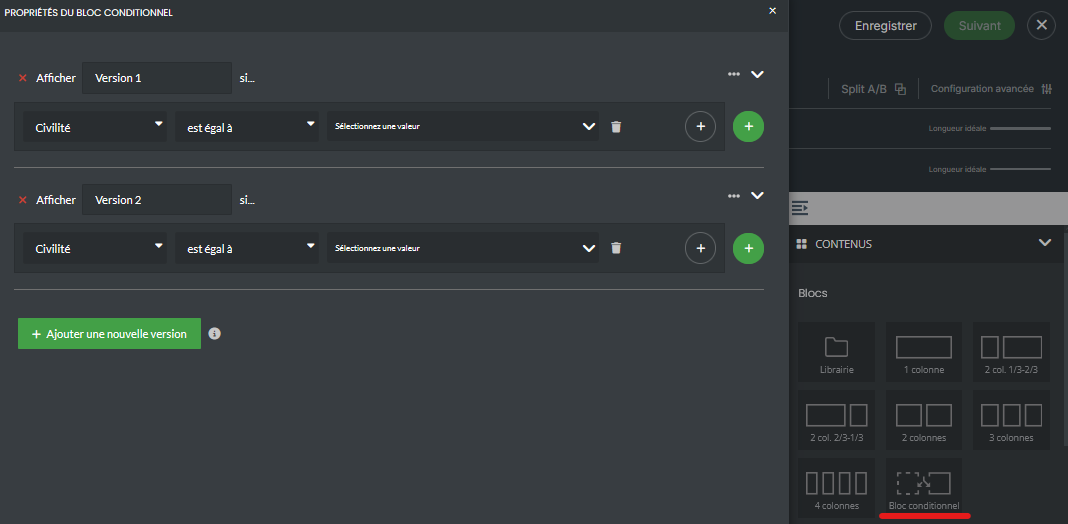
For this version, choose the column (for example Title), the condition type (contains, is different from, is equal to, starts with, ends with, not filled in), then the value (for example Mrs).
Repeat steps 2 and 3 for each version. For the default version, add one last version without any condition.
At the top right of the conditions window, click the cross to return to the EmailBuilder.
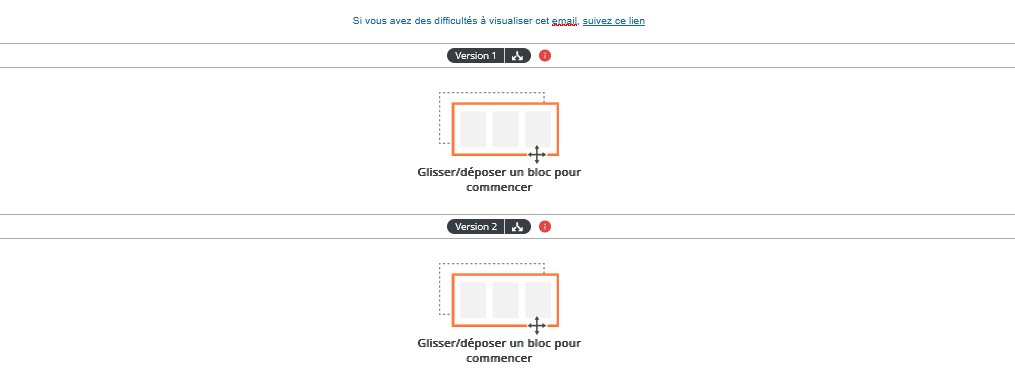
Click a version's name to expand it, then drag the blocks and content you want into it (text, image…). Do the same for each version.
Important: if you save the campaign as a template, the versions of the conditional blocks are removed from the template, because a template is not linked to any contact list.
One row per version appears in your email. When the campaign is sent, each contact receives the version that matches their data. To check, send a test to addresses in the list with different values (see How do I test a personalized email campaign in Sarbacane Campaigns?).
It is reserved for Premium subscriptions and higher, and for campaigns created with the EmailBuilder.
The condition value does not exactly match the value in the list (capital letters, spaces, spelling), or the list changed after setup. Check the column in the list, then correct the value of each version.
