Conditional blocks are powerful tools that allow you to personalize the content of your email campaigns based on specific criteria from your recipient list. Understand and master their use to improve the effectiveness of your campaigns.
This option is available starting from the premium plan.
A conditional block is an element of your campaign in which you can define multiple versions of content. Each of these versions will be displayed based on rules that you define using data from your recipient list. For example, you can create up to 20 different versions for each conditional block.
Example: Imagine that you want to display different content depending on whether the recipient is female (version 1) or male (version 2). If the title is not always filled in, you can also display a default version.
The use of these dynamic blocks allows you to send unique content to your recipients based on their characteristics, while saving time compared to duplicating campaigns for different segments.
Please note that display conditions depend on data from a recipient list. You must associate a contact list with your campaign to use conditional blocks.
Navigate to the "Message" tab of your campaign.
Select Conditional Block from the right menu, then drag and drop it into your campaign.
The conditional block properties panel will open automatically. Click Add a new version to create the first version of your block.
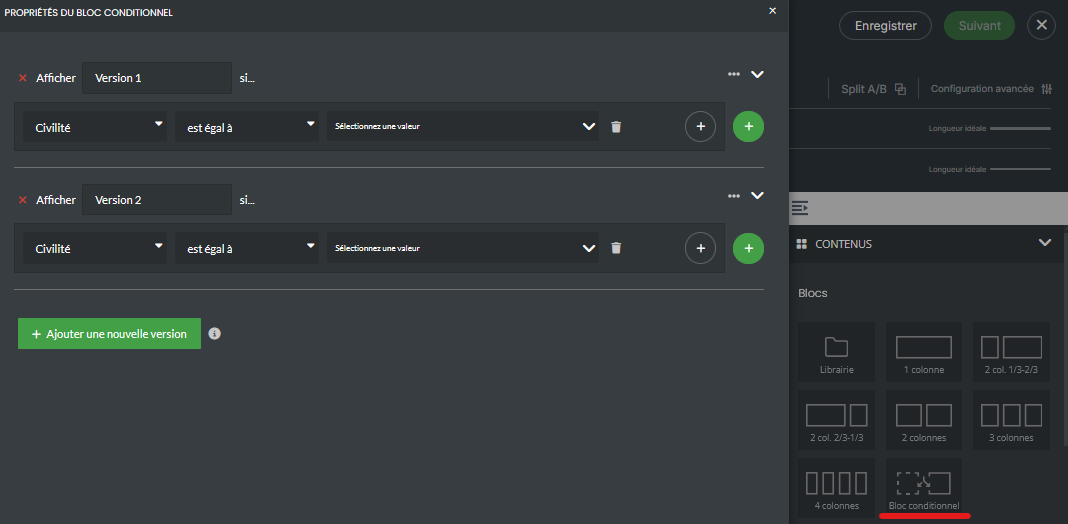
You can now define the display conditions for this version of the block, add other versions, and set a default version (which will be displayed if none of the conditions are met).
Display conditions are based on the information in your contact list. Each display condition is linked to one of the columns in your list.
For example, consider the title field: if your contact is a woman, you want to display version 1; if it is a man, version 2; and if the title is not specified, the default version.
Each version must correspond to a specific value in the Title column of your contact list.
To create a display condition, first select the column containing the value you are interested in (for example, Title).
Next, define the condition type from the options listed below:
contains
is different from
is equal to
starts with
ends with
not specified
In our example, we use is equal to.
Finally, define the value of the variable that determines the condition. For example, for version 1 of our example, the value of the Title field must be Ms.
Once you have defined the display conditions for each of your versions, you must create the block associated with each of them. To do this, exit the conditions window by clicking the cross in the top right corner.
Back in the EmailBuilder, you will see a blank line for each version of your block. By clicking on the version name, you can collapse/expand the content of the block corresponding to that version.
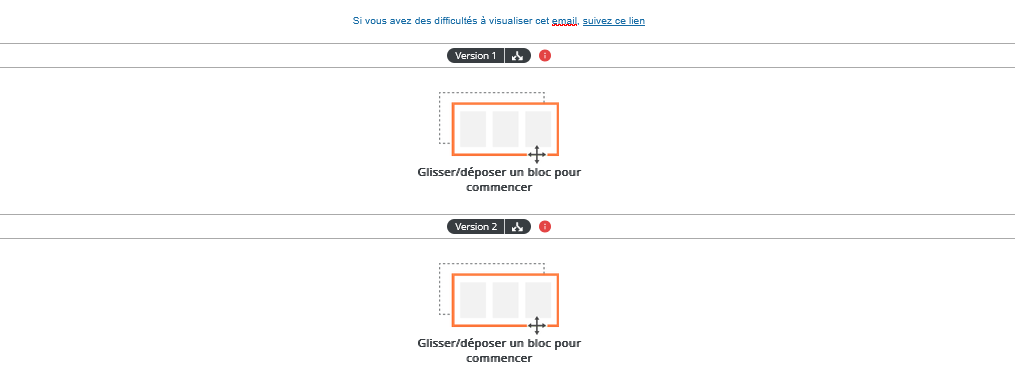
Then drag and drop the blocks and contents as desired. Insert the texts and/or images corresponding to the selected version.
Once all versions have been created, you can test and finalize the sending of your campaign.
Warning: If you save a campaign containing conditional blocks as a template, the rows corresponding to the different versions of your conditional blocks will be deleted. Templates are not linked to a contact list and cannot display conditional blocks.
In summary, conditional blocks allow you to personalize the content of your email campaigns using predefined criteria linked to your contact list, thus offering a more targeted and relevant experience to your recipients.
