Connect Sarbacane Suite to Prestashop
1. First, go to the Connectors section in Sarbacane Contacts.
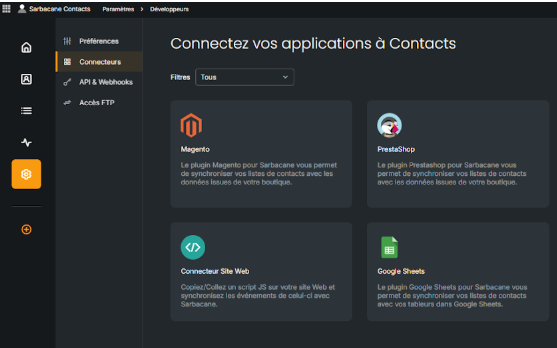
2. Click on the “Prestashop” connector.
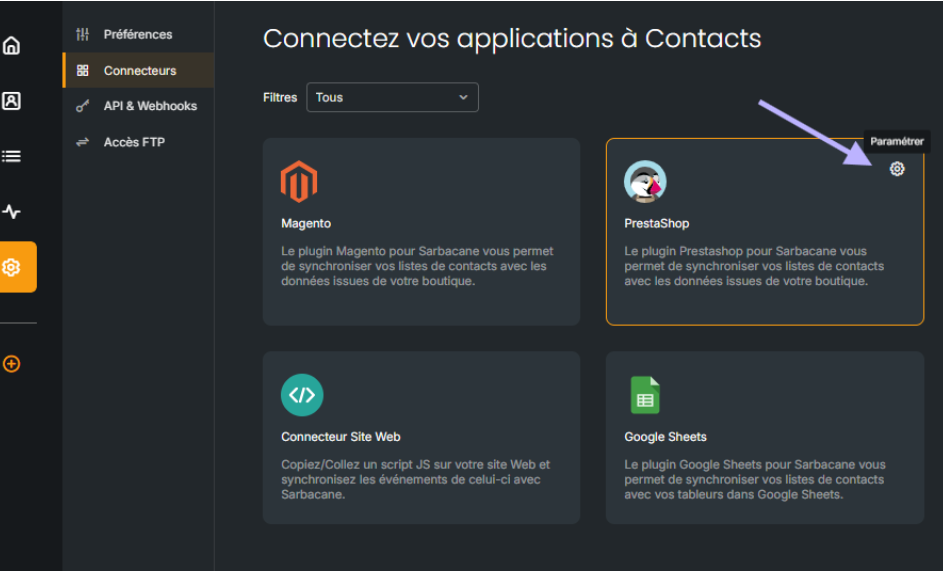
3. Click on “Add a store”.
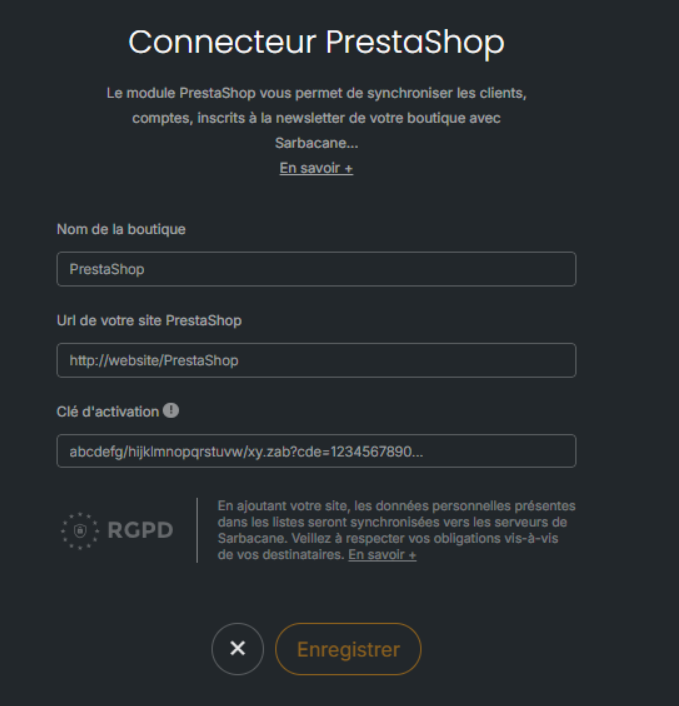
4. Enter the requested information, ending with the activation key, which is available after installing the Sarbacane module (add-on) available for download here.
You will be able to retrieve two lists: the Newsletter list and the User list.
Here is the information you will be able to retrieve:
Newsletter: groups together people who have signed up to receive the newsletter, via a pop-up for example.
The “Newsletter” list can return these column details (in English by default):
Mobile number
Last name
First name
User : groups together users who have registered or placed an order on your site.
The “User” list can retrieve this column information:
First name
Last name
Opt-in
Date of the first order
Date of the most recent order
Amount of the highest order
Amount of the lowest order
Average amount of orders
Total amount of orders
Total number of orders
Ensure the updating of your customer database and thus avoid its obsolescence.
Synchronize this data to strengthen your customer knowledge throughout the year.
Use this data to distribute promotional offers or event invitations.
Registration of your database in Sarbacane Suite to distribute your email and SMS communications.
Updating contact details and postal addresses.
Updating opt-in and opt-out choices to ensure compliance with the GDPR rules that apply to you.
Managing several stores without mixing the databases.
Monitoring the behavior and engagement of your prospects and customers following the sending of communications.
To import a list and enable its synchronization with Prestashop, go directly to adding a synchronized list, then choose your store.
The update of the list linked to the shop is automatic: any modification in your Prestashop list will be immediately reflected in Sarbacane.
It is then possible to segment your list(s) via the Sarbacane Contacts page dedicated to this purpose. After selecting a list, you can create targeting according to specific criteria, based on the available columns. By creating email or SMS campaigns within Sarbacane Campaigns you will find the lists and targeting options organized by you.
Good to know: still within Campaigns, it is also possible to create automatic scenarios when creating a campaign.
These scenarios are triggered according to a trigger that you define, from among the following:
Addition of a contact to a list
Date
Modification of an entry in your database, through an update or first collection of the information (e.g.: date of birth, specific interest, response to a questionnaire, response to an invitation, etc.).
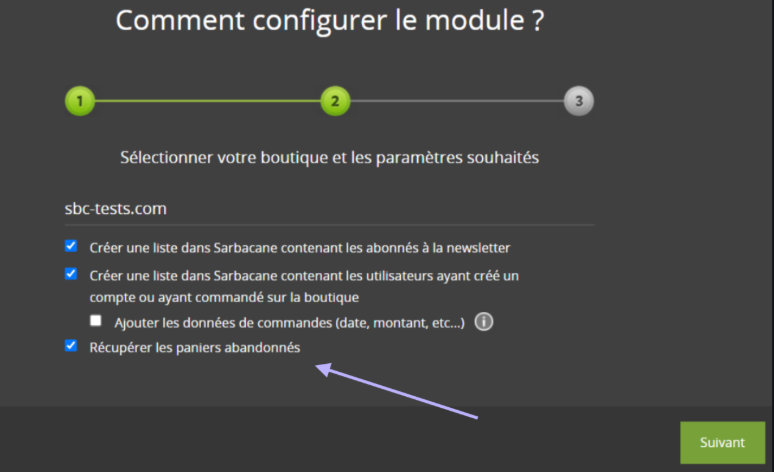
The specificity of the Prestashop connector is that you can create an “Abandoned carts” scenario. First make sure that the recovery option is correctly checked in your Sarbacane plugin on your site:
Remember to consult our documentation presenting the different scenarios.
