In Sarbacane Campaigns, a personalization field displays information specific to each contact in your email (first name, last name, city, link…), taken from a column of your contact list. An email that addresses each person by name gets more attention. You insert these fields with the { } icon in the subject, the pre-header and the content of the email. Once inserted, the field appears between double braces.
A Sarbacane Campaigns license.
A contact list whose columns contain the information to display: first name, last name, or the URL of an image or link specific to each contact.
This list selected at the Recipients step, before inserting the fields.
Important: the fields are linked to the list selected at the Recipients step. If you change lists after inserting them, insert them again. For the same reason, a field added to a template does not keep its link.

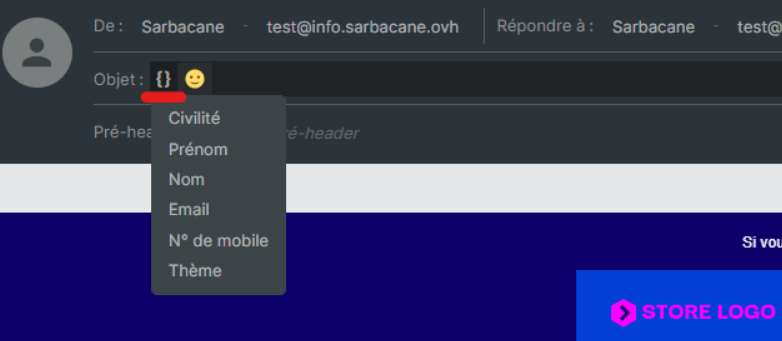
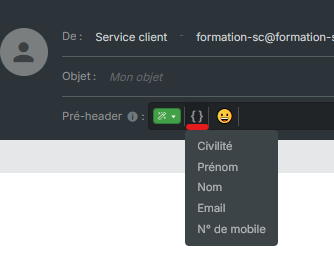
At the Message step, click in the subject or pre-header field where the field should appear: the { } icon appears in the field.
Click the { } icon, then choose the column to display.
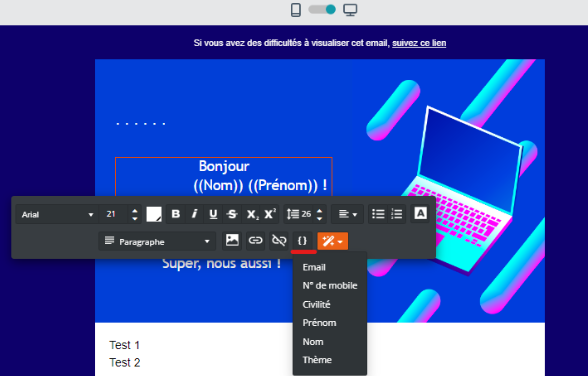
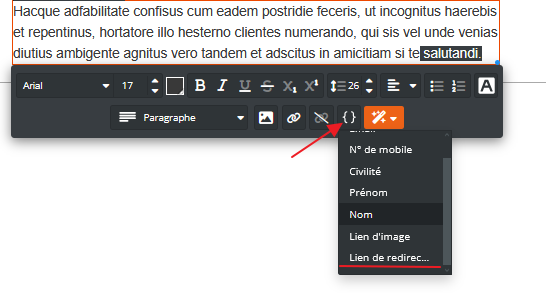
In a text block, place the cursor where you want the field.
In the text toolbar, click the { } icon, then choose the column to display.
Your list must contain a column with the URL of each contact's image, hosted online.
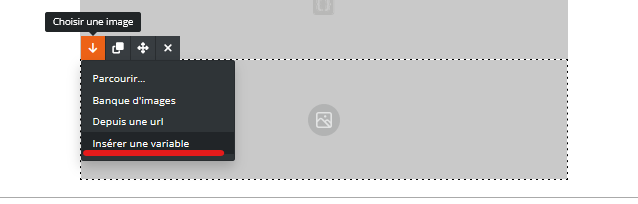
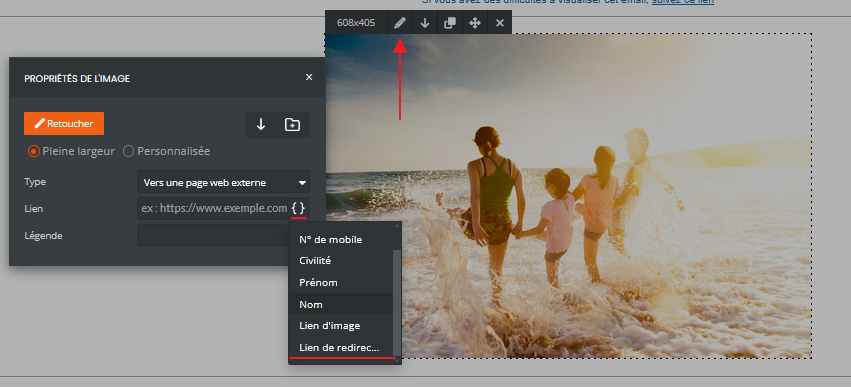
Click the image block.
In the Properties panel on the right, at the end of the URL field, click the { } icon.
Choose the column that contains the image URLs.
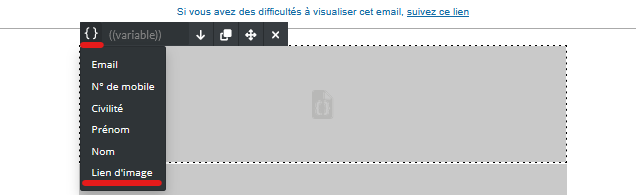
Your list must contain a column with each contact's link.
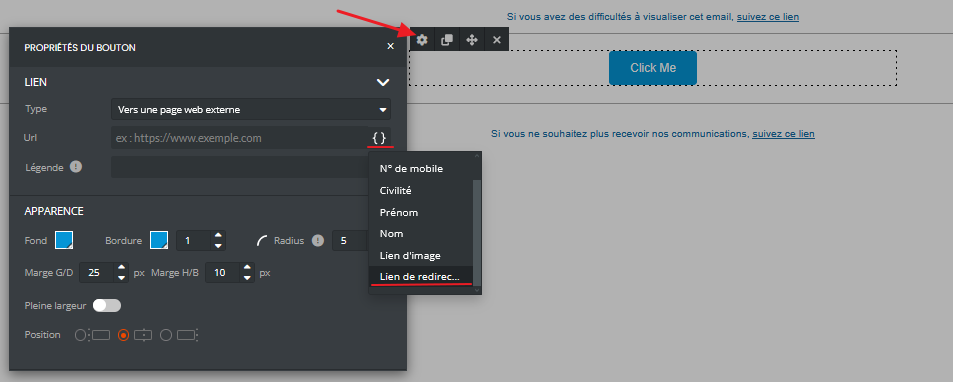
Select the button, image or text to make clickable.
At the end of the link field, click the { } icon.
Choose the column that contains the links.
Best practice: before sending, test your campaign with your own address, added to the list with its columns filled in (see How to test your personalized Sarbacane emails?).
The field appears in your email between double braces. When the campaign is sent, each contact sees their own information, image or link in its place.
These contacts' cell is empty in the chosen column. Complete your list in Sarbacane Contacts.
The field was typed by hand instead of being inserted with the { } icon, or the list changed after insertion. Check the list at the Recipients step, delete the field, then insert it again with the { } icon.
It does not exist in the list selected at the Recipients step. Add it to your list or select the right list.
