Personalizing a message with information about your recipients is a best practice in email marketing. Generally speaking, your recipients will appreciate receiving a personalized email. They will feel more valued, and this will also make the content more relevant. Your communication will therefore capture the attention of your contacts more quickly.
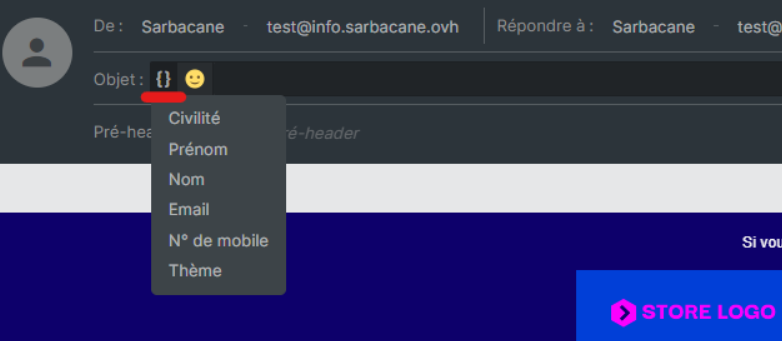
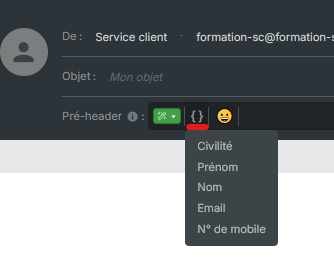
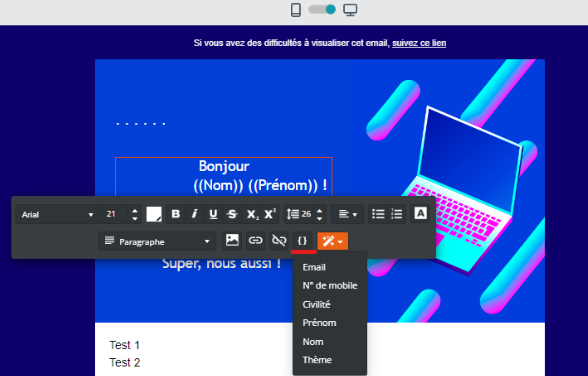
Sarbacane allows you to add personalized text as well as personalized images and links through double braces {} whether in campaigns created with the email builder, HTML editor, or SMS.
Important note: personalization will only be possible if you have information about your recipients in your contact list: first name, last name, title, or any other information. Please note that if you change lists before sending your final campaign, the links created by adding personalization fields are no longer viable and must be recreated with this new list.
A link will therefore be created when you create your campaign between your contact list and your message. For this specific use, it will not be possible to add this option in a template. Also, be careful to select your contact list properly before adding personalization to your message, otherwise the link will not be established correctly.
Let us see how to add these personalizations.
Once your contact list is selected in your campaign and contains the necessary information, proceed to the "Message" step of your campaign:

You have the ability to insert the personalization option in several different locations within your message.
In your subject line:
In your preheader:
In your message:
It is also possible in Sarbacane to add a personalized image for each recipient. To do this, you will need to host your images online in order to retrieve a personalized URL link that should be added to your contact list for the contact of your choice.
In your image blocks:
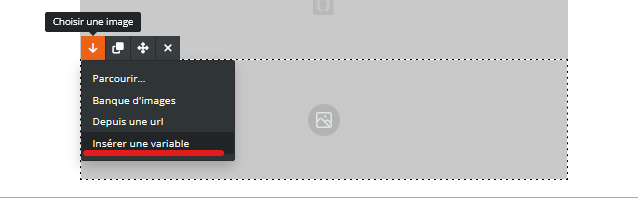
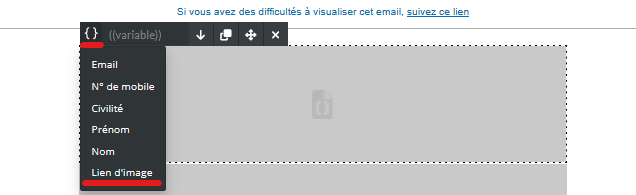
When the campaign opens in their mailbox, each contact will receive the image you have added to the list via the personalized URL.
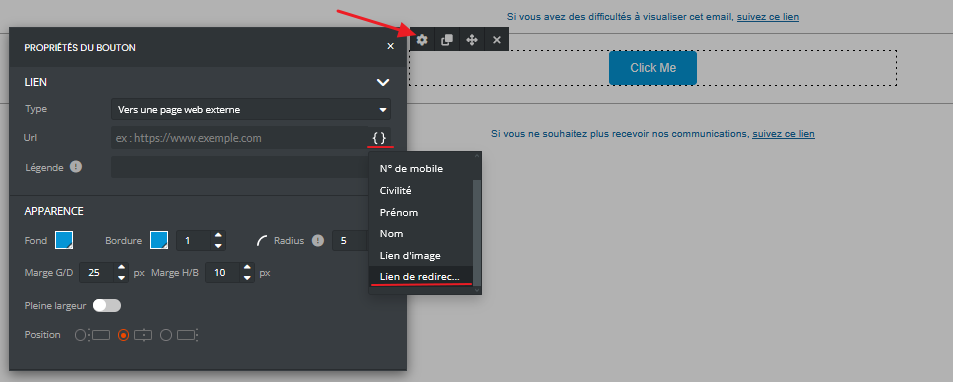
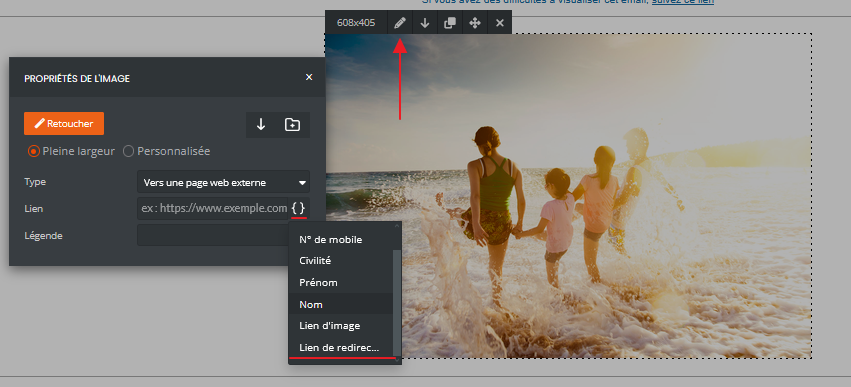
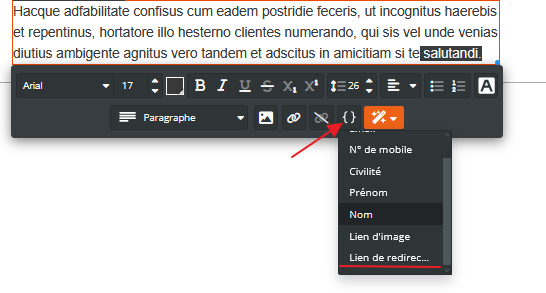
From Sarbacane, it is also possible to add a personalized redirect link. As with images, you simply need to add a personalized link to each recipient in your list.
In your buttons:
In your images:
In your texts:
Recommendation: before sending any personalized message, we strongly recommend testing it with your own address. To do this, it is important to properly add your test address among the recipients when using this feature, by filling in the expected fields when previewing your message.
