
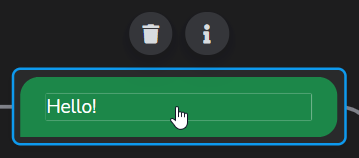
When editing a step, you can click directly on the text field to change it.
Most texts will by default display "TEXTE REQUIS". This means that no text is provided by default, and you must specify your own text.
Some will display default text, but you are free to replace it with your own content.
%{polaria-end}
Formatting
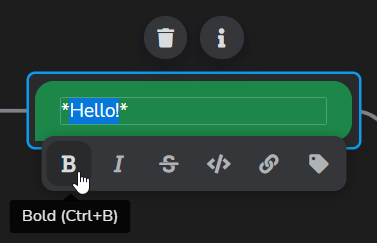
You can format your texts using simplified markdown similar to Slack’s markdown.
To assist you, the editable texts offer several options to apply the correct syntax:
Bold
Italic
Strikethrough
CodeVariable insertion
%{polaria-begin}
%{polaria-end}
Link identical texts
Sometimes you may need to repeat the same text in several places, even in different flows. This can complicate maintenance if you have to update them separately.
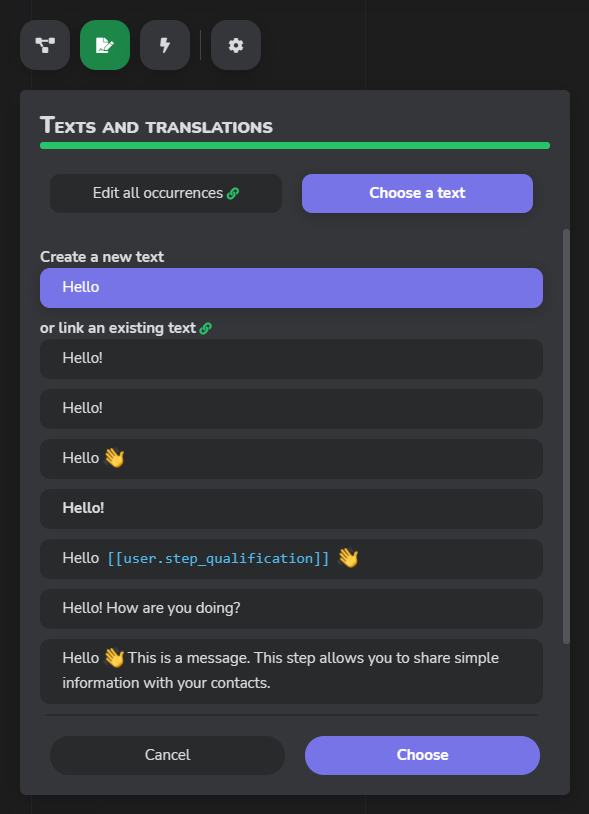
Xeno conversation flows allow you to link texts in order to modify them simultaneously. By default, when you change a text in a step, a new text is referenced. However, you can select an existing text suggested in the list on the left if the entered text is similar. Then, to modify all occurrences at once, go to the "Edit all occurrences" tab.
%{polaria-end}
Edit texts outside of flows
If you need to review your texts or if a member of your team is responsible for proofreading them, you can list and edit all the texts of your flows via the "Texts and translations" panel, accessible with the button at the top left. This allows you to quickly browse all texts without opening the flows to search for them.
Moreover, if you have linked texts as explained in the previous section, all occurrences will be modified.
Translation of texts
By default, all the texts in your flows must be in the language of your brand, defined in your brand settings. To make your flows available in other languages, use the "Texts and translations" panel to translate your texts.
Thus, if a contact uses your flow and the text corresponding to the language of their browser exists, it will be displayed in that language. Otherwise, the default text in the language of your brand will be used. In the Xeno inbox, texts will always be displayed in the default language of your brand.