In Sarbacane Campaigns, a test email displays the personalization fields with the information of the contact who receives it. To check your personalization, send the test to an address that is in the campaign's list, with all its columns filled in.
A Sarbacane Campaigns license.
An email campaign with its personalization fields inserted (see How do I insert personalization fields in an email campaign in Sarbacane Campaigns?).
Your test address (yours or a colleague's) in the list selected at the Recipients step.
For this address, every column used in the email filled in (first name, image URL, link…).
Note: each test email uses credits, just like a regular send.
In the step bar at the top of the screen, click Checks.
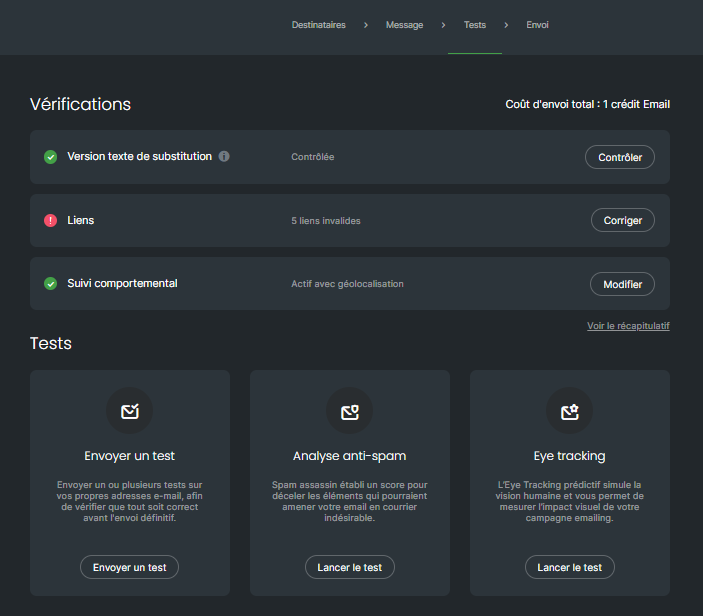
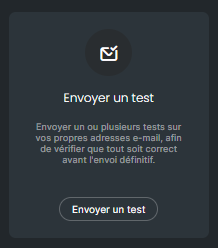
In the Tests block, click Send a test.
In the window that opens, click Edit, then add your test address or select an address you have already used.
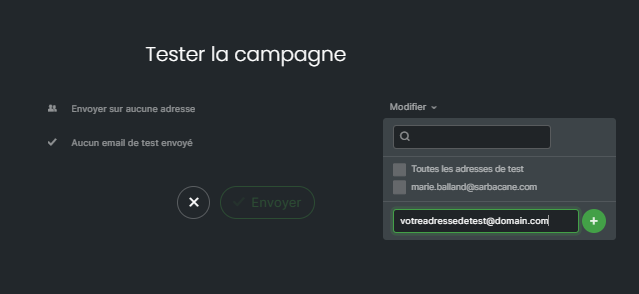
Click Send.
Open the test email in your mailbox and check each field: subject, pre-header, text, images and links.
The test email displays the information of your test address in place of each field. If everything is correct, go to the Sending step.
Your test address is not in the campaign's list, or the matching column is empty for this address. Add the address to the list or complete the column, then send a new test.
The field was typed by hand instead of being inserted with the { } icon, or the list changed after insertion. Delete the field and insert it again with the { } icon.
Check your spam folder, then check the address entered in the test sending window.
