An email created on an external emailing solution is systematically transcribed in the form of code in HTML format. It is this code that will then be sent to your recipients and interpreted by each of their webmails or email clients.
There are numerous heavy email clients, meaning applications installed locally on your computer, such as Microsoft Outlook or Thunderbird, but also webmails such as Gmail, Yahoo or Hotmail, which are web-based messaging services, each with its own specificities and therefore its own interpretation.
For example, Microsoft Outlook has used the Microsoft Word rendering engine since 2007 and has therefore evolved very little over the last ten years, unlike webmails.
No professional router can guarantee a 100% identical display to your original creation in Outlook. Indeed, the way an email is displayed depends on several factors:
The version of Outlook used
The format of Outlook used (webmail, desktop, application)
The screen size used
The number of screens used: if you use a dual screen, the display may be broken on the secondary screen. It is therefore recommended to close Outlook and open it again only on the main screen.
The anti-spam filter used: the anti-spam filter can modify the original HTML code and disrupt the display of the message
For all these reasons, it is essential to include a web copy link in your emailing campaigns (the link behind the sentence "If you have difficulties viewing this message, follow this link"). This link enables readers to view your email campaign in an internet browser if it is displayed incorrectly in the inbox.
Here are several examples of display issues that you might encounter:
By default, Outlook does not display images hosted on a server (except for the most recent versions). In Sarbacane, you have the option to embed an image directly in the body of the email. It will then be displayed in Outlook. However, each image embedded in the body of the email increases the size of your message and is therefore likely to impact your deliverability. The number of credits debited per sending also depends on the size of your message. The heavier your message, the more email credits it will cost you. For these two reasons, we recommend embedding only your logo in the body of your campaign. You will thus be reliably identified by your recipients, even if the campaign images are not displayed by default.
Outlook imposes a maximum height for images. If your image is cropped, resized, or not displayed, reduce the height of your image. If you cannot reduce the height of the image, we recommend cutting the image into several parts and inserting each part into a new image block.
When you use the HTML properties of an image to resize it, it may still appear in its original size in Outlook. We recommend resizing your images with photo editing software before adding them to your campaign, or using our built-in image editor.
In Outlook, the margins around images may be displayed differently. Indeed, the text may appear stuck to the image despite the margins configured in the properties. To compensate for this issue, you can use photo editing software to add around the visual a border of the same color as the background of the emailing, then insert it into your campaign.
Outlook is not compatible with GIF animations. Only the first frame of the GIF is displayed in Outlook. We therefore recommend displaying the most important information of your animation on this first image.
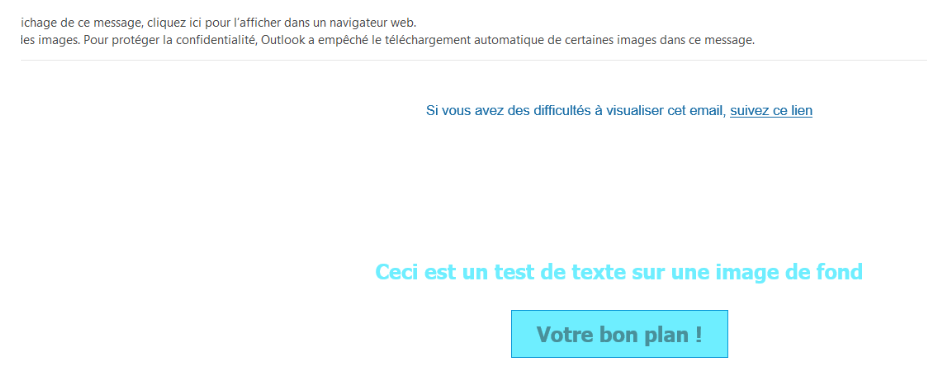
This is a frequently encountered issue on Outlook and on several other email clients. The background image does not display and a background color replaces the image. This CSS property is not natively supported in Outlook. There is currently no solution to address this issue without developer skills.
Depending on the fonts used, it may happen that the text size and font differ from the initial text configuration. System fonts have the advantage of displaying correctly on all operating systems, including Outlook. Conversely, Google Fonts render inconsistently on almost all mailboxes except on mobile. The display of the font on webmails depends on the operating system (PC/MAC) and the web browser used. Therefore, prioritize standard system fonts for your email campaigns.
Buttons with rounded corners display correctly on most mailboxes (webmails, mobile, desktop). However, on Outlook, the rectangular shape of the buttons replaces the rounded corners (because the CSS property border radius is not natively supported). To display buttons with rounded corners in Outlook, they must therefore be inserted as an image. Be careful, however, as mentioned previously, since images are not displayed by default in Outlook, your buttons (including the text of your CTA) will not be visible in Outlook unless the images are downloaded.
This recurring issue on Outlook seems to be related to the fact that certain versions of the email client resize the email according to the size and resolution of the screen. If you encounter this type of display problem, the only thing to do is to perform tests on several screen sizes while modifying one element of the structure of your email campaign each time (height, width, etc.).
Several shifts appear depending on the screen resolution from which Outlook is launched. In Outlook, alignment difficulties may in particular occur with the blocks of the email editors: 2 columns, 3 columns and 4 columns. To work around this problem when creating your email campaign in Sarbacane, you simply need to adjust the width of the desktop version. Set by default to 650 px, the alignment problems are resolved around a width of 400 px.
In Outlook, dotted and dashed borders are automatically displayed on a white background regardless of the background color configured for the relevant block. This behavior is inherited from Word. Thus, if you add borders on a colored background, you may see white lines appear between the dots or dashes. To work around this problem, we therefore recommend, as far as possible, using dotted or dashed borders on a white background. If you must use a colored background, then opt for solid borders.
Overall, although we do everything possible to optimize the display of emails created with Sarbacane on as many email clients as possible, full compatibility between all email tools is impossible and it may, on rare occasions, be observed that there are discrepancies in the layout of messages due to these constraints.
It is notably for this reason that all emails generated by our Email Builder offer by default, at the top of the email, access to the online version, which allows your recipients to access content that fully matches the design directly from their web browser.
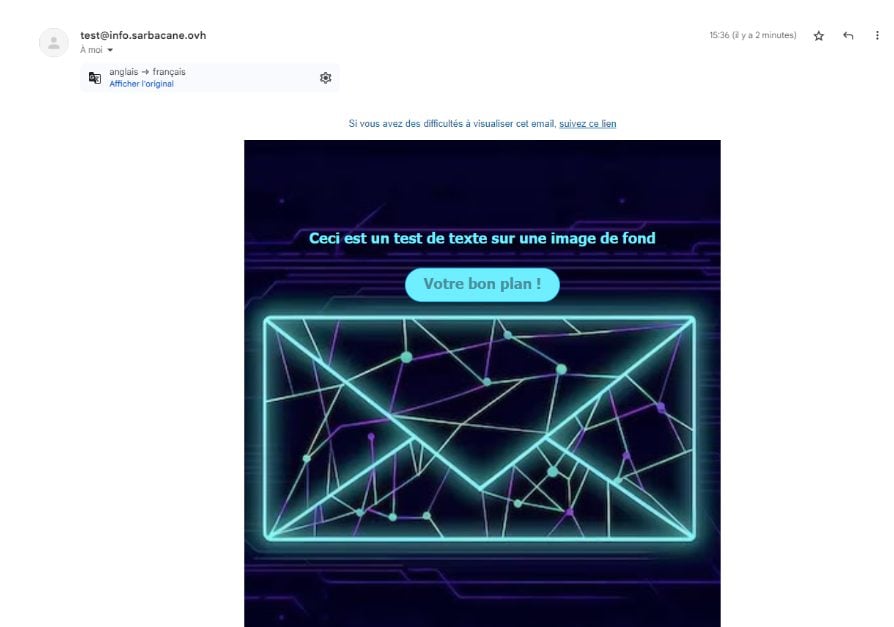
Below, we show you how the same email is rendered in Gmail and Outlook.
Gmail version
Outlook version : to view the content of the email, it is mandatory to go to the web copy “If you have difficulties viewing this email, follow this link”.