Sarbacane's EmailBuilder blocks transform email creation into a simple and visual experience. By combining text, images, CTAs, and layout, you can build professional campaigns in just a few minutes without writing a single line of code.
When editing a campaign, in the message section of the breadcrumb, you will find the "container" blocks that allow you to add content.
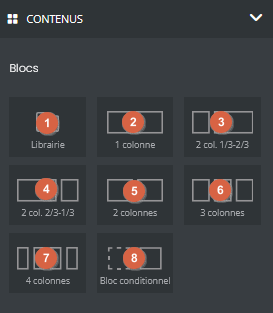
Allows you to find your saved folders and blocks. You can drag and drop this content directly into the message body (just as you do to add columns), and your blocks and folders will appear.
From the Email Builder, you can save complete messages as templates, but also save only certain blocks from your campaign to easily reuse them in other communications.
This is particularly useful when you want to reuse only your headers, footers, or a specific block format (or formatting) for other communications.
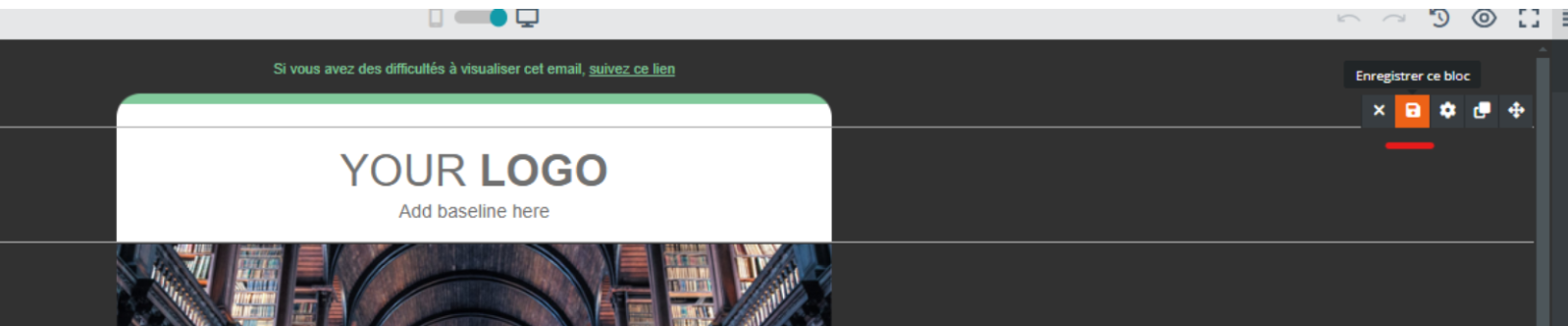
To save your blocks, hover over the block you are interested in, then click on "Save this block":
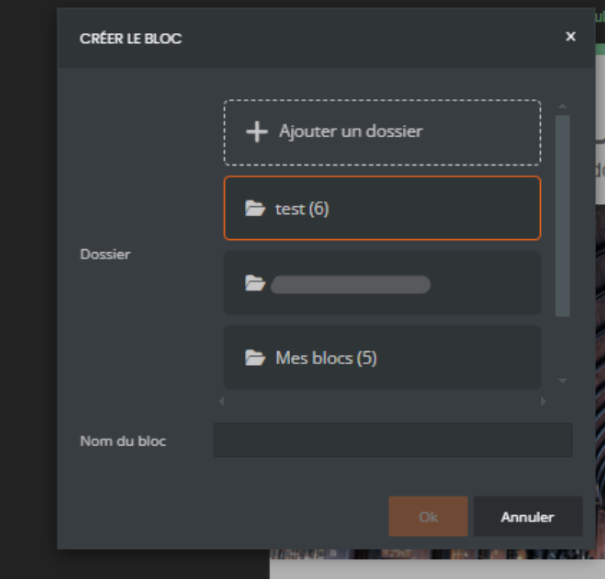
You will then be able to create folders to organize your blocks and name them for easier retrieval:
Column blocks allow you to structure your communication. Once added, you will be able to integrate "content" blocks within them.
A conditional block allows you to display different versions of content based on your recipients' data, with up to 20 variants per block. This enables you to personalize your campaigns without duplicating each send for each desired customization. To learn more about implementing conditional blocks, follow this link.
Notes: this option is accessible from the Premium plan onwards.
Content blocks will allow you to populate your content through images, text, etc.
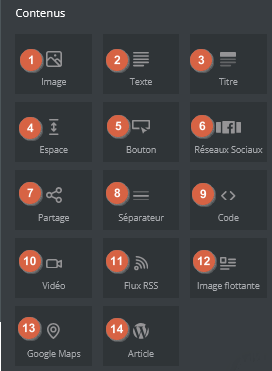
The image block allows you to add images from different sources:
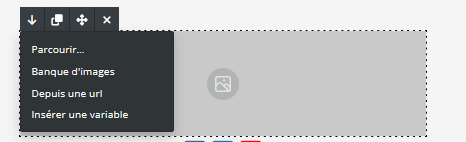
Browse: from your computer
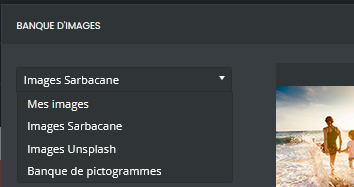
Image library: from a selection of royalty-free images, images you have saved, or pictograms
From a URL: as the name suggests, by adding the URL of an image hosted online.
Insert a variable: from a personalization field included in your list (note: a column with custom URLs must be imported into the campaign recipients).
Once the image is added, it will be possible to modify its size, positioning, add a link to it, or add it to the image bank.
The text block will display text in Lorem Ipsum format. This is entirely replaceable and is only provided as an example.
You will be able to modify the text font, size, color, formatting, etc.
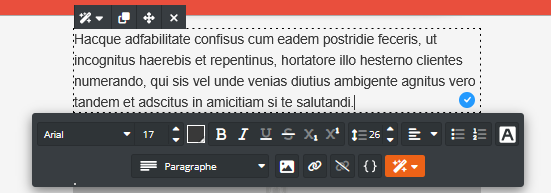
You will also be able to add links to your words (hyperlinks) using the small chain link icon as well as add customization through curly braces. To learn more about customizing communications, follow this link.
Note: The fonts available in Sarbacane are universal fonts recognized by all webmail and email clients.
It will therefore be impossible to import so-called "exotic" fonts, which ultimately cannot be interpreted by the email clients of your recipients.
Allows you to obtain a pre-configured block to add a large title.
Allows you to add space between two blocks to prevent them from being adjacent. It will be 20 px high by default but can be reduced or increased using the small directional arrows. (Min 10px / Max 100px)

Allows you to add a call to action or call button behind which to add a link.
The button itself can be modified in terms of size, color, and ratio.
By clicking on the button properties, it will be possible to select the link type:
To an external page to add a website or hosting link
To the online version of the email, to add the web copy
To an unsubscribe form to add a link deleted by mistake
To a Sarbacane form, to select one of your published forms
To a landing page, to select one of your published landing pages.
To an email address, to add a redirect to an email address
To a phone number, to add a redirect to a phone
Add to my calendar, to add the information to a calendar (ICS format)
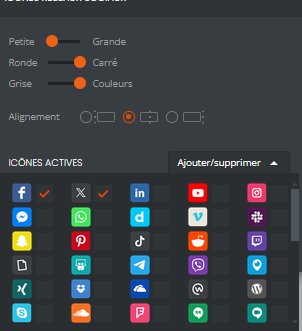
Allows you to add your social media links from many options
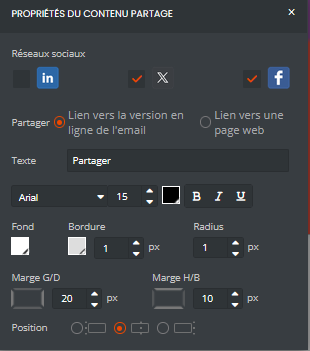
Allows you to add sharing icons so that your contacts can share your communication on their own social networks: Facebook, X, and LinkedIn
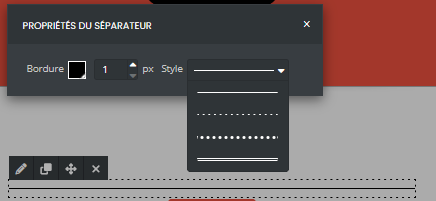
Allows you to add a separation line that can be slightly customized.
Allows you to add HTML code in a block such as a carousel or countdown, for example. Using this block requires proficiency in HTML, and rendering in certain email clients cannot be guaranteed.
Note: This block is not intended to receive a complete campaign. If you need this functionality, you can use our HTML editor directly.
Allows you to add a video thumbnail that, when clicked, redirects to the video itself.
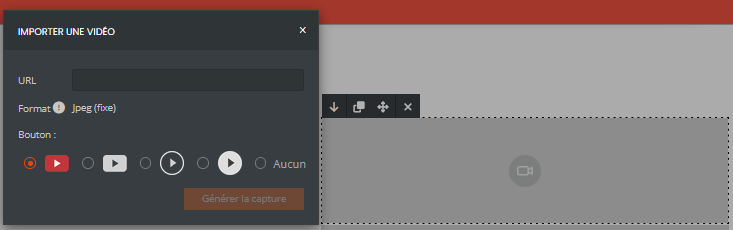
Note: The image is not in video format but rather static. If you wish for it to be animated, you will need to create a GIF from a sample of your video, import it using the 'browse' option in an image block, and then add your video link through your image settings.
The RSS block allows you to automatically display the latest content published from an RSS feed in your newsletter. Articles, titles, descriptions, and links are automatically updated with each send, enabling you to easily create dynamic and always up-to-date campaigns.
Floating images allow you to enhance your newsletter with visual elements positioned freely alongside your text. They can be used to highlight a promotion, add a decorative element, display a badge, or draw attention to important information.
The Google Maps block allows you to display a map associated with an address or location directly in your newsletter. It facilitates the location of a point of sale, an event, or your premises by providing a visual reference for your recipients.
Due to email client limitations, the map displayed in the email is a static image. Therefore, it is not possible to launch a route directly or interact with the map from the newsletter. However, recipients can click on the map to access the mapping service in their browser and benefit from all navigation features.
This block is only visible if you have integrated our WordPress module. It allows you to retrieve articles from linked sites for easier redirection to your website.
This block, located at the bottom of the email builder, allows you to configure your campaign in terms of settings to structure your campaign in advance.
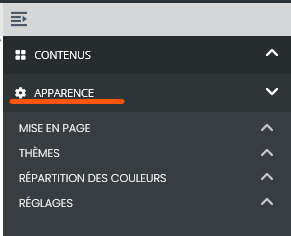
It allows you to define the color of buttons, for example so that each time a button is added, it is already pre-configured. It also allows you to pre-configure the font or background of blocks.
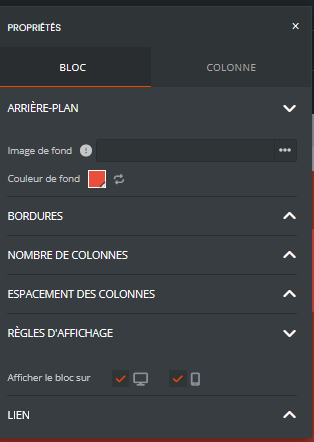
Independently of your design, blocks have their own settings allowing for more formatting possibilities.

Background color, border, display rule (on desktop or mobile), adding a link to the block, and modifying the internal margin of a column are all possibilities that can be refined through this space.