Email campaigns created with Sarbacane are designed for optimal display regardless of the email client used by your recipients. However, it is common for the rendering of emails sent to Outlook to not match what appears in the Sarbacane editor. While Sarbacane's EmailBuilder has been developed to adapt as best as possible to various email services, Outlook's HTML rendering engine is based on Word's HTML rendering and is therefore not optimal for correctly displaying an email. No professional email software is able to guarantee good display of an identical email campaign on Outlook. What display issues might you encounter? How can you remedy them? These are the topics we will address in this chapter.
No professional email service provider can guarantee you 100% identical display to your original creation on Outlook. Indeed, the way an email displays depends on several factors:
The Outlook version used
The Outlook format used (webmail, desktop, application)
The screen size used
The number of screens used: if you use a dual screen setup, the display may be broken on the secondary screen. It is therefore recommended to close Outlook and reopen it only on the primary screen.
The spam filter used: the spam filter may modify the original HTML code and disrupt the message display
For all these reasons, it is essential to include a web copy link in your email campaigns. This link allows readers to view your email campaign in a web browser if it displays poorly in the inbox.
To verify that Outlook is indeed causing display issues with your email, you can check whether the content and images display correctly on other email clients (Gmail, Yahoo, Hotmail, etc.) and/or in a web browser. If they do, this indicates that Outlook is the source of the problem.
Since Outlook version 2007, Microsoft no longer uses a dedicated HTML reader for Outlook. Instead, it applies Word's HTML rendering engine for editing and reading emails. As a result, several issues can occur.
By default, Outlook does not display images hosted on a server (except for the most recent versions). You have the option in Sarbacane to embed an image in the email body. It will then display in Outlook. However, each image embedded in the email body increases the weight of your message and may therefore impact your deliverability. The number of credits debited per send also depends on the weight of your message. The heavier your message, the more email credits it will cost you. For these two reasons, we recommend embedding only your logo in the body of your campaign. This way, you will be identified with certainty by your recipients, even if the campaign images do not display by default.
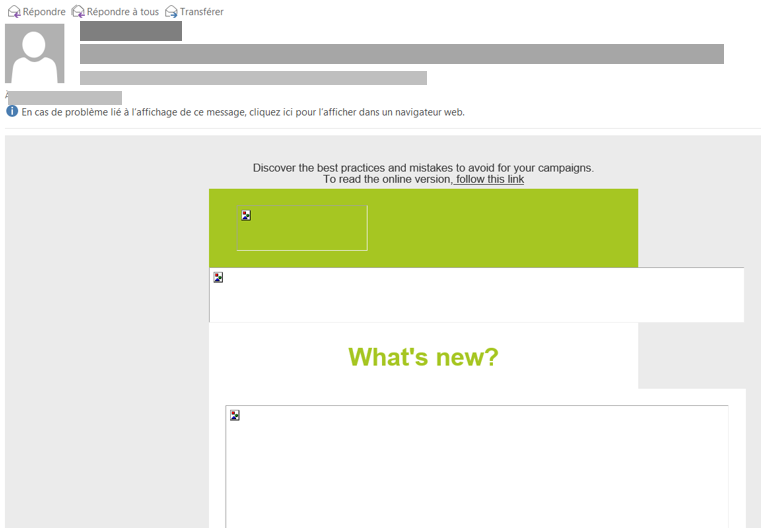
Outlook imposes a size limit on image height. If your image is truncated, resized, or not displaying correctly, reduce the height of your image. If you cannot reduce the image height, we recommend splitting the image into multiple parts and inserting each part into a new image block.
When you use HTML properties to resize an image, it may still display at its original size in Outlook. We recommend resizing your images with photo editing software before integrating them into your campaign or using our built-in image editor.
In Outlook, margins around images may display differently. Text can appear flush against the image despite margins configured in the properties. To work around this issue, you can use photo editing software to add a border around the image in the same color as the email background, then integrate it into your campaign.
Outlook is not compatible with GIF animations. Only the first frame of the GIF is displayed in Outlook. We therefore recommend ensuring that the most important information from your animation appears in this first frame.
This is a frequently encountered issue in Outlook and several other email clients. The background image does not display and a background color replaces the image. This CSS property is not natively supported in Outlook. There is currently no solution to remedy this issue without development skills.
Depending on the fonts used, the text size and font may differ from the initial configuration in Sarbacane. Indeed, system fonts have the advantage of displaying correctly on all operating systems, including Outlook. Conversely, Google Fonts have unpredictable rendering on virtually all email clients except on mobile. Font display on webmails depends on the operating system (PC/MAC) and the web browser used. Therefore, prioritize standard system fonts for your email campaigns.
Buttons with rounded corners display correctly on most email clients (webmails, mobile, desktop). However, in Outlook, the rectangular shape of buttons replaces the rounded corners (because the CSS border-radius property is not natively supported).
Solution: To display buttons with rounded corners in Outlook, you must insert them as an image. However, be aware that images do not display by default in Outlook, so your buttons (including your CTA text) will not be visible in Outlook unless images are downloaded.
This recurring issue in Outlook appears to be related to the fact that certain versions of the email client perform resizing of the email based on screen size and resolution. If you encounter this type of display problem, the only solution is to perform tests on multiple screen sizes by modifying a structural element of your email campaign each time (height, width, etc.).
Multiple misalignments appear depending on the screen resolution from which Outlook is launched. In Outlook, alignment difficulties can occur particularly with email editor blocks: 2 columns, 3 columns, and 4 columns. To address this issue, when creating your email campaign on Sarbacane, you simply need to adjust the width of the desktop version. Set by default to 650 px, alignment problems are typically resolved at around 400 px width.
In Outlook, dotted and dashed borders automatically display on a white background regardless of the background color configured for the block in question. This is a behavior inherited from Word. Thus, if you add borders to a colored background, you may see white lines appear between the dots or dashes. To address this issue, we therefore recommend that you use dotted or dashed borders on a white background whenever possible. If you must use a colored background, then prefer solid borders.
In order to increase your chances of obtaining correct display in Outlook, here are some additional recommendations.
Choose images in JPEG or PNG format
Use standard system fonts: Arial, Helvetica…
Remember to optimize the mobile version of your marketing email
Minimize the number of columns
Avoid copying and pasting text directly from another software. However, you can copy the text from your software and paste it into a text editor, then paste it into your message on Sarbacane, or you can use the paste as plain text function offered by right-clicking in Google Chrome (keyboard shortcut ctrl shift v)
When you wish to create a campaign based on the structure of an existing campaign, rather than starting from the message of a previous campaign, prefer creating the message from a selection of templates.
This method will limit the risk of overloading the HTML code generated when editing the message.
For the same purpose, use the EmailBuilder block library which allows you to save reusable block templates quickly.
Do not forward an email you have received because the HTML code is reinterpreted. It is no longer optimal and further degrades the rendering.
Do not place important text on a background image
Note: All your recipients using Outlook as their primary email client do not encounter these display issues. Indeed, some Outlook users on your contact list have never received truncated emails in their inbox. Nevertheless, we recommend that you test your email campaigns on multiple email clients, such as Outlook, before sending them to your entire database.
