Suppose you are using Sarbacane Chat to manage both email conversations and live conversations via our chatbox. Since these two types of conversations are quite different in terms of content and pace, you may want to use different conversation scenarios for each type of conversation. This is where conversation scenario triggers come into play.
You can set up scenario triggers by going to the conversation scenario editor and clicking on the scenario trigger tab. You will then be able to see all active triggers and the scenarios that will be launched when the condition is met.
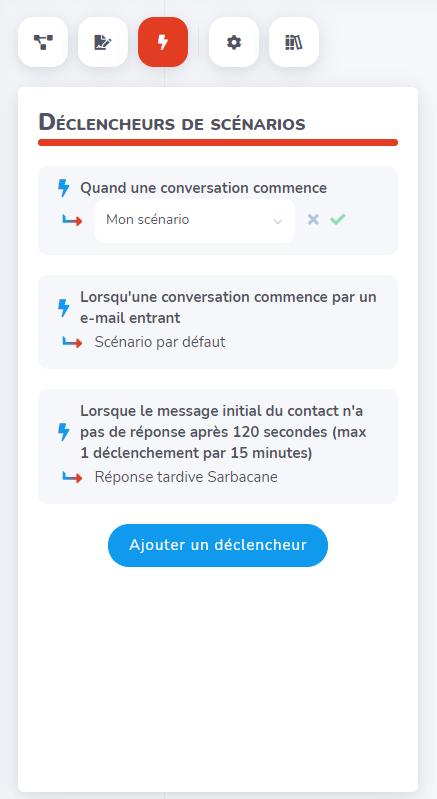
In our example, we simply need to define the trigger When a conversation starts with an incoming email to launch our email processing scenario.
By clicking on the Add a trigger button, you can access a list of the different types of triggers available. For example, it is possible to launch a specific scenario if the contact has clicked on a specific hook message,
Furthermore, Sarbacane Chat allows you to configure late response triggers. These will launch a specific flow if a contact's message remains unanswered at the beginning or during a conversation.
It is possible to launch a scenario for a specific contact by going to the Real-time presence page of the contacts. There, you can click on Start a scenario.

This will allow you to select the scenario to be triggered from among those you have already created.
