All texts that are sent to your contact by your scenario are customizable. When you edit a step, you can directly click on the text field to modify it.
Most texts display by default REQUIRED TEXT. This means that no text is provided here by default, and that you must specify your own text.
Some display a default text, but you are free to enter your own text instead.
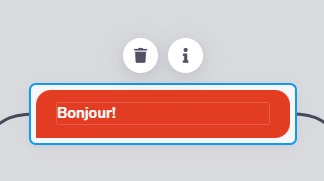
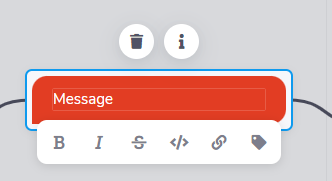
You can format your text using simplified markdown formatting that is very similar to Slack.
To help you, editable texts will display a few options that allow you to apply the correct syntax to obtain the result you want:
Bold
Italic
Strikethrough
Code
Link
Variable insertion
Sometimes, you may need to repeat the same text in several places, even in different scenarios. Managing these texts can be difficult if you have to update them separately each time.
Sarbacane Chat conversation scenarios allow you to link texts together so that you can edit all occurrences at the same time. By default, when you modify the text contained in a step, a new text is referenced. You can select one of the existing texts offered in the list on the left if the entered text is similar. Then, if you want to edit both texts at the same time, you can go to the Edit all occurrences tab.
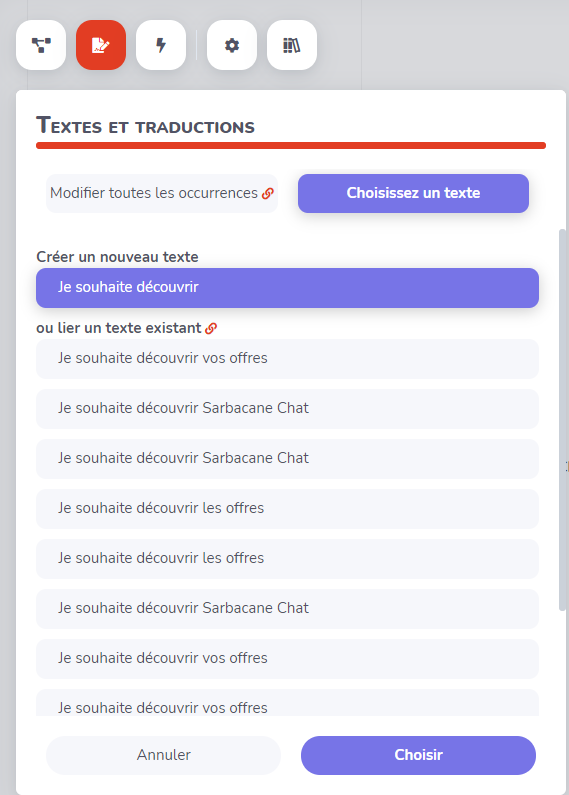
When you need to revise your texts, or if someone else in your team is responsible for proofreading the text, you can list and edit all available texts in all flows by opening the Texts and translations panel using the button located in the upper left corner. It allows you to quickly browse all texts without having to open the scenarios and search for the texts they contain.
Moreover, if you have linked texts together as explained in the section above, all occurrences will be edited.
By default, all texts used in your scenarios must be in your brand language, specified in your brand settings. To make your flows available in other languages, you can use the Texts and translations panel to translate your texts into other languages.
Thus, when a contact runs your scenario, if the text corresponding to the language of their browser exists, it will be presented to them in that language. Otherwise, the default text in your brand language will be displayed. In the Sarbacane Chat inbox, you will always see the texts in your brand’s default language.
