The larger your scenario becomes, the more important it will be to keep it organized. To this end, we have developed a series of features to make your work easier.
When editing a scenario, you can click on the Automatically reorganize steps button to rearrange your entire scenario.
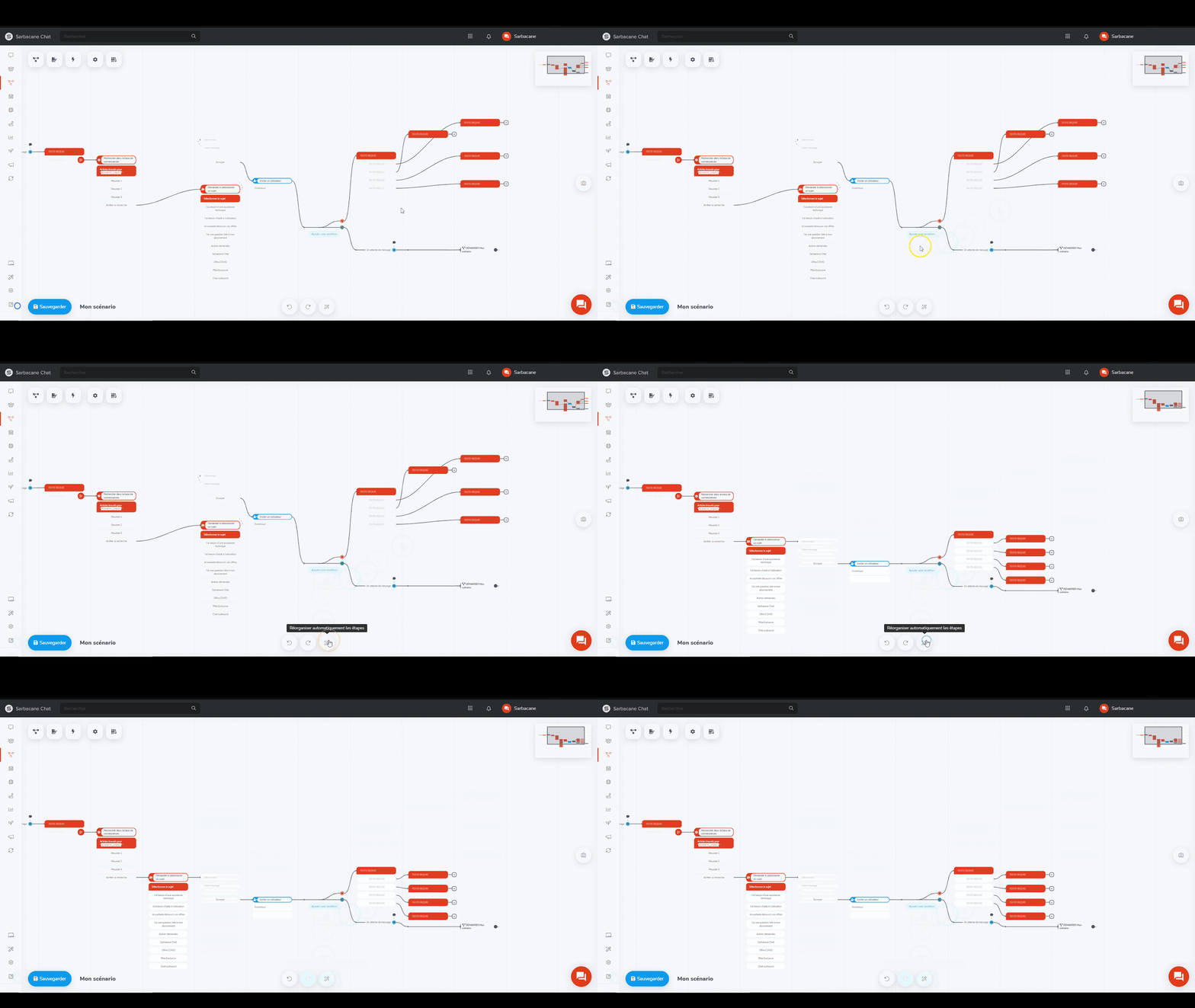
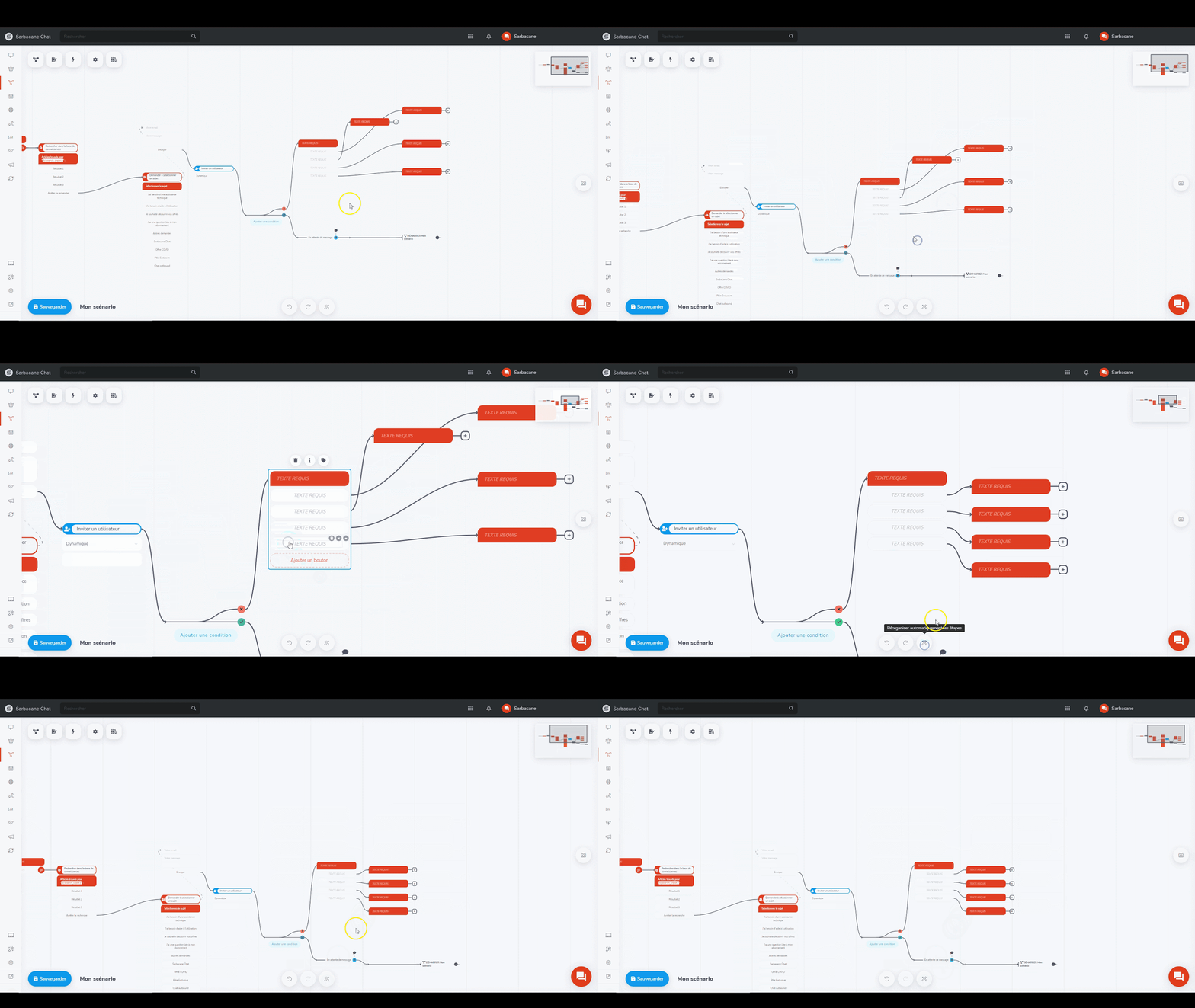
Please note: It is possible to reorganize only part of the scenario by selecting a step before pressing the button. Only the steps following the selected step will be reorganized.
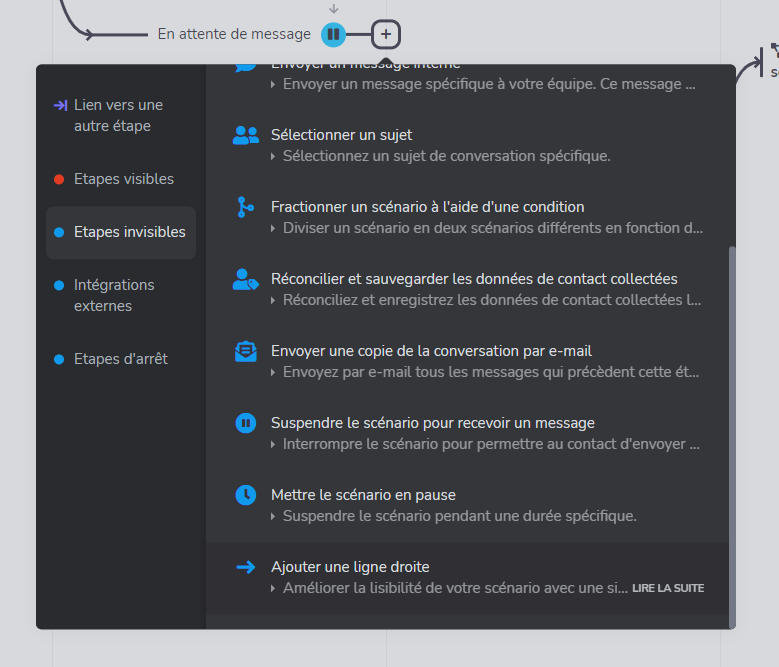
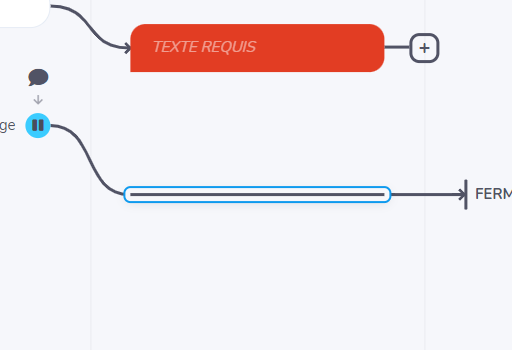
In addition to automatic reorganization of scenarios, we have created a step whose purpose is to extend the line connecting two steps. This can be useful for avoiding too many overlapping lines.
To use it, click on the Add a straight line step.
If your scenario becomes too large, we recommend dividing it into several scenarios. You can, for example, create one that will be responsible for welcoming the contact and collecting their information. A second one can then determine the subject of the conversation and assign the appropriate agent.
You can then connect several scenarios by using the stop step Launch another scenario
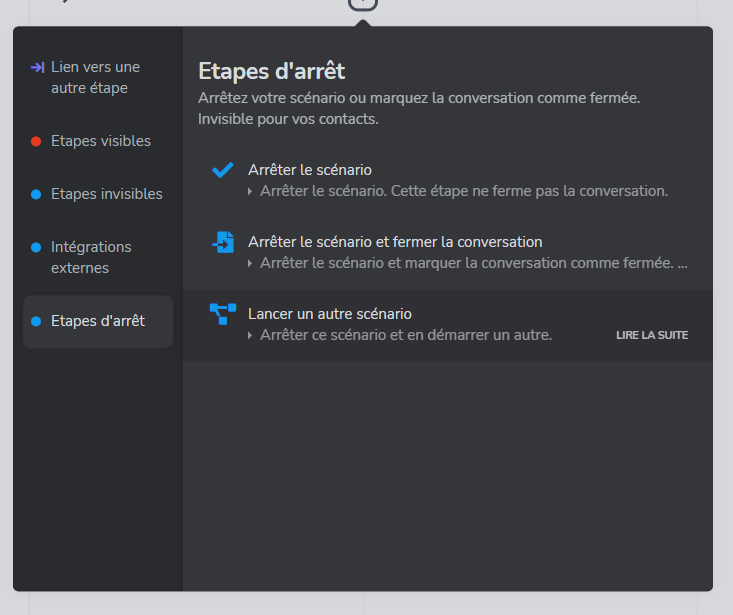
Finally, select the scenario to be triggered.