The modification history in Sarbacane Campaigns lists every action made on your email since it was opened. To go back, click a step: the email returns to the state it was in at that moment. Then close the panel.
A Sarbacane Campaigns subscription.
An email campaign open in the EmailBuilder.
In the gray bar above your email, on the right, click the clock icon that opens the modification history, between the arrows and the preview eye.
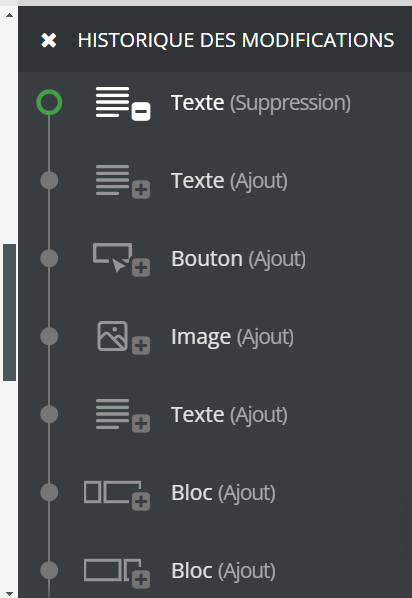
In the modification history panel that opens on the right, find the step you want. The most recent one is at the top, and the opening of the email is at the very bottom. Each step shows the element and the action (for example, a block added).
Click the step: a green circle marks it and the email is displayed as it was at that moment. Later steps turn gray.
Click the cross (×) to the left of the panel title: the email keeps the version you chose.
Note: to undo or redo only the last action, use the arrows just to the left of the clock icon. The left arrow undoes, the right arrow redoes.
Your email returns to the state of the step you chose and you can keep editing it. If it was not the right step, open the history again and click another step, for example the most recent one at the top of the list.
Note: the modification history is also available in Sarbacane Forms and Sarbacane Pages, and works the same way.
No change has been made since the email was opened. Steps appear as you make changes.
