The EmailBuilder is the Sarbacane Campaigns editor that lets you build an email by dragging blocks and content (text, images, buttons), with no HTML knowledge. It opens at the Message step as soon as you start from scratch or from a template.
A Sarbacane Campaigns license.
An email campaign already created (see How do I create an email campaign in Sarbacane Campaigns?).
In the breadcrumb at the top of the screen, click the Message step.
On the templates page, choose to start from scratch, or pick a template in one of the tabs (your templates, Smart Templates, received templates or Sarbacane templates).
In the right panel, drag a column block (1 to 4 columns) onto the workspace, in the center of the screen.
In the right panel, drag a content item (Text, Image, Button…) into the block.
On the workspace, click a content item to edit its text, formatting or properties.
In the upper part of the screen, fill in the header: sender, subject and preheader.
Save your campaign, then go to the next step to reach the checks.
Best practice Before adding your content, set the button color, the font and the block background in the Appearance block, at the bottom of the EmailBuilder. Every new content item then uses these settings.
The EmailBuilder shows three areas:
the upper part, for the email header;
the workspace, in the center, where you build the email;
the right panel, which contains the blocks and content to drag.
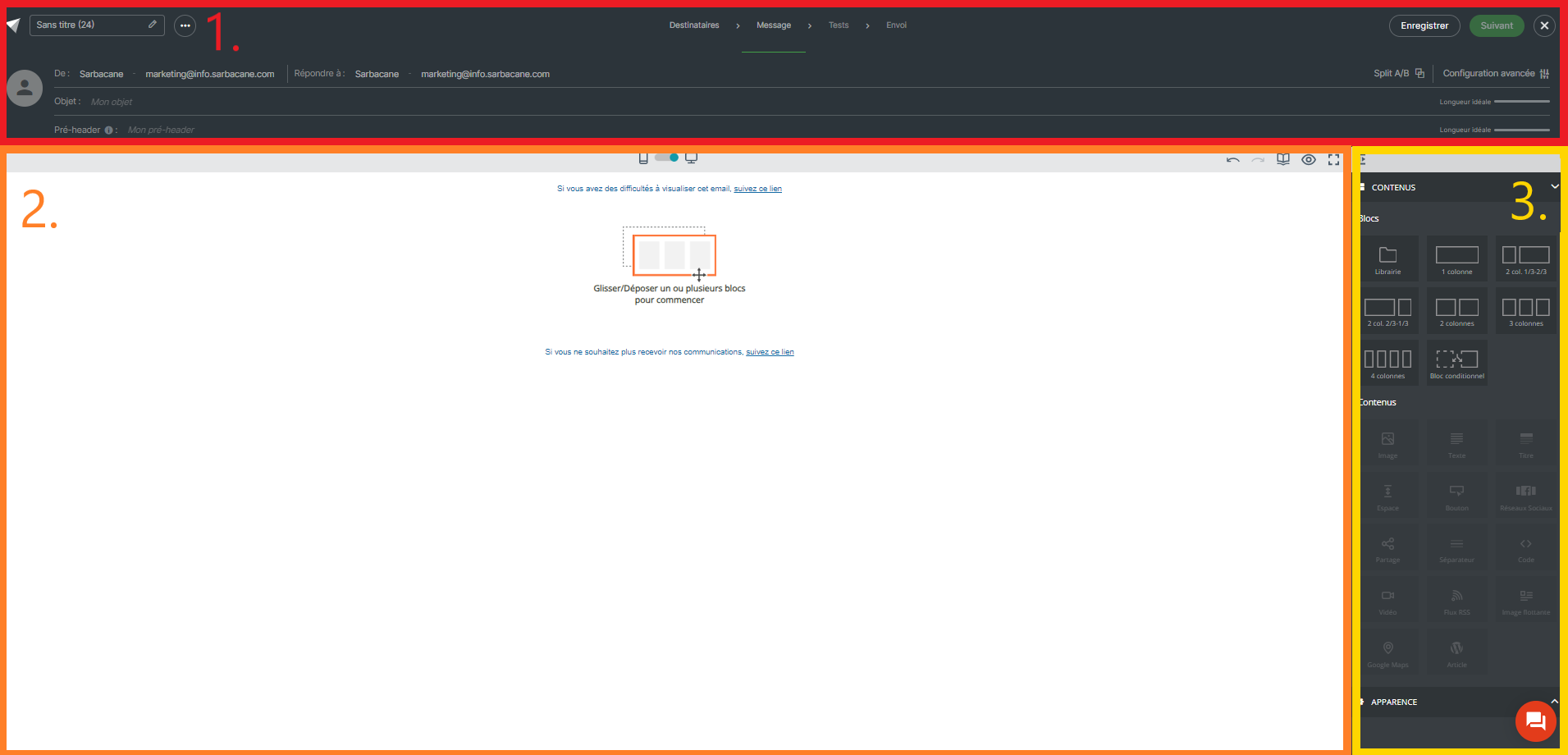
By default, the workspace shows the email as it appears on a computer. The button above the workspace switches to the mobile view.

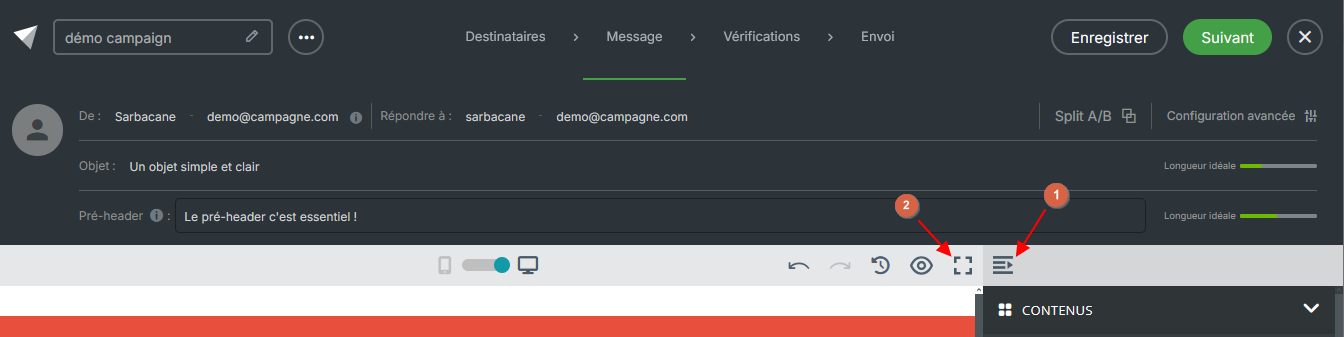
Note To enlarge the workspace, collapse the right panel with the button at the top of that panel. You can also switch to full screen with the button at the top right of the workspace.
The EmailBuilder only opens when you start from scratch or from a template. If you chose one of the other creation methods:
with an HTML file, the WYSIWYG editor opens;
with a text message, a simple text editor opens.
To use the EmailBuilder, create a new campaign and start from scratch or from a template at the Message step.
Switch to the mobile view above the workspace, then adjust the display rules of the blocks (see Optimize campaign display on mobile).
