If you already have a domain name (for example the domain name of your website), we invite you to create one or more sending subdomains and not to use your main domain (the one for your website) for sending your emails.
A sending subdomain is a part of your main domain specifically used for an activity (here, the sending of your marketing emails). Using a sending subdomain is a common practice in emailing to improve the deliverability of your emails, your sender reputation, and the security of your main domain. This makes it possible to clearly separate email sending activities from the rest of your online infrastructure.
We will not be able to perform these publications on your behalf. If you are not certain you are able to make the required additions to the DNS zone of your domain, refer to your IT department or your webmaster, who are very likely in contact with your hosting provider (OVH, Hostinger, GoDaddy, etc.) and will therefore be able to do it for you.
Once this point has been confirmed, you will only have to follow the process below.
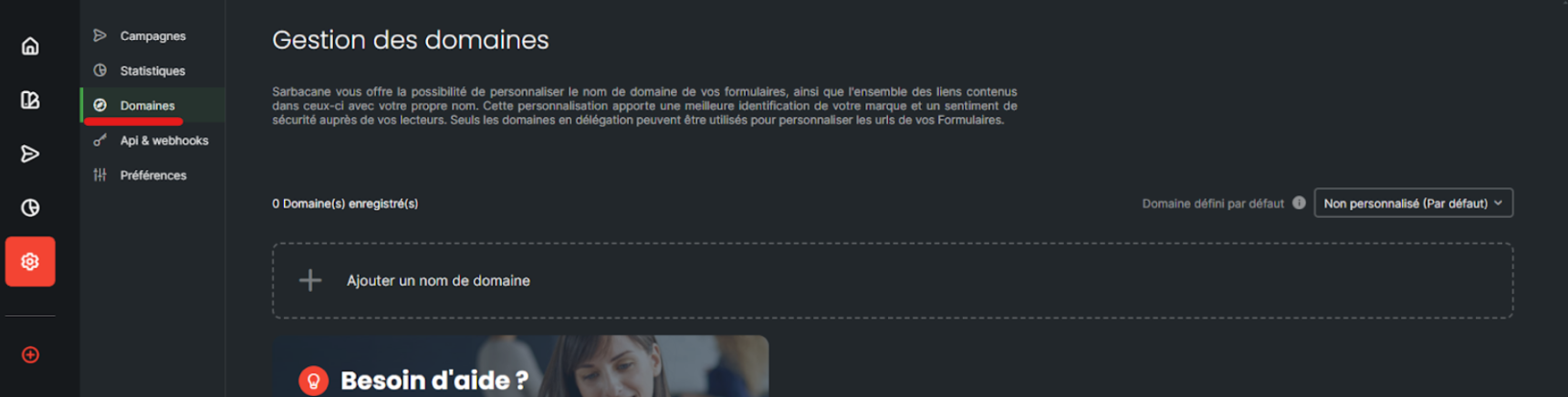
Go to the settings of the Sarbacane campaigns application, then to the “Domains” section, then click on “Add a domain name”.
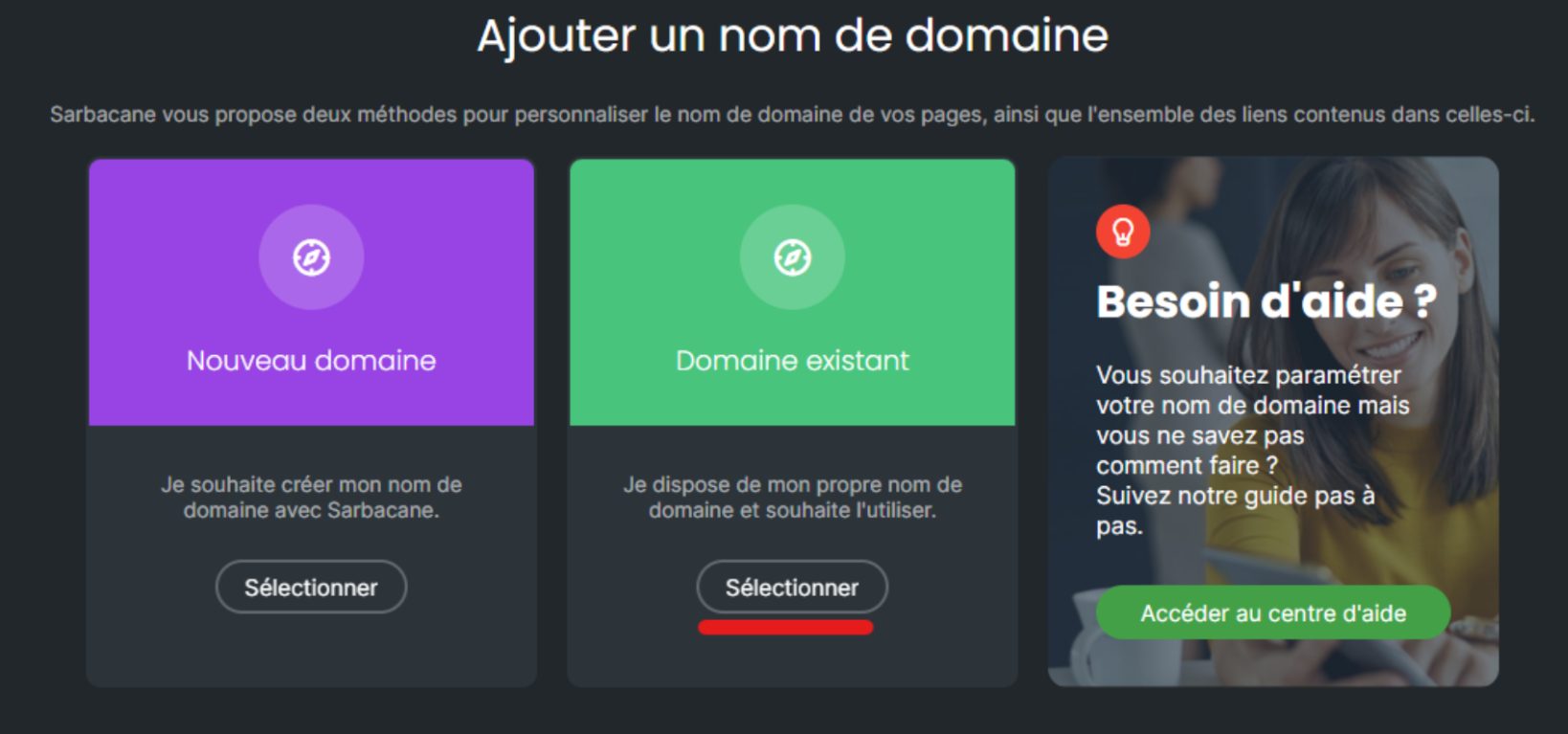
Here you will choose the “Existing domain” option.
Note: Here we will refer to “Domain configuration by delegation” because you are delegating the management of the subdomain to Sarbacane. However, it is indeed you (or your technical teams) who must add the necessary records with your hosting provider.
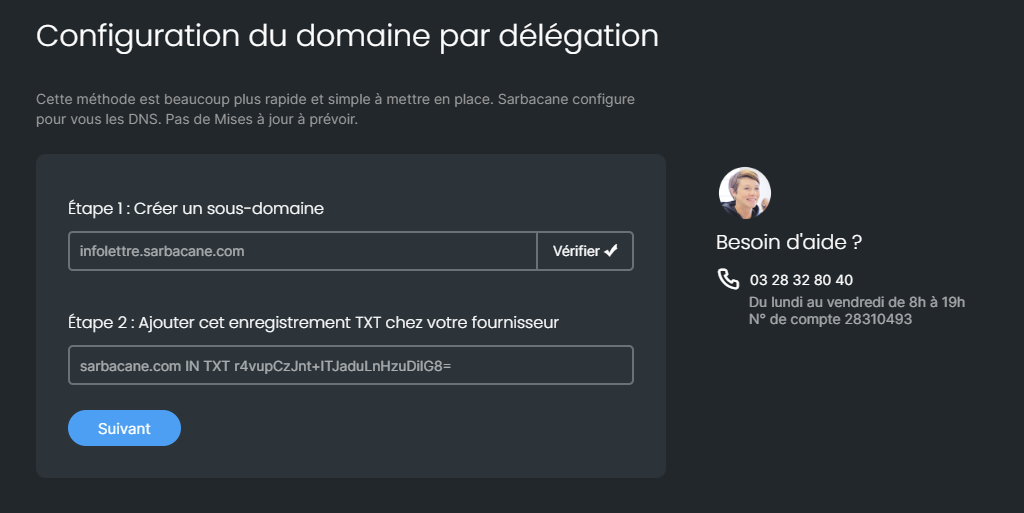
In the “Create a subdomain” field, enter the sending subdomain that you wish to use: For example, if your domain is “sarbacane.com”, you can create a subdomain such as “infolettre.sarbacane.com”.
Then click on “Verify” in order to generate the TXT key in the box for step 2.
Step 4
The first record to add at your hosting provider appears. This is a TXT record that must point to your root domain (here sarbacane.com).
This record will allow us to verify that you are indeed the owner of the domain.
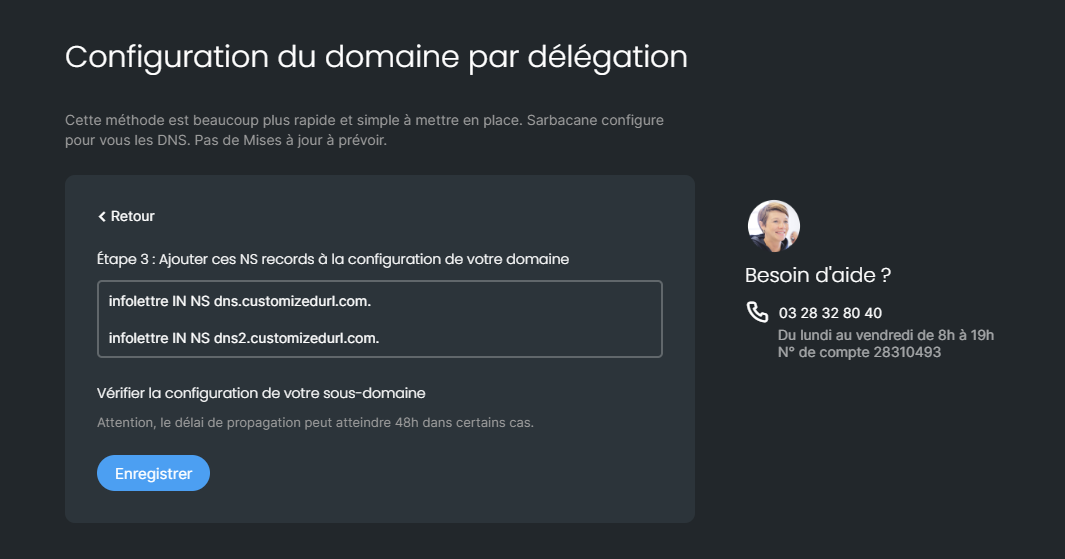
Proceed to the next step where you will see two NS keys appear. These two entries must be entered at your hosting provider on your subdomain (here infolettre.sarbacane.com), simply by copying them.
Once these operations have been carried out, click on “save”.
Your domain will appear on your account.
The status will first appear as “pending validation” while the records are propagating at your hosting provider. Read the article about adding records.
These validation times can take up to 48 hours.
WARNING: do not forget the “.” after customizedurl.com.
Step 6
Once your new subdomain has been validated, remember to enter it by default on the right side of your screen to ensure that it is properly applied to each of your mailings.
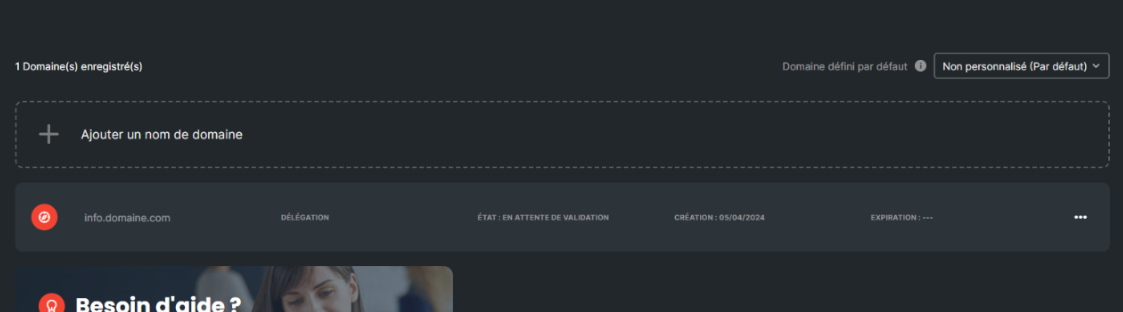
Please note that you may have as many subdomains as you wish. You can, for example, have a subdomain depending on the type of communication you send: commercial.domain.com, news.domain.com, notifications.domain.com, etc.
