Each question in a Sarbacane Forms form must be linked to a column of the contact list that receives the answers: this is column matching. When you add a question, choose an existing column of the list or create a new one. Without a match, the answer is not saved in the list.
The Sarbacane Forms application added to your Sarbacane plan (it is an option).
A form linked to a contact list (Replies step).
In the left menu, open My forms. To the right of the form name, click •••, then Edit.
At the top of the screen, open the Form step.
In the Questions panel on the right, drag and drop the question type you want into the form (Short text, Single choice, Stars, etc.).
In the Question properties window, open the Match in the list list, then:
to use a column that already exists in the list: select it;
to create a new column: enter its name in the Column name field, then click the check mark to the right of the field.
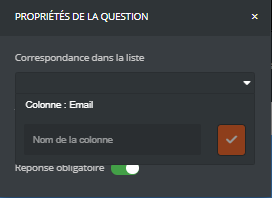
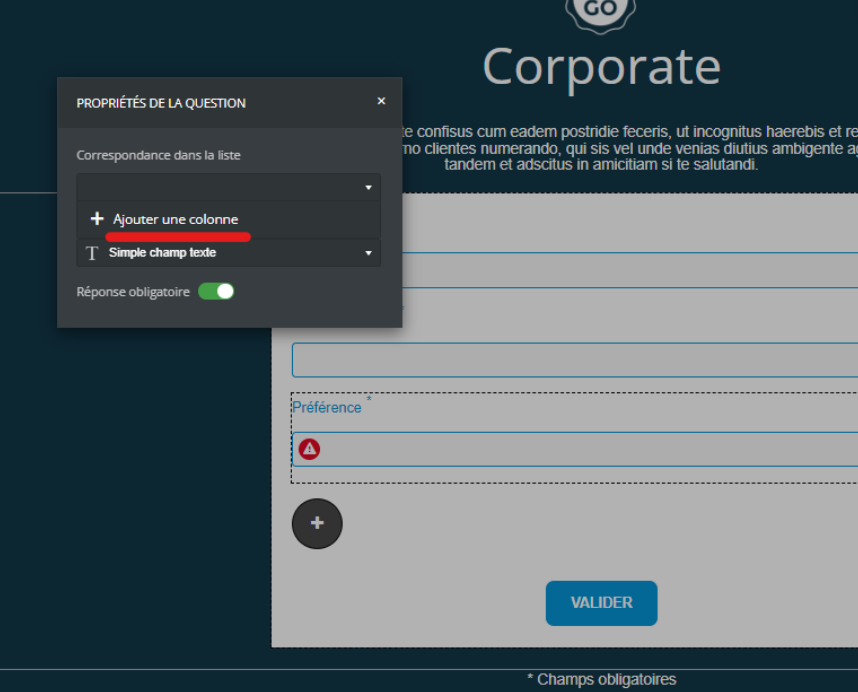
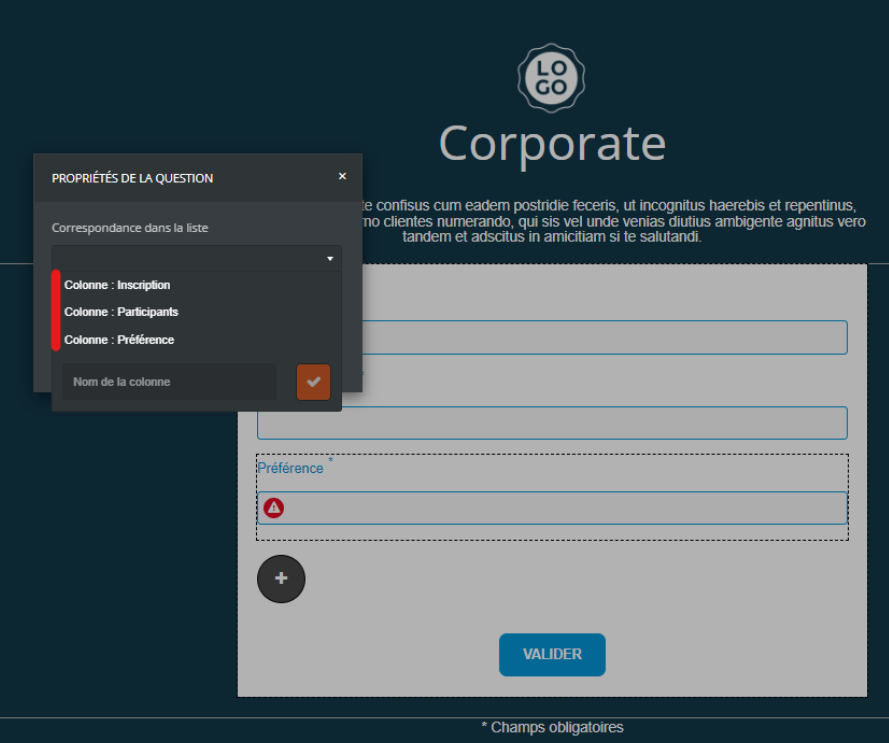
Repeat the operation for each new question.
Caution Do not delete the email and phone number fields, and do not replace them with another column. They are the system fields that identify the contact. Without them, answers can no longer be attached to a contact.
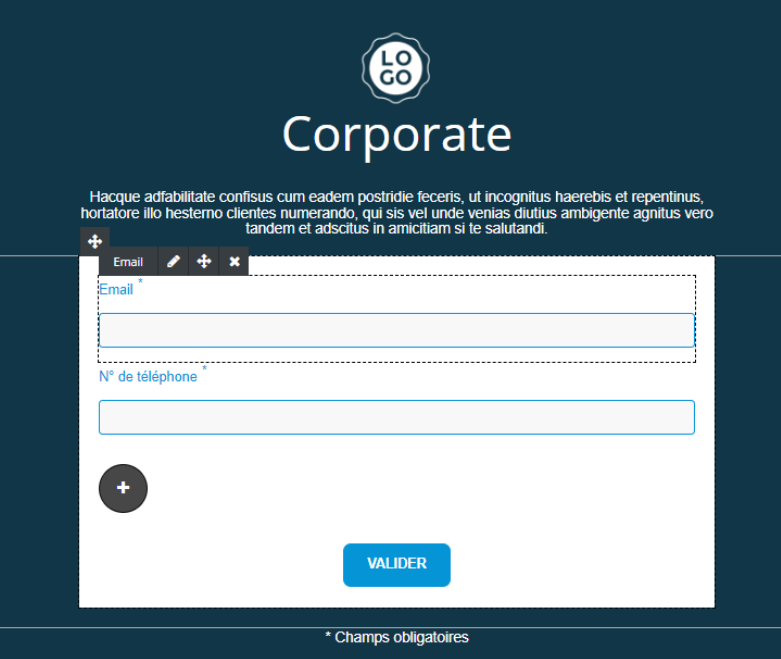
At the top right, click Save. If the form is already online, click Publish my modifications.
No red triangle appears under the questions. Each answer is saved in the chosen column, in the form's contact list.
The question is not linked to any column. Hover over the question, click the pencil icon, then choose a column in Match in the list. The triangle also appears in the next step as long as the match is not corrected.
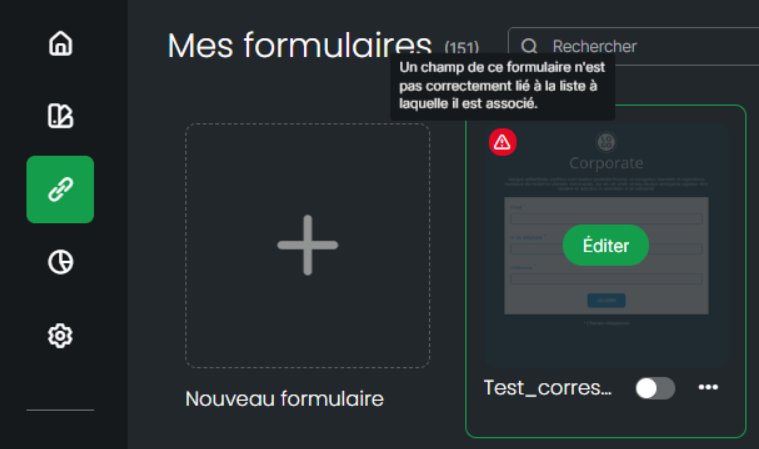
This message appears when you hover over the form in My forms, when at least one question has no match. Open the form with Edit and correct the questions marked with a red triangle.
The email or phone number field has been deleted or linked to another column. Add a question linked to the email or phone column of the list, then publish again.
