To ask a question only when the respondent chooses a specific answer, add a Condition question to your Sarbacane Forms form, then place the additional question under the option concerned. For example: the respondent accepts an invitation, and you ask whether they will come with someone. Other respondents do not see this question.
The Sarbacane Forms application added to your Sarbacane plan (it is an option).
A form linked to a contact list (Replies step).
In the left menu, open My forms. To the right of the form name, click •••, then Edit.
At the top of the screen, open the Form step.
In the Questions panel on the right, drag and drop Condition into the form.
In the Question properties window:
in Match in the list, choose or create the column that will receive the answer;
in Options display, choose Horizontal or Vertical;
turn on Required answer if the respondent must choose an option.
In the form, click the question title to enter your question, then click each option to enter the proposed answers. Click + to add an option, and x next to an option to delete it.
Under the options, click the name of an option to open its area. The message Drag and drop a question or leave blank appears. Drag and drop into this area the question to display when the respondent chooses this option. An option can also remain without an additional question.
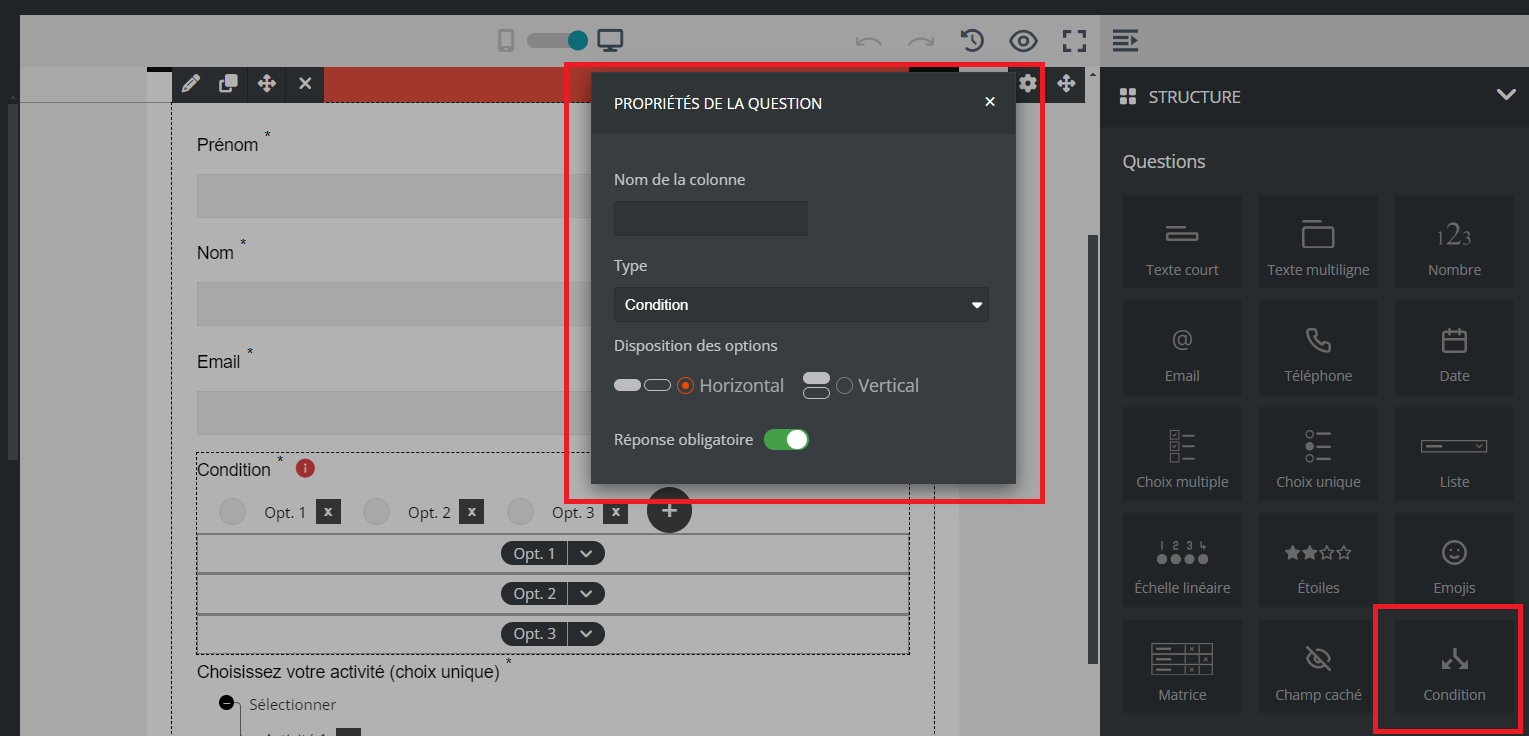
Link each additional question to a column of the list, in Match in the list.
At the top right, click Save. If the form is already online, click Publish my modifications.
In the online form, the additional question only appears when the respondent chooses the corresponding option. To check, open the Online preview with the ••• button to the right of the form name.
Check, in this order:
The question is in the area of this option (click the option name to open it), and not in the area of another option or outside the Condition question.
If the form is online, you clicked Publish my modifications after adding it.
The question is not linked to any column of the list. Hover over it, click the pencil icon, then choose a column in Match in the list.
