A conditional sequence chooses the next step for each contact: do they have a phone number, did they open the email, did they click a link? Each condition creates two branches, true and false, each leading to the action of your choice.
A Sarbacane Engage licence.
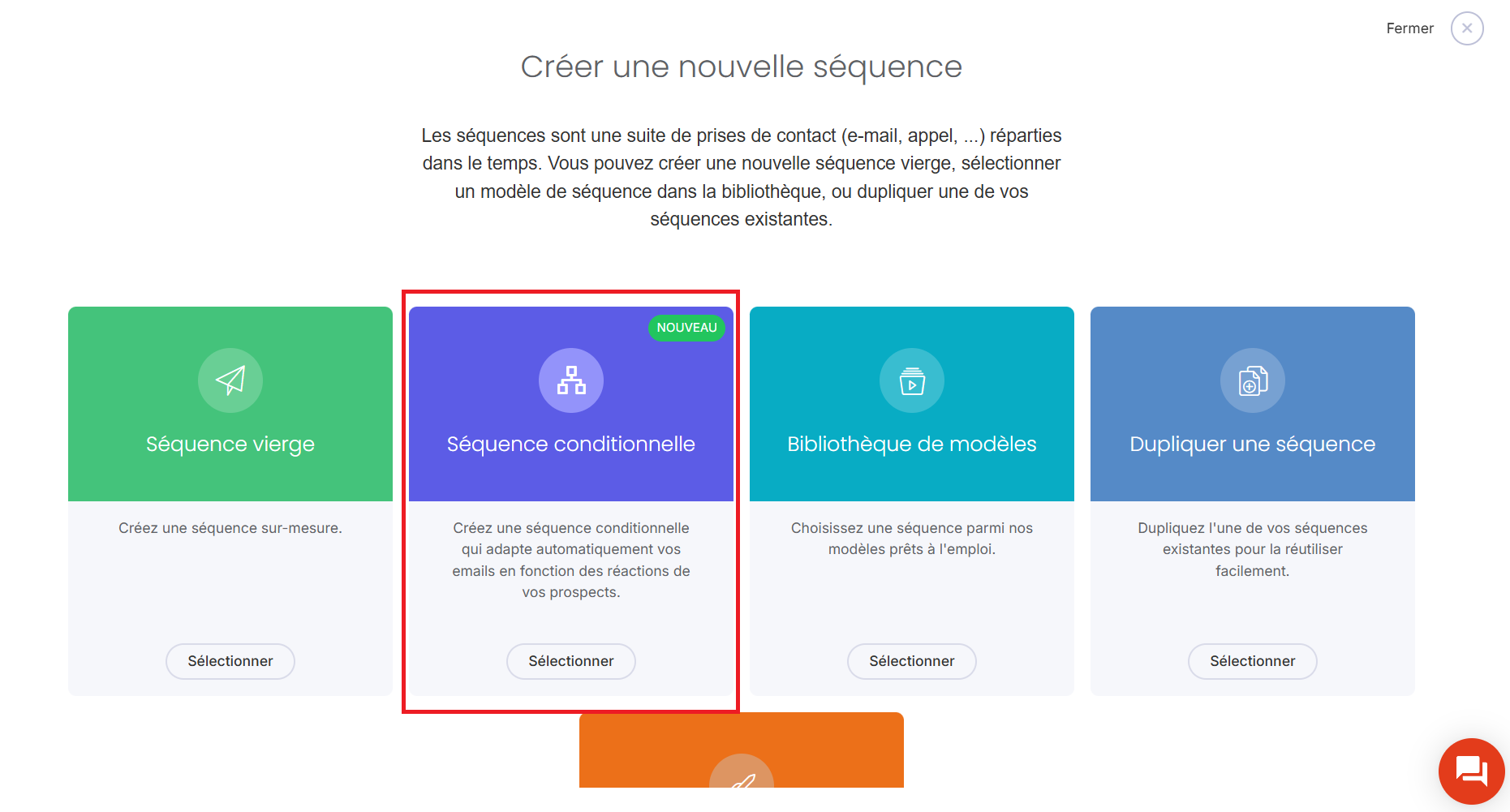
In the left menu, click the sequences icon (paper plane), then the new sequence button.
In the sequence creation window, choose the conditional sequence.
Under the start of the sequence, click the small + to add a step.
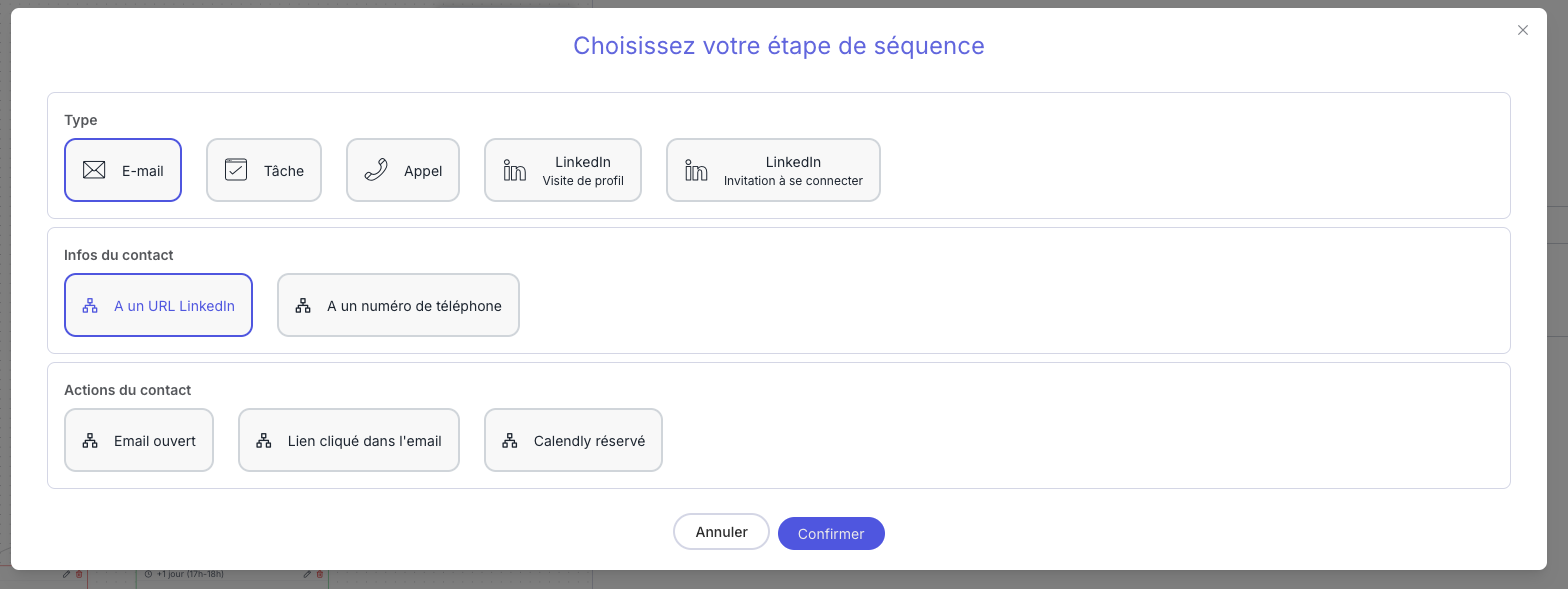
In the step selection window, select the step, then confirm. Three families of steps are offered:
Type: an action to carry out (email, task, call, LinkedIn profile visit, LinkedIn connection invitation);
Contact information: a condition on the contact's record (has a LinkedIn URL, has a phone number);
Contact actions: a condition on their behaviour (email opened, link clicked in the email, Calendly booked).
After a condition, two branches appear, true and false. Under each one, click + and add the step to carry out.
To set a step's delay, click the pencil on its block, then enter the delay in days or in hours.
In the top right, click Save the sequence.
Note Both branches of a condition can lead to the same action. This keeps the sequence readable when several people follow it.
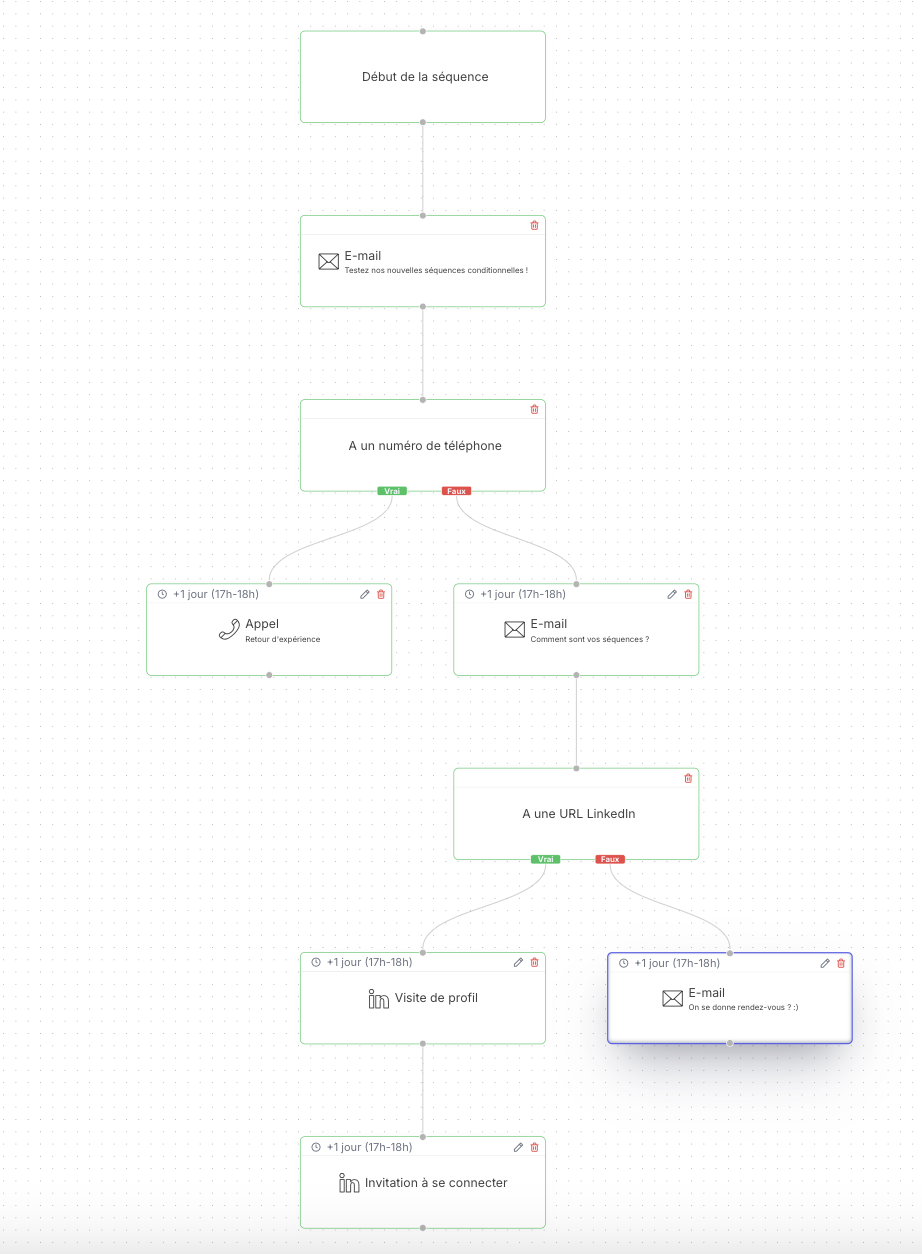
Your sequence is displayed as a tree. For example:
a first email goes out;
if the contact has a phone number, a call is planned, otherwise a follow-up email goes out;
if the contact has a LinkedIn URL, a profile visit then an invitation follow, otherwise a last follow-up email goes out.
Check that open tracking is enabled in the Tracking block of the sequence settings.
The sequence is running. Duplicate it to change it, as explained in the article on editing a running sequence.
