With the native Datananas x Pipedrive integration, automate the exchange of data between your CRM and Datananas. At your convenience, this synchronization can be unilateral or bidirectional.
The Datananas x Pipedrive synchronization allows you to automatically update information relating to prospects present in both software solutions following their modification on either interface, without any other third-party software.
Here are some examples of use:
Updating the contact status in Pipedrive after qualification in Datananas
Updating contact details in Datananas after an update in Pipedrive
Creating contacts in Pipedrive after data enrichment in Datananas
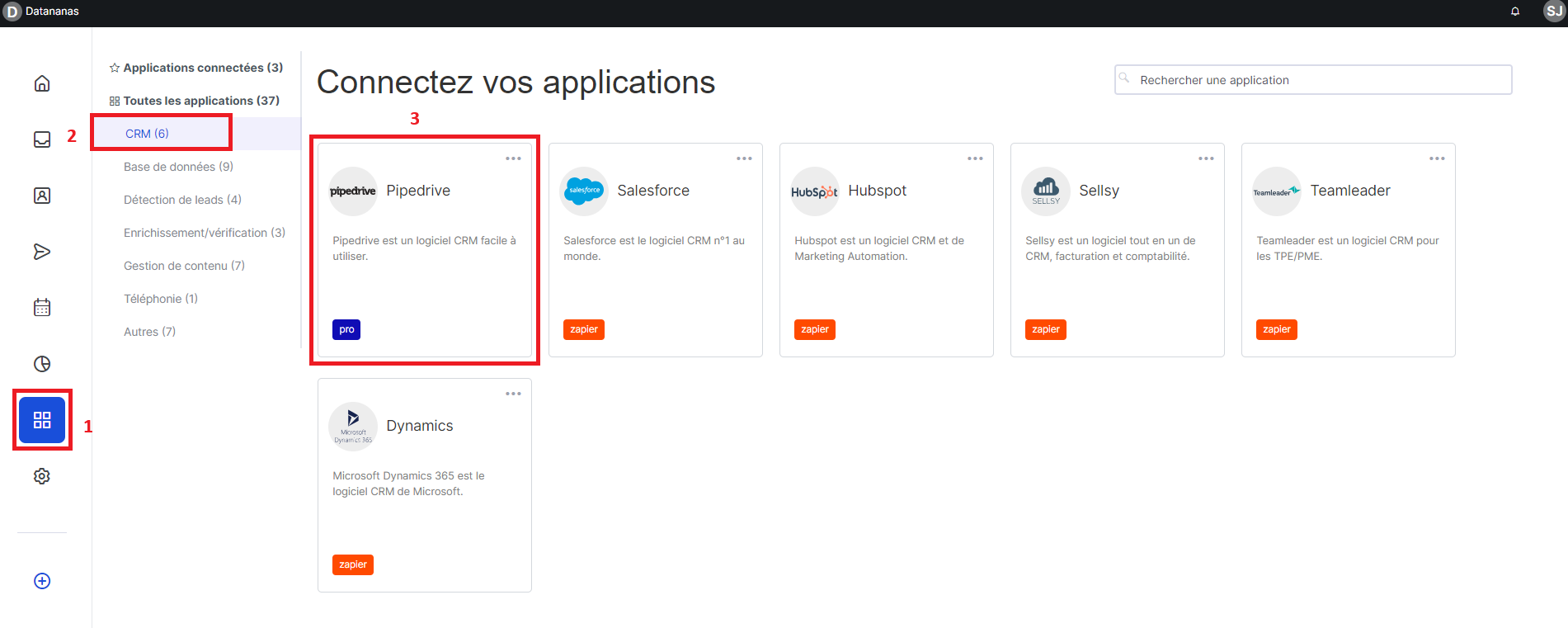
Go to your Integrations page (1) via the left sidebar
Go to the CRM tab (2) then click on the Pipedrive tile (3)
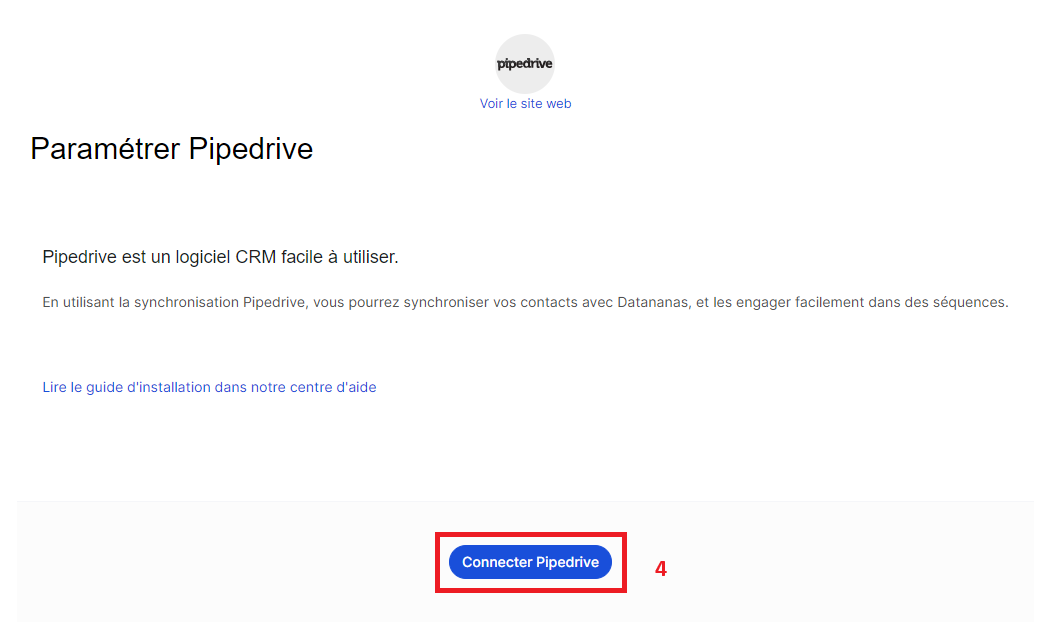
Then click on Connect Pipedrive (4)4
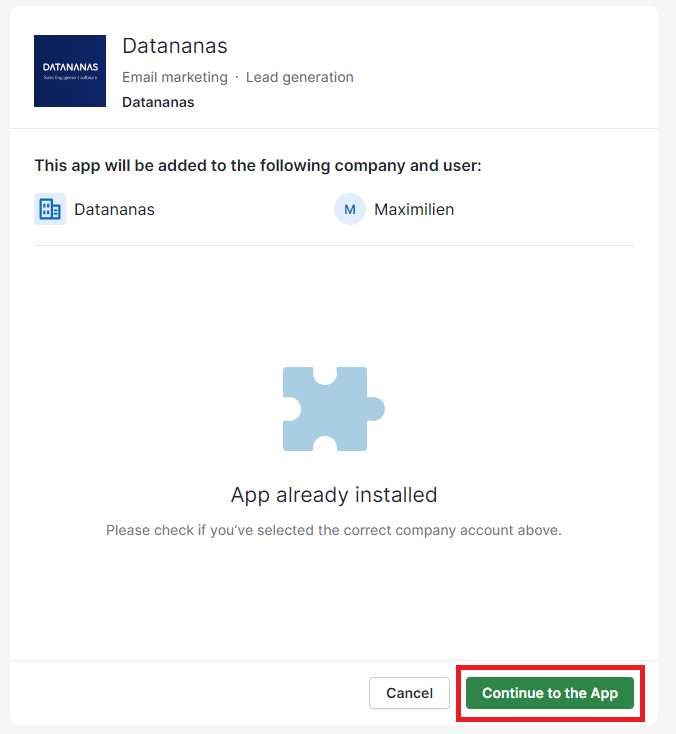
Then enter your Pipedrive login details and Authorise Datananas to connect to your Pipedrive account by clicking on Continue to the app
Via the Configuration tab, choose how to set up your integration.
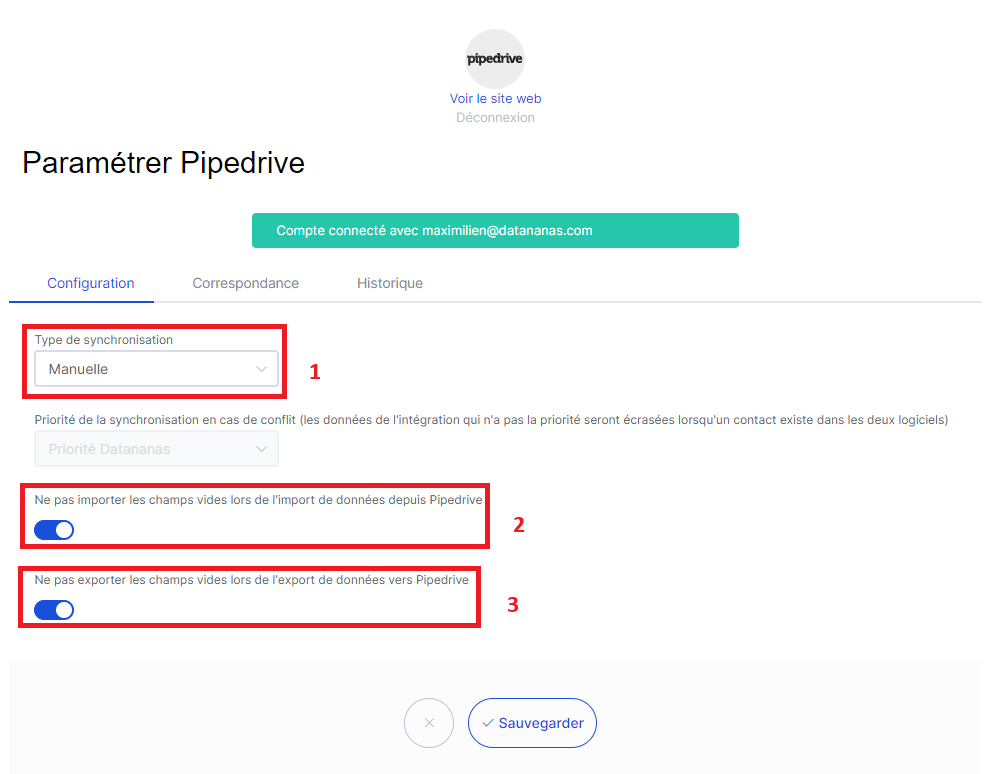
(1) Choose the type of synchronization between Pipedrive and Datananas
Manual: No automation between the two software tools
Import only: the items present in Pipedrive will be reflected in the items present in Datananas
Export only: the items present in Datananas will be reflected in the items in Pipedrive
Bi-directional: each modification in one software tool will trigger modifications in the other software tool
(2) Enable (blue) / disable (grey) the toggle "Do not import empty fields when importing data from Pipedrive".
(3) Enable (blue) / disable (grey) the toggle "Do not export empty fields when exporting data to Pipedrive"
Then click on Save at the very bottom.
Please note: If you choose "Bi-directional" as the type of synchronization, you will be able to choose between 2 options via the drop-down menu "Synchronization priority in case of conflict":
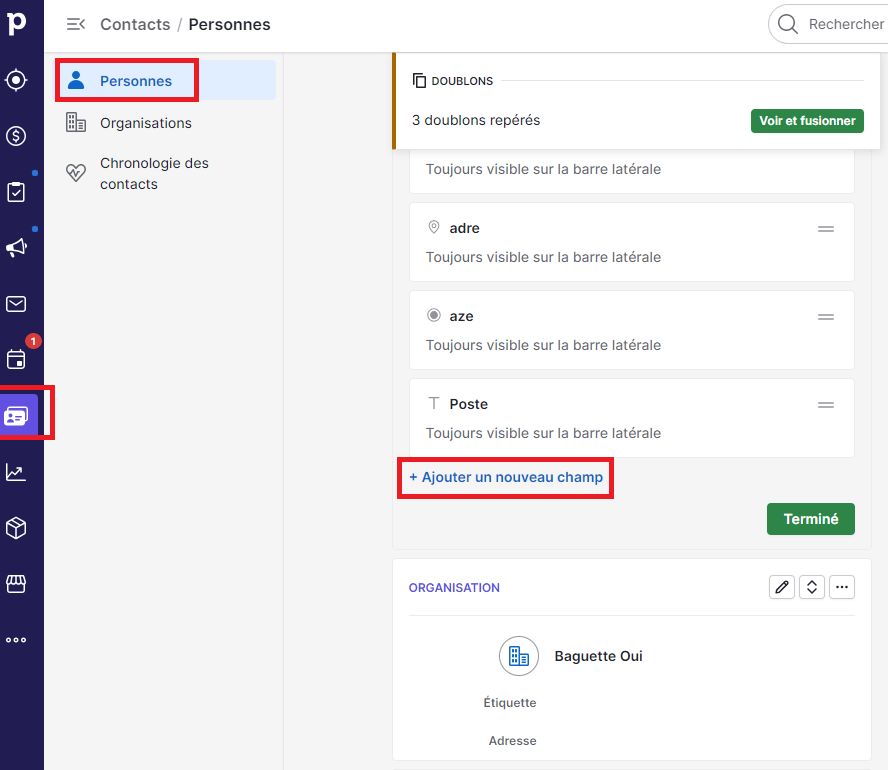
You will then be able to match them with variables in Datananas that would not have a default equivalent in your CRM. If this is not clear on your side, here is an article that explains how to create variables in Datananas.
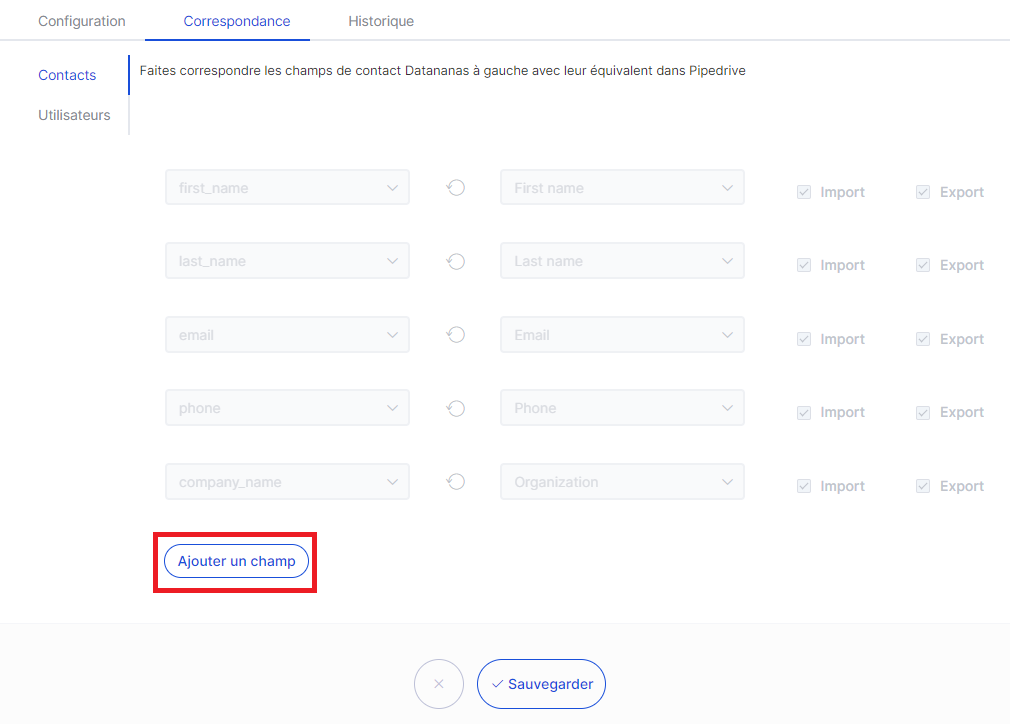
A mapping is already done by default between the main fields of the two tools. To match new fields between Datananas and Pipedrive, click on Add a field:
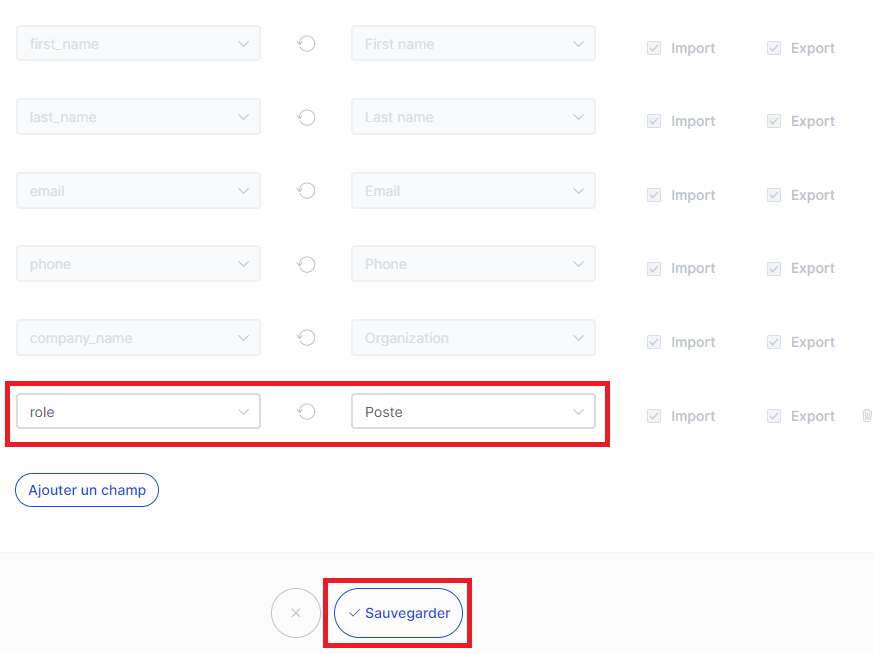
Then choose the Datananas field (on the left) and the Pipedrive field (on the right) to be matched, then click on Save:
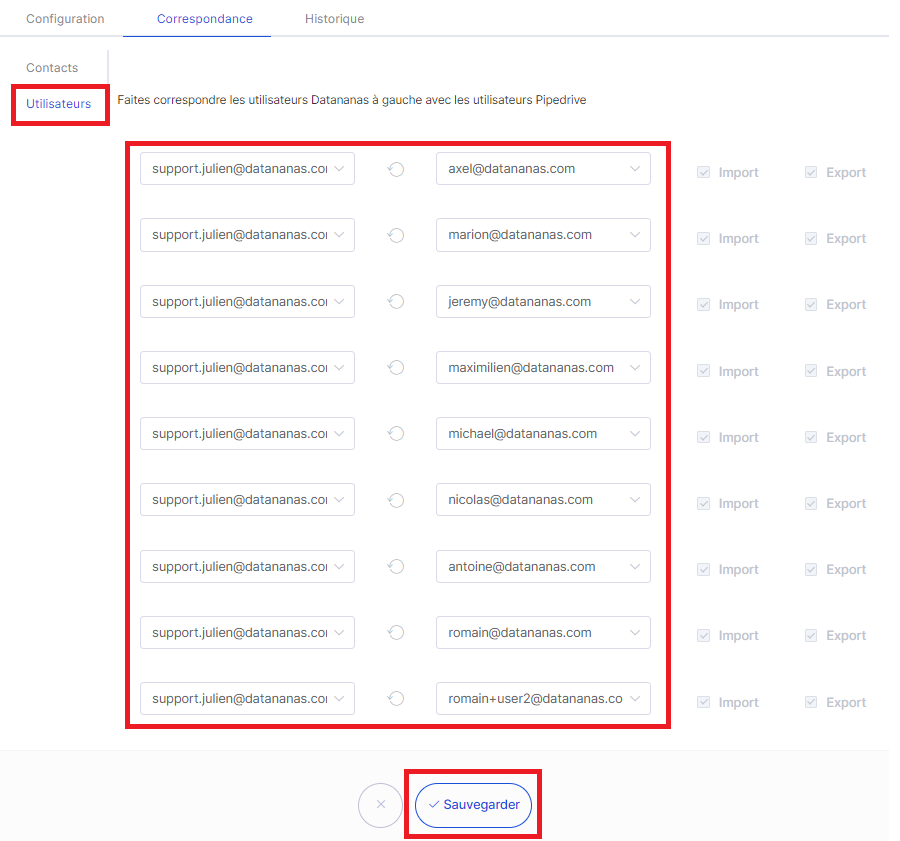
Via the Users sub-tab, you will be able to match Datananas users on the left with your Pipedrive users on the right in order to manage the “ownership” of synchronized contacts. Please note that, by default, our system will connect you to all Pipedrive users. Therefore, check the established correspondence and modify it if necessary, then click Save:
Important:
The Pipedrive fields that you wish to match with Datananas variables must not be multi-entry fields (drop-down menu, etc.).
To connect your Pipedrive account, you must have a Pro or higher subscription and hold the Manager role (see article the User and Manager roles in Datananas).
Note:
Beyond our native integration, and if you wish to go further in automations between Datananas and Pipedrive, you will need to use Zapier. To do so, please do not hesitate to contact us via the chat bubble at the bottom right of the application; we can provide support.
d
