In the EmailBuilder, you build an email in two stages. First you place a structure block (columns, library or conditional block), then you drag content into it (text, image, button…). Blocks and content are in the right panel.
A Sarbacane Campaigns license.
An email open in the EmailBuilder (see How do I use the EmailBuilder in Sarbacane Campaigns?).
For the conditional block: the Premium plan or higher.
In the right panel, drag a structure block onto the workspace.
Drag a content item into one of the block's columns.
Click the content item or the block to display its settings.
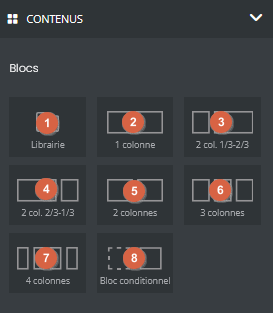
Structure block | What it does |
|---|---|
Library | Reuse the blocks and folders you have saved (header, footer…). To save a block, hover over it and click the save option that appears. |
Columns | Structure the email in 1, 2, 3 or 4 columns |
Conditional block | Show up to 20 versions of a content item based on your recipients' data, without duplicating the campaign (see the article on conditional blocks) |
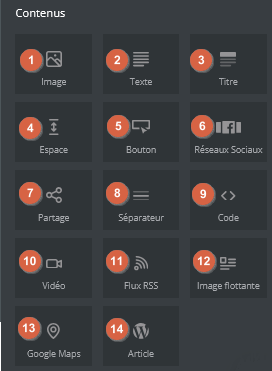
Content | What it does |
|---|---|
Image | Add an image from your computer, the image bank, a URL or a column of your list (variable) |
Text | Write text, with font, size, color, links (chain-link icon) and personalization fields (curly brackets, see the article on personalization fields) |
Title | Add a large, pre-formatted title |
Space | Separate two blocks: 20 px by default, from 10 to 100 px |
Button | Add a button that leads to an external page, the online version of the email, an unsubscribe form, a Sarbacane form, a landing page, an email address, a phone number or an add-to-calendar link (ICS format) |
Social networks | Show links to your social networks |
Share | Let your contacts share the email on Facebook, X and LinkedIn |
Separator | Draw a line between two elements |
Code | Insert HTML (carousel, countdown…) |
Video | Show a still thumbnail that leads to the video when clicked |
RSS feed | Show your latest articles, updated at each send |
Floating image | Place a free visual next to a text (badge, promotion) |
Google Maps | Show a map of a place, as a clickable image |
WordPress articles | Reuse the articles of your website, if the WordPress module is connected (see the article on the WordPress connection) |
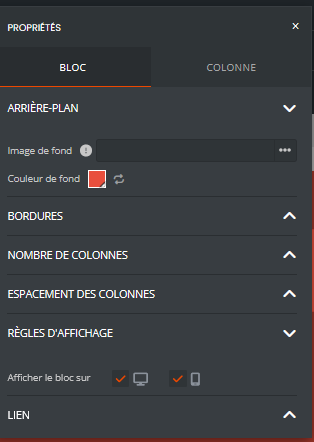
Each block also has its own settings: background color, border, display on computer or mobile (see Optimize campaign display on mobile), a link on the whole block and the inner margin of the columns.

Note The Code content is not meant to hold an entire campaign, and its rendering is not guaranteed in every email client. For a campaign entirely in HTML, use the HTML file mode (see the article on the HTML file mode).
Best practice For an animated video in the email, create a GIF from an excerpt, import it into an Image content item, then add the video link to the image.
The EmailBuilder only offers universal fonts, which every email client can read. An imported or unusual font would not display for your recipients, which is why importing fonts is not possible.
This block is only available from the Premium plan.
It only appears once your WordPress website is connected to Sarbacane (see the article on the WordPress connection).
Email clients only display still images. When they click, recipients open the map in their browser and can then start the route.
