To prevent an automated campaign from sending a message at night or at the weekend, set its active days and time range in the scenario's advanced settings in Sarbacane Campaigns. A message due outside these slots is sent at the start of the next active slot. The setting is separate for emails and for SMS.
A Sarbacane Campaigns licence.
An automated campaign that is deactivated or being created. An active scenario must be deactivated first (see How do I pause or modify an automated campaign in Sarbacane Campaigns?).
Open the scenario editor: in My campaigns, open the thumbnail's ••• menu, then the edit option.
In the top right of the Trigger block, click the gear icon. The Settings window opens.
At the bottom of the window, click the advanced settings link. It only appears once the list is chosen.
In the sending and stop conditions window, open the email sending tab or the SMS sending tab.
Under the active days, click a day to deactivate it. An active day is green and ticked.
Under the time range, drag the two handles of the slider to set the start and end time of the sends.
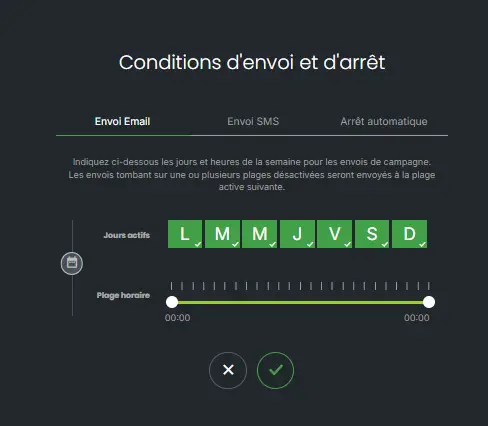
Close the windows with the tick. In the top right of the editor, click Activate the workflow, then confirm in the activation window.
Note By default, all days are active and the slider goes from 00:00 to 00:00: messages are sent at any time.
Note For SMS, Sarbacane already blocks sends at night, on Sundays and on public holidays, as required by regulations, whatever your setting.
The scenario's messages are only sent on the chosen days and times. A message due outside them waits for the next active slot: for example, if the weekend is deactivated, a message due on Saturday is sent on Monday at the start time.
The sending time fell outside the active days or the time range: the message waited for the next slot. Check the settings of the email or SMS sending tab. For an SMS, also check that it did not fall at night, on a Sunday or on a public holiday.
The email and SMS sending tabs are set separately. Check both.
