As the owner or an administrator, you can require two-factor authentication for all users of the account from the Security menu, or enable it only for your own access from Profile & preferences. Each setting takes three or four clicks.
Be logged in to your Sarbacane account.
To require two-factor authentication for the whole account: have the Owner or Administrator role.
In the top-right corner of the screen, click your avatar.
In the left-hand menu, click Security.
At the top of the page, open the Authentication tab.
In the Administrator control of two-factor authentication block, click the Two-factor authentication required for all users toggle. If it is greyed out, the requirement is off. Otherwise, it is on.
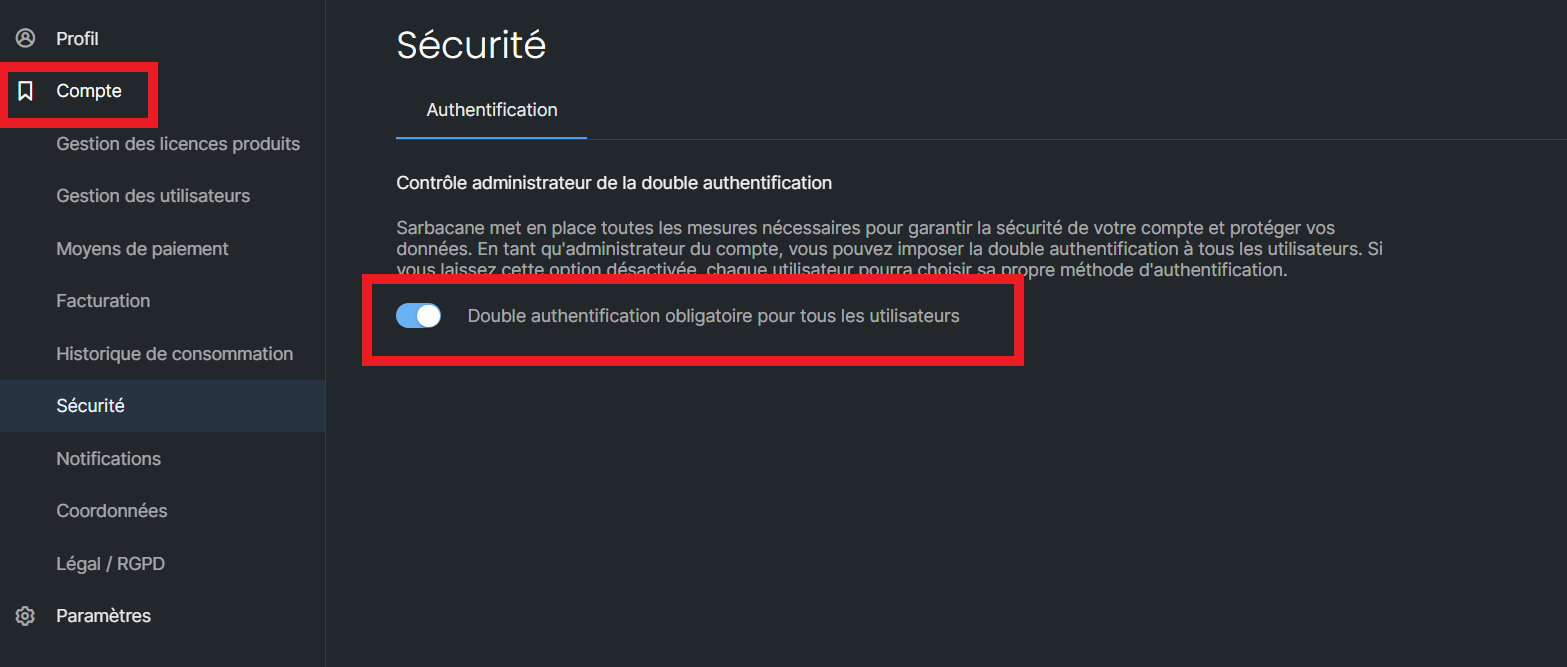
Note: if the toggle stays off, each user chooses their own authentication method. While the requirement is on, users cannot disable two-factor authentication for their own access.
In the top-right corner of the screen, click your avatar: the Profile & preferences page opens.
Click the Authentication tab.
To the right of Log in with two-factor authentication, click the toggle. If it is greyed out, two-factor authentication is disabled. Otherwise, it is enabled.
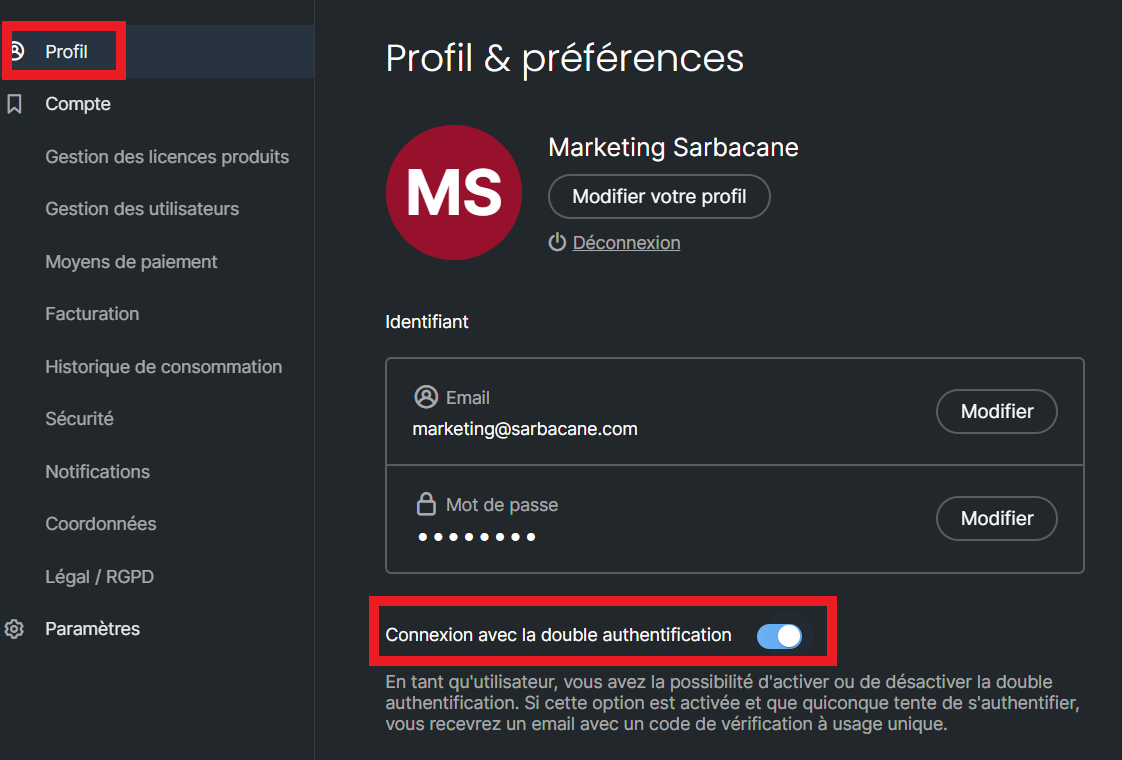
Two-factor authentication applies to all users of the account, or only to your own access, from their next login.
This menu is reserved for the Owner and Administrators. Check your role with the account owner.
It is probably required for the whole account. First turn off the Two-factor authentication required for all users toggle in Security, Authentication tab, then set your own access in Profile & preferences.
The requirement applies at the next login. The user will be affected as soon as they log in again.
This is expected: turning off the requirement also disables it for each user. Users who want to keep it must enable it again themselves from Profile & preferences.
