With Sarbacane Suite, you have a set of powerful tools at your disposal to optimize your marketing strategies and improve your performance. These tools take the form of applications available in the Suite. Each application requires a specific license, which you can assign to the user of your choice.
As a reminder, here are the applications available in the Suite:
Sarbacane Campaigns to create, send, automate and analyze your email and SMS marketing campaigns.
Sarbacane Contacts to centralize your database and better manage segmentation for more effective targeting of your campaigns
Sarbacane Studio to create and organize templates that reflect your brand image.
Sarbacane Pages to create and publish your landing pages
Sarbacane Forms to create and publish forms that will enrich your contact lists and enhance your customer knowledge.
Sarbacane Chat to engage in real time with visitors to your website by setting up a chat bubble.
Sarbacane Sendkit to send your transactional emails and SMS via API.
Sarbacane Engage to automate your B2B sales prospecting by email
To add, remove or modify access to Sarbacane Suite applications available on your account, follow the steps below:
Log in to your Sarbacane account using your email address and current password.
Once logged in, click on your avatar at the top right of the screen to access your account and profile settings.
You are automatically redirected to the “Profile” section of the settings. Click on the “Account” section.
In the left-hand side menu, you will see different subsections related to your account. Look for the heading “Product license management” and click on it.
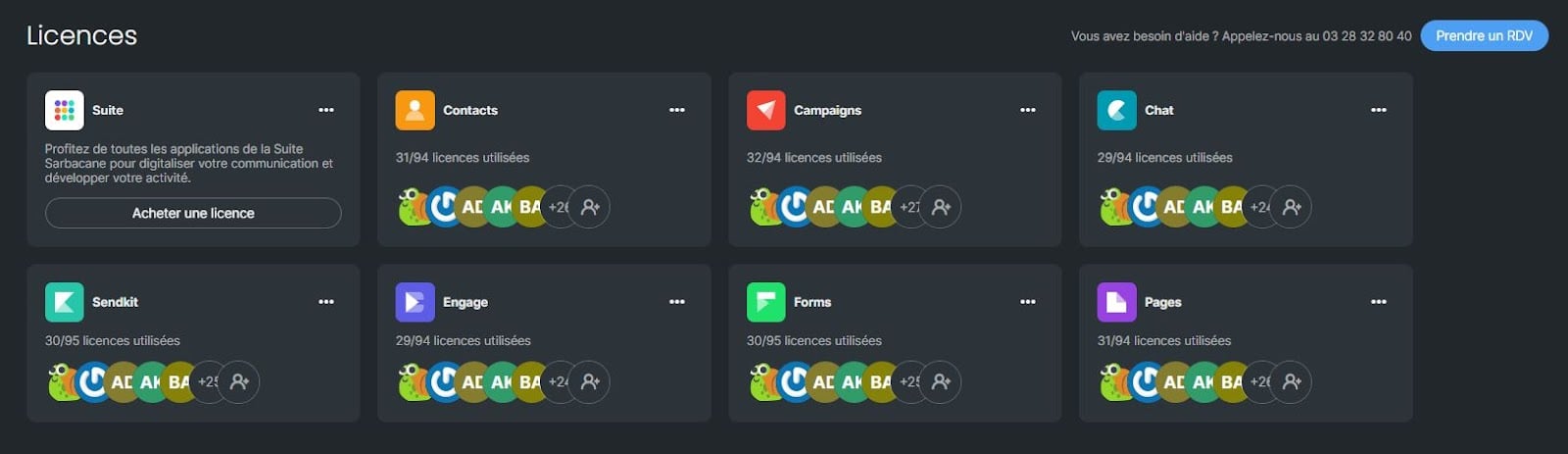
Note : This section is only accessible to the owner and administrators of the account, and it will allow you to view the number of available licenses compared with those already assigned.
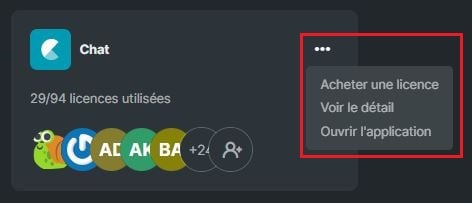
The action menu relating to each license will allow you to:
Purchase a license
View the details of a license (which users have been assigned licenses)
Open the application
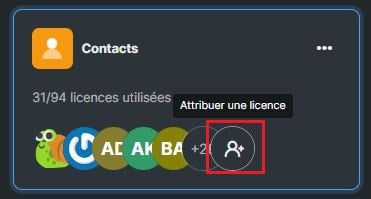
To assign a license to a user, click on the corresponding symbol in the box of the relevant application.