In Sarbacane Campaigns, you choose a template at the Message step of your email campaign: it is imported into the editor, where you adapt the text and images before sending.
A Sarbacane Campaigns licence (it includes Sarbacane Studio, where templates are managed).
To use your own template: save it beforehand (see How do I save my campaign content as a template?).
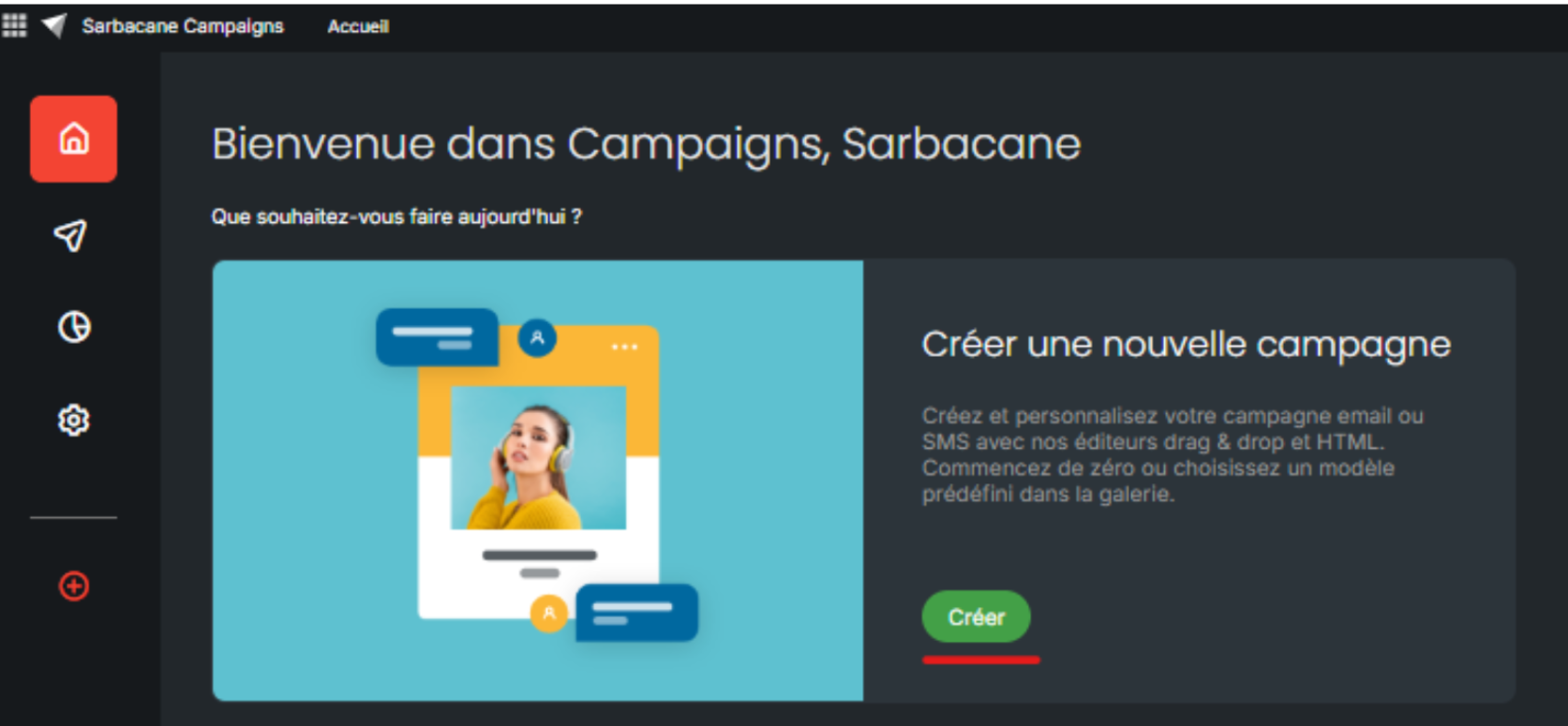
On the Sarbacane Campaigns home page, in the block for creating a new campaign, click the create button.
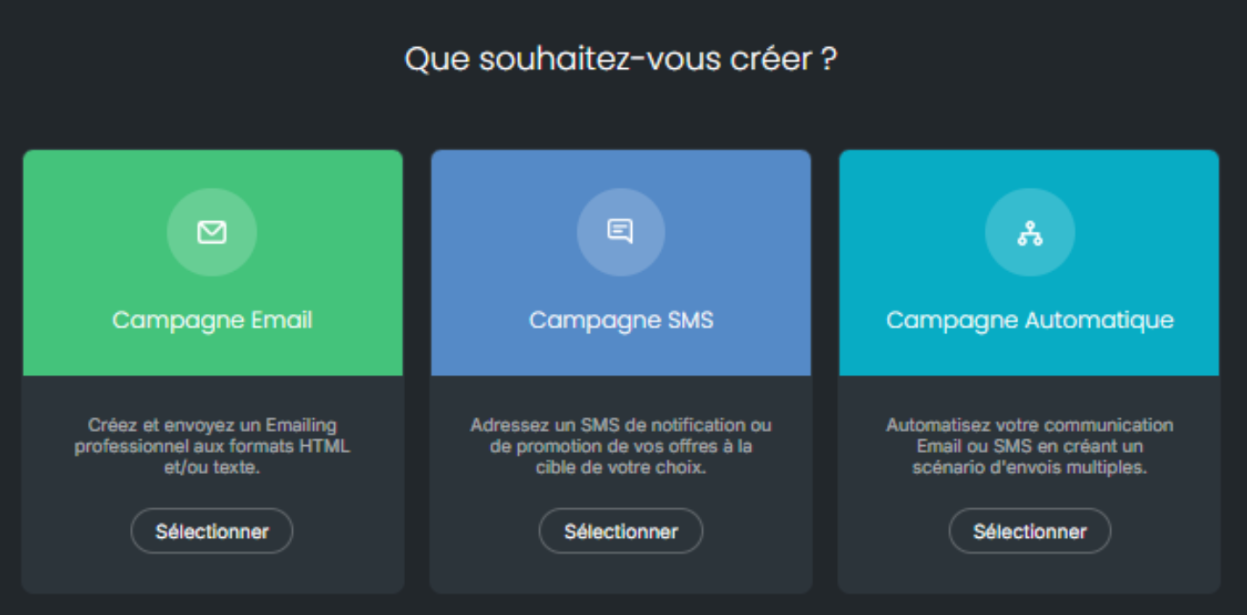
In the window that asks what you want to create, on the Email campaign card, click Select.
At the Recipients step, choose your contacts, or skip this step and come back to it later.
In the top right corner, click Next.
At the Message step, in the left column, open the folder that contains the template: your own templates, Smart Templates, templates received or Sarbacane templates. You can also find it with the search field.
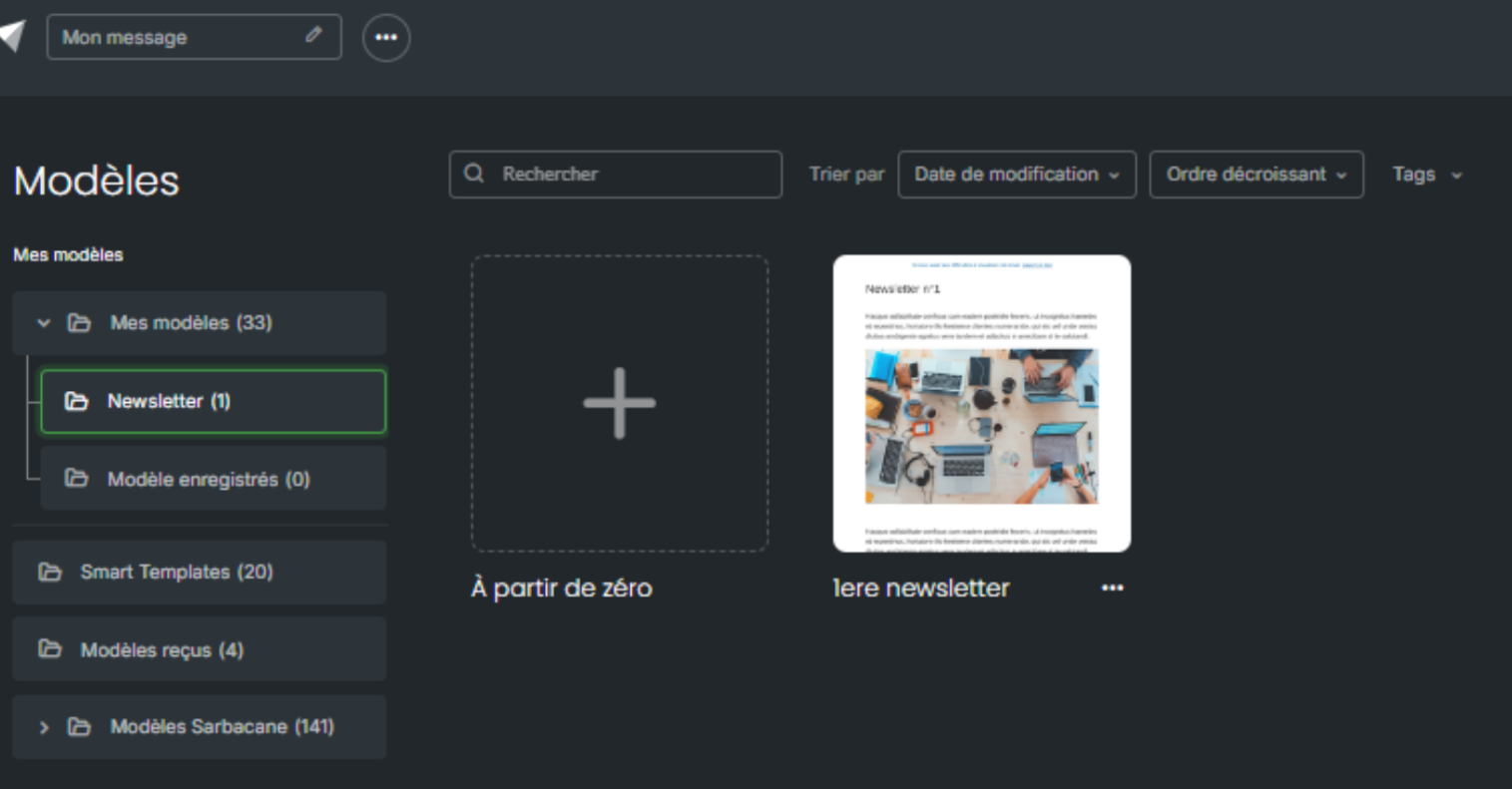
Hover over the template, then click the preview option to check that it suits you.
Hover over the template again, then click the option to use this template.
Edit the content in the editor, then in the top right corner, click Save.
Note: the changes you make in your campaign do not change the original template.
Best practice: to reuse a campaign you have already sent, save it as a template rather than duplicating it.
Note: you can also use a template in the emails of an automated campaign.
The template content appears in your campaign editor. In the top right corner, Next takes you to the checks step.
Check the other folders in the left column, or use the search field with a word from the template name.
If your colleague works on the same Sarbacane account, the template only appears if it is shared with you: ask them to change the sharing settings in Sarbacane Studio (••• menu of the template, sharing management). The templates received folder only contains templates sent from another Sarbacane Suite account.
