In Sarbacane, you can bulk import your contacts' tracking pixel consent when importing your lists. No need to edit each record one by one: name the column in your file pixel, then map it to the system field "Email pixel tracking consent" at the column mapping step.
Before starting the import:
A contacts file (preferably .csv, semicolon separator) with a column dedicated to consent, containing one of these values:
- True / Vrai / 1 / Oui for contacts who accept tracking
- False / Faux / 0 / Non for contacts who refuse it
Access to the Sarbacane Contacts application.
Important: name your consent column "pixel".
The email and phone columns are Sarbacane system columns. A column header containing the word "email" (for example "Email pixel tracking consent" or "Consentement au suivi pixel des emails") is not picked up during the import: the column disappears. Your file must contain only one column named "email" and only one named "phone": otherwise the data may overwrite the system fields.
Note: in Sarbacane, consent is managed through two fields:
→ "Email pixel tracking consent" = Active / Inactive
→ "Pixel tracking consent date" = date of consent, filled in automatically
In Sarbacane, from the Contacts application, start the usual import procedure for your list.
Select your contacts file and choose the "Complete" option.
At the column mapping step, map your pixel column to the system field "Email pixel tracking consent".
Validate and complete the import.
Note: the "Email pixel tracking consent" field is available by default in the mapping selector, just like standard fields such as name or email address.
Important: the consent date is automatically set to the date of the import. You do not need to add it to your file.
From the Contacts application, open the contact list you want to update.
At the top left of the screen, next to the list name, click the 3 dots and export your list.
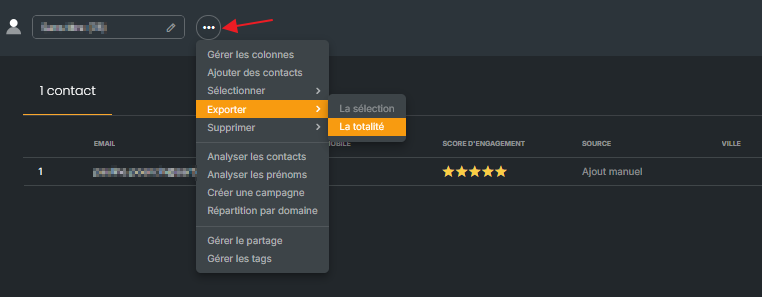
Your export contains the "Email pixel tracking consent" column.
In your spreadsheet, rename this column to "pixel", then update its values (Yes / No). Without this renaming, the column will not be picked up during the import, because its header contains the word "email".
Reopen the list in Sarbacane, click the 3 dots next to its name, then "Add contacts".
Import your file and choose the "Complete" option.
At the column mapping step, map the pixel column to the system field "Email pixel tracking consent".
Validate and complete the import.
Tracking pixel consent is sent using the pixelOptin field, available on contacts. Simply add it to your contact creation or update request:
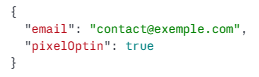
Note: the exact field name is pixelOptin. Any field with a different name (for example optinPixel) is ignored by the API: the request succeeds without error, but the information is not saved on the contact.
The pixelOptinAt field does not need to be filled in: the consent date is set automatically as soon as pixelOptin is provided.
All the fields available on contacts are listed in the developer documentation.
The import completes: created or updated contacts show their consent status, and the import date is associated automatically.
→ How to view and modify tracking pixel consent in Sarbacane?
→ How to manage tracking consent in the Sarbacane contact directory?
→ Sarbacane Contacts: how to import contacts into a list?
