In Sarbacane, the Manage sharing rights feature lets you define who can access your campaigns, contact lists, forms and landing pages. Depending on your role (User, Administrator or Owner), you can share a resource with a whole group or restrict its access to specific users.
To manage the sharing of a resource created by someone else, you must have the Administrator or Owner role on the account.
For a User to share a resource with a group other than their own, an Administrator or the Owner must first turn on this right in their user profile.
Sharing is set resource by resource, in each Sarbacane Suite application:
Sarbacane Campaigns: email campaigns, SMS campaigns and automatic campaigns.
Contacts: standard contact lists, synchronized lists, unsubscribe lists and bounce list.
Sarbacane Forms: forms.
Sarbacane Pages: landing pages.
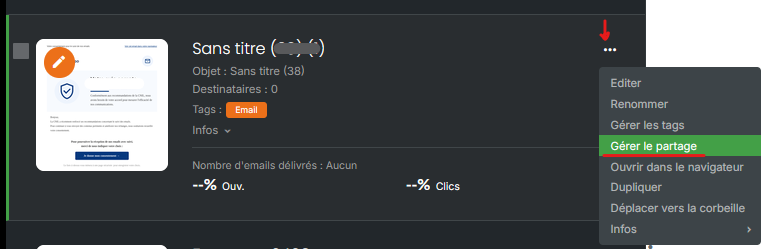
In the relevant application, to the right of the resource name, click the menu (three dots).
Click Manage sharing rights.
In the window that opens, check or uncheck the groups or users who should have access to the resource.
Save your changes.
A message at the top of the page confirms that the changes have been applied. Unchecked groups and users no longer see the resource in their workspace.
Default access: you have access to all the resources of your group.
Resources you create: they are automatically shared with all the users in your group.
Limit: you cannot restrict access to a resource within your own group. The Manage sharing rights option is not visible for your role.
Default access: you have access to all the resources created by all users, whatever their group.
Resources you create: they are shared by default with all groups and all users.
Possible restriction: in the Manage sharing rights window, you can uncheck one or more groups, or select specific users.
With a whole group (group box checked): all current members of the group have access to the resource, as well as future members of the group, automatically.
With a selection of users (group box unchecked): only the checked users have access to the resource. Someone added to the group later will not have access, unless you add them via Manage sharing rights.
This is normal if you have the User role. Only an Administrator or the account Owner can change access to a resource within the same group.
With the User role, sharing with other groups is not turned on by default. Ask an Administrator or the Owner to turn it on in your user profile, from Manage users.
