The Email Builder is an email editor designed by Sarbacane to simplify the creation of email campaigns and newsletters.
The ease of use of the Email Builder is based on the fact that you do not need technical skills in HTML or CSS to create an attractive, responsive, and effective email campaign.
A simple drag and drop feature allows you to add your content, text, and images, and format them effortlessly. Almost everything is configurable and customizable: graphic style, colors, spacing, borders, and typography.
When you create an email campaign from Sarbacane Campaigns, whether you choose to start from an existing template, a Sarbacane template, a Smart Template, or a blank page, you are redirected to the Editing step in the "Message" section of your campaign. It is during this step that you will be able to use the Email Builder and customize your email campaign.
Note: if you choose HTML file import as your creation method, you will be redirected to the Sarbacane HTML editor instead of the Email Builder.
The editing screen consists of 3 zones:
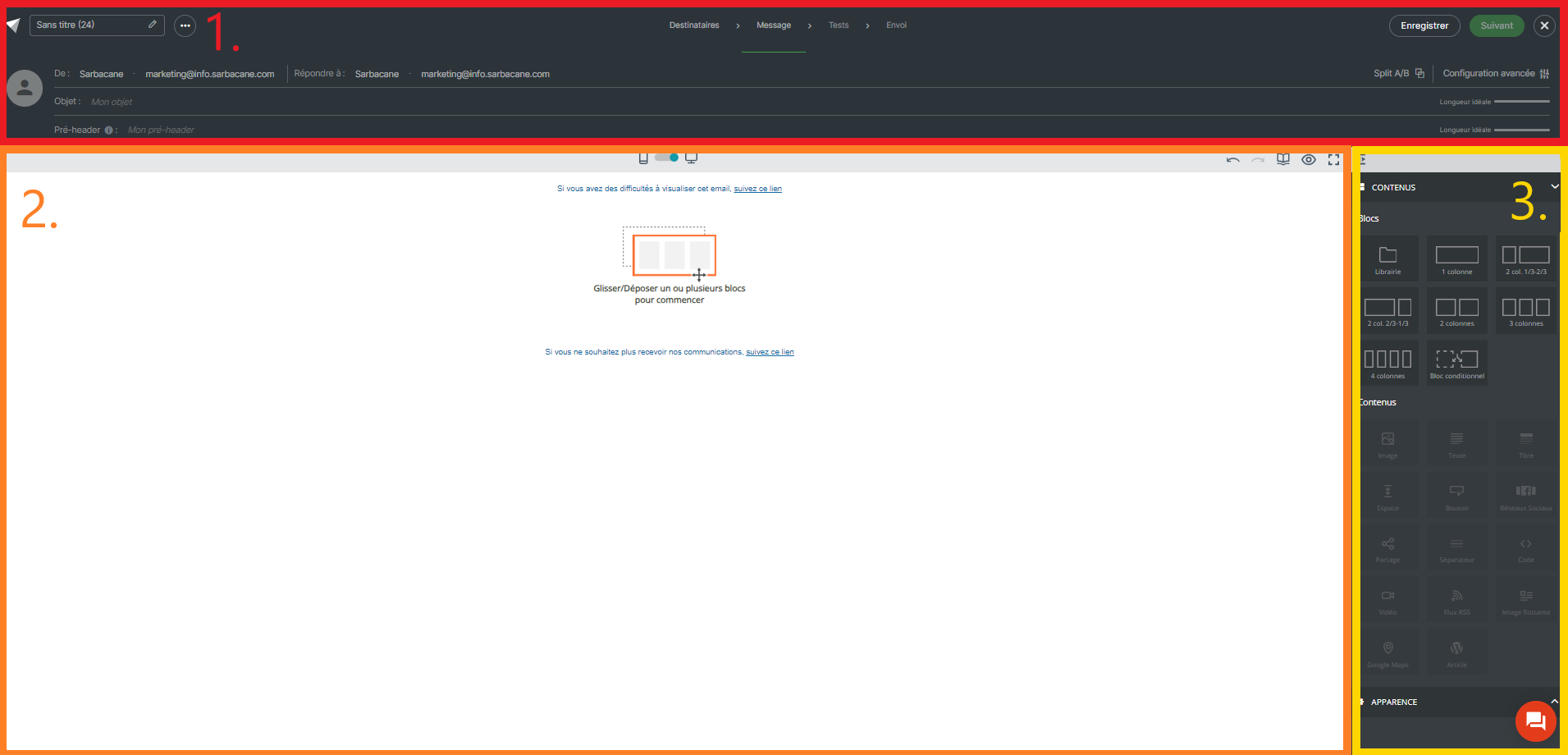
The upper section, which allows you to manage your email header: subject, preheader, sender, attachments, etc. Learn more about campaign headers.
The workspace, which allows you to build your email and preview its rendering in desktop and mobile versions.
The right panel, which allows you to select formatting options, blocks, or content to drag and drop onto the workspace.
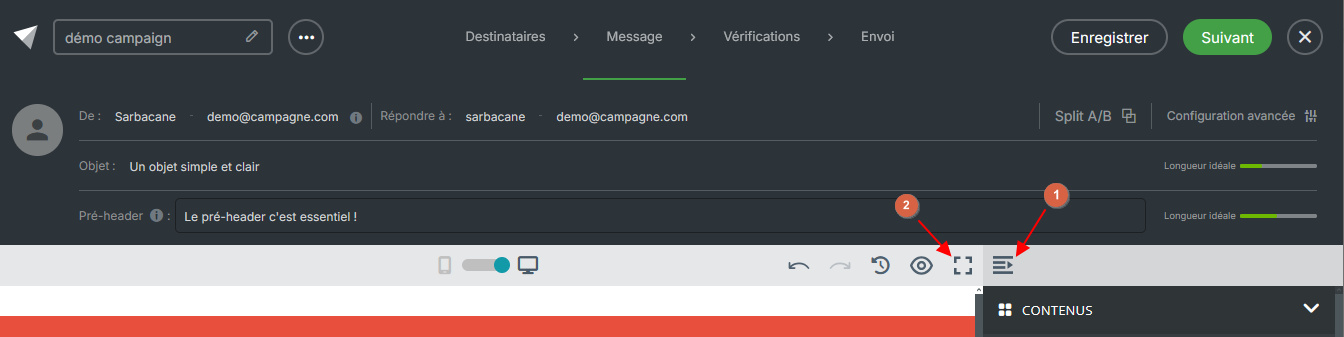
You can increase the size of your workspace to improve usability. Click this button, located at the top of the right panel, to collapse the panel (1). This action is reversible by clicking the same button again.
Increase the height of your workspace by switching to fullscreen mode (2). Click this button, located at the top right of your workspace, to hide the left column and the header bar.
By default, your workspace display mode is in desktop version, meaning you view your email as if it were being viewed on a computer.
You can view the rendering of your email in smartphone version by clicking the switch button located above your workspace.

To discover all features concerning the responsive mode of your campaigns, follow this link.
This panel allows you to select your blocks and your contents. To create your email, you must first select your block that will accommodate your contents. To do this, you have a choice between many blocks, including:
Blocks previously saved by you within the Library.
Column blocks, offering from 1 column to 4 columns.
The conditional block, a block through which you can define multiple versions of content. Each of these versions will be displayed based on rules that you define using data from your recipient list. To learn more about conditional blocks, you can refer to the dedicated article.
Once your block is selected and placed on your workspace, you can insert content, including:
Image, Text, Title, Space, Button (CTA), Social Networks, Share, Separator, Code, Video, RSS Feed, Floating Image, Google Maps, WordPress Article.
