
Do you not have time to read the entire user guide before creating your first email campaign? We have prepared a short guide summarizing the key information so that you can create your very first email campaign with Sarbacane Campaigns.
Prerequisite necessary for sending a marketing SMS
Have a license providing access to Sarbacane Campaigns
You must have a license that provides access to Sarbacane Campaigns in order to send an SMS marketing campaign. Two licenses give you access to this application: the Sarbacane Suite license (which gives you access to all the applications in the Suite) or the Campaigns license (which gives you access only to the Campaigns and Contacts applications).
Here are some resources that will help you understand what a license is and how to obtain one:
Have SMS routing credits
You must have SMS routing credits in order to start sending SMS campaigns.
You can purchase them from your account settings, then scroll down to the “Consumption” section at the bottom of the page showing an overview of your current plan.
Create your SMS marketing campaign
From the Sarbacane home screen, go to the Campaigns application. You are then redirected to the Sarbacane Campaigns home page.
To create an email campaign, click on the “Create” button in the “Create a new campaign” box or click on the small red “+” in the left side menu, then on “Create a campaign”.

Click on “Select” in the “SMS campaign” box.
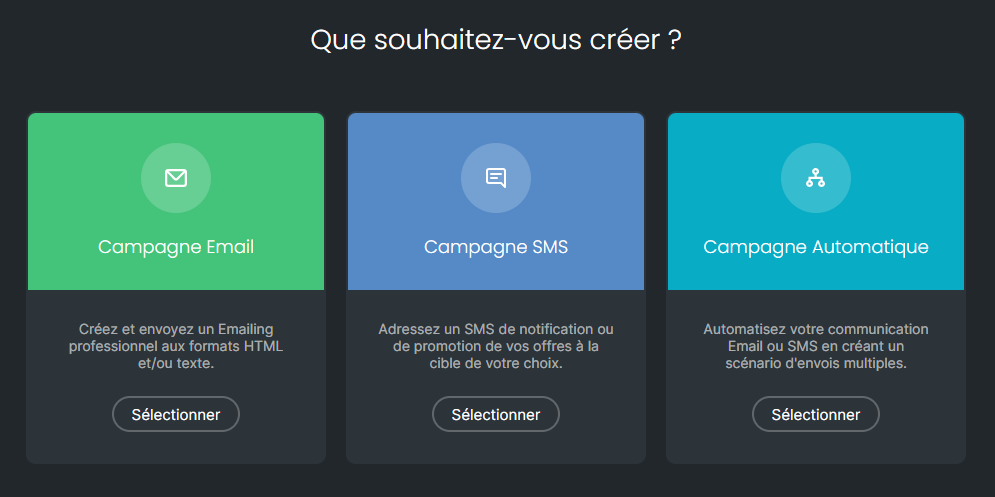
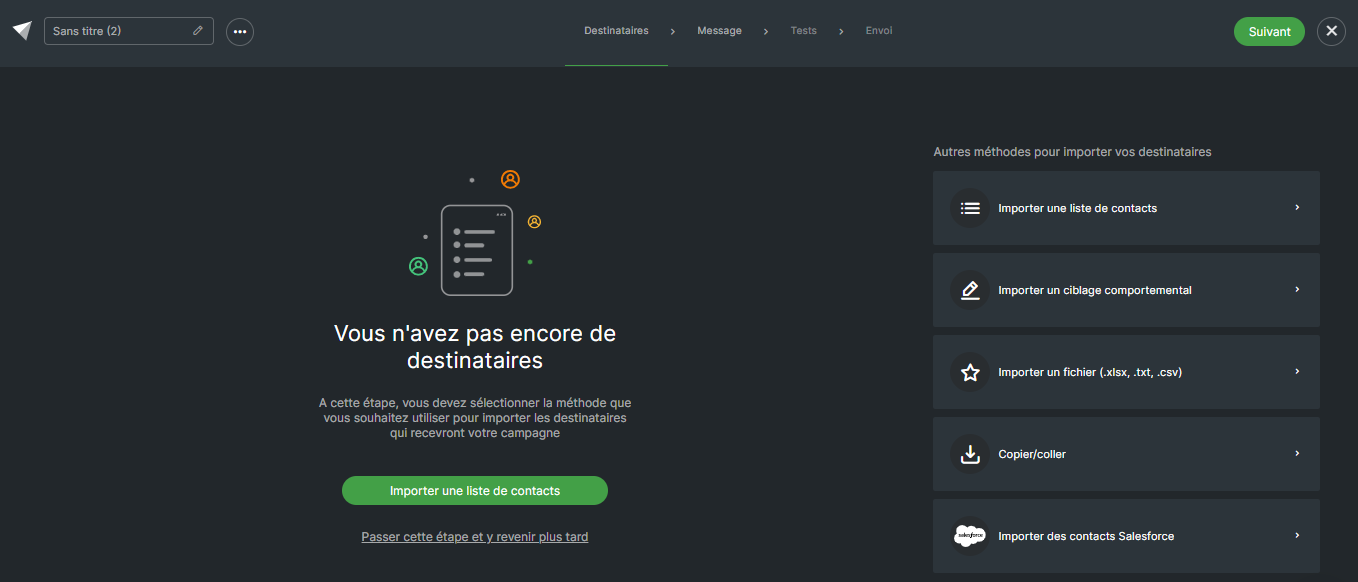
You are then redirected to the first step of campaign creation: importing contacts. From this step, you can perform several actions:
Name your campaign using the input field at the top left
Assign tags to your campaign (accessible via the “properties” section of the action menu to the right of your campaign name)
Define the sharing options for the campaign (accessible via the “properties” section of the action menu to the right of your campaign name)
View and navigate the breadcrumb trail representing the steps for creating your SMS campaign (visible and accessible at each step of creation)
Recipients to import your contacts
Message to create the content of your SMS
Tests to test your SMS campaign before sending
Sending to choose the method with which you wish to send your campaign
Import your contacts
The first step is dedicated to importing your contacts into your SMS campaign. You can import them in different ways:
Import a contact list if you have already created a list in the Sarbacane Contacts application beforehand.
Import behavioral targeting based on the behavior of your contacts in relation to your previously sent campaigns (send to openers or clickers of a specific campaign).
Import a file in xslx, txt or csv format. Note that, to ensure optimal processing of your import, we recommend using txt or csv formats.
Copy / paste a list of addresses. Note that, if you wish to copy and paste other columns along with your address list, the accepted separators are “,” or “;” or tabulations.
Other import methods may be displayed depending on the connectors available on your account (Salesforce or others)
Once your import method has been selected, you can view your list of recipients in the form of a table and make any adjustments and analyses you wish.
Create the content of your SMS campaign
Select the type of SMS campaign you wish to create
In the right-hand side menu, you can choose the type of campaign you wish to create: marketing or notification (this will notably determine whether a STOP Notice is added at the end of your message).
Write the content of your SMS
Enter the content of your message directly in the area provided for this purpose, directly in the smartphone displayed on your screen.
As a reminder, an SMS contains 160 characters, which is equivalent to one SMS routing credit. You can send messages with more than 160 characters. However, you will be charged 1 or 2 additional credits depending on the length of your message. It may contain a maximum of 450 characters. Keep in mind that certain links, dynamic fields, the word STOP, or special characters may consume more characters and cause you to use more credits than expected.
You can choose to customize the sender of your SMS (that is, display your brand name as the sender) or keep the default sender (in that case, a short number will be displayed instead of the sender name).
You can link a form or a landing page to your SMS by inserting a link to them. Your SMS then becomes an enriched SMS, which will not affect the cost of your campaign.
Test your SMS campaign
Before sending a marketing SMS or a notification, it is strongly recommended to run tests to ensure that the message is displayed correctly and that your link works (if you have added one to your campaign).
Checks offered by Sarbacane Campaigns
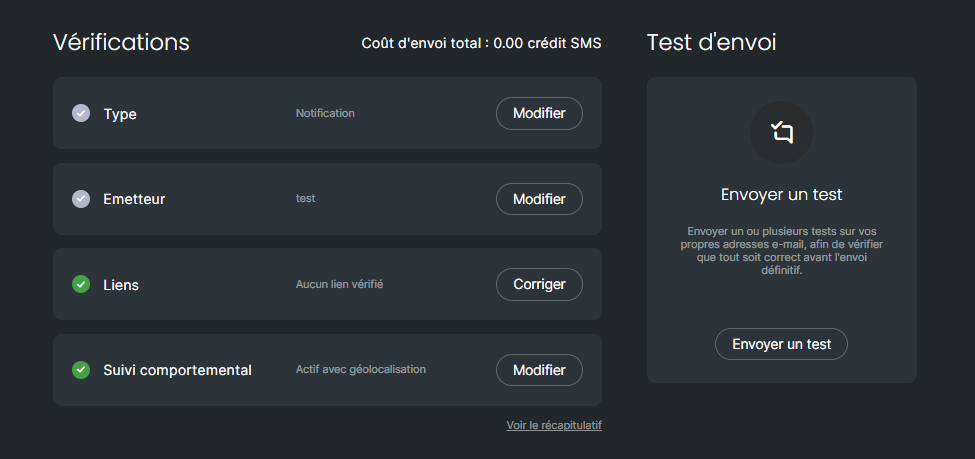
Sarbacane Campaigns provides you with a list of checks to perform before sending your message to remind you of the important elements not to forget:
Check the type of campaign sent (marketing or notification)
View and/or modify the sender name you have configured
Ensure that all your links work correctly
Check your tracking settings (activation/deactivation of behavioral tracking, geolocation, and tracking of your campaigns in Google Analytics)
Send yourself a test
Once the initial checks have been completed, make sure that everything is working correctly by sending your SMS campaign to yourself and to other colleagues. To do this, click on the “Send a test” button in the box on the right-hand side of your screen at the “Test” step.
Then enter the telephone numbers on which you wish to perform tests.
Send your SMS campaign
Once you are ready, you can choose to send your SMS in different ways:
Immediate sending: send your campaign immediately
Deferred sending: schedule the sending of your campaign on the date and at the time of your choice
Staggered sending: split your sending into small batches at the pace of your choice – an ideal option for keeping control over your teams’ workload