To create an SMS campaign in Sarbacane Campaigns, import your contacts, write your message, set the SMS type and sender, send yourself a test, then send or schedule the campaign. Allow ten steps.
A Sarbacane Campaigns license.
SMS credits: you can create a campaign without credits, but you can't send it.
Mobile numbers: a landline number can't receive SMS messages.
In Sarbacane Campaigns, click Create a campaign, then choose SMS campaign.
Import your contacts, then click Next. For details about the import methods and the Contact analysis window, see the article How to import contacts into a Sarbacane SMS campaign?
You will arrive at the Message step, shown in the breadcrumb at the top of the screen. Write your SMS in the phone-shaped preview. The settings panel on the right lets you set the SMS type and sender, and indicates whether a link is already in place.
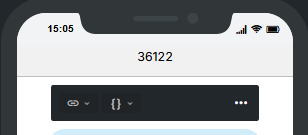
Optional: in the toolbar above the message in the phone-shaped preview, click the chain-link icon (Insert a link). Choose the destination (an external webpage, a Sarbacane form, or a Sarbacane landing page), then enter the URL. The link is tracked automatically, so you'll know who clicked. For details, see the article How to add a link to an SMS campaign in Sarbacane?.
Note: you cannot insert an image into an SMS. To display a visual, add a link to a landing page or web page.
Optional: right next to the link icon, click the braces icon { } to insert a personalization field (first name, last name, or any other data from your contact list).
In the panel on the right, under SMS type, choose Marketing (promotional message: offer, invitation, survey…) or Notification (purely informational message: appointment or order confirmation…).
Note: for marketing SMS, opting out is mandatory. With a Custom sender, the STOP SMS notice is automatically added to your message. With the Standard number, your recipients reply STOP directly to the number. Messages are sent Monday to Saturday, from 8 a.m. to 8 p.m., excluding public holidays: an SMS scheduled outside these hours is sent during the next permitted time slot.
In the panel on the right, check the character counter. The cost per contact depends on the length of the message:
up to 160 characters: 1 credit;
from 161 to 300 characters: 2 credits;
from 301 to 450 characters (the maximum): 3 credits.
If your message contains an unsupported character (such as “ê”), Sarbacane will flag it and offer to replace it.
Under Sender, select an option:
Standard number: a number assigned automatically. Your recipients can reply, and their responses will appear in the statistics.
Custom: a name of 3 to 11 simple characters, with no spaces or special characters. Your recipients cannot reply. For marketing SMS, the STOP SMS notice adds 11 characters to your message. If the name you choose is a protected brand, a brand declaration is required.
Go to the Review step: check the SMS type, sender and link, then click Send a test to receive the SMS on your phone.
Caution : an SMS that has been sent cannot be cancelled or edited. Check your test before sending.
At the Send step, choose Send immediately, Schedule send (for the date and time of your choice) or Send in batches (in small batches, to optimise the delivery rate).
Note : to the right of the preview toolbar, the “•••” menu gives you access to additional settings: Statistics (enable or disable click tracking), URL domain (the domain used to shorten your link), Unsubscribe list and Start over (erases the entire message).
The campaign appears in My campaigns, sent or scheduled.
Your SMS credit balance is probably insufficient. You can create a campaign without credits, but you can't send it without them.
Check these in order:
Length: 1 credit for up to 160 characters, 2 credits for 161 to 300, 3 credits for 301 to 450.
Double-width characters, such as €, [ ] or { }, which count as two. See Why does Sarbacane block certain characters in my SMS?.
The STOP SMS notice: with a Custom sender for marketing SMS, it adds 11 characters to your message. With the Standard number, it isn't added.
Destination country: an SMS sent abroad may cost more credits.
Marketing SMS messages are sent Monday through Saturday, from 8 a.m. to 8 p.m., excluding public holidays. Your SMS isn't lost: it will be sent in the next permitted time slot.
You have chosen a Custom sender. To receive replies, choose Standard number.
